Chapter 10 Custom configuration
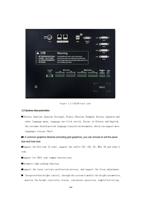
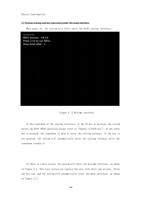
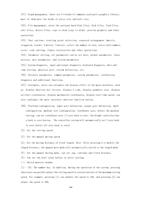
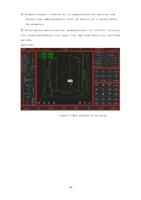
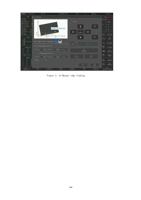
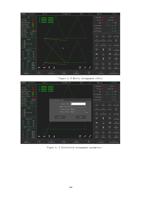
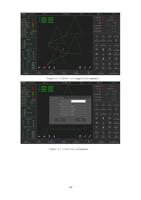
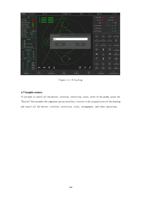
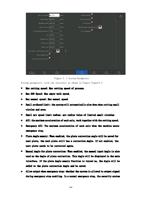
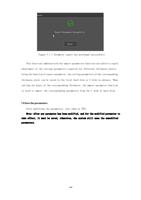
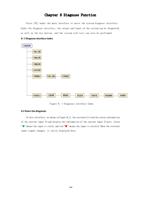
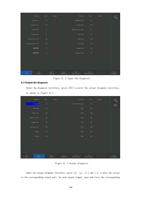
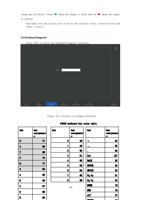
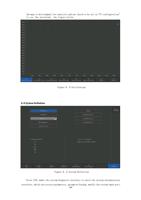
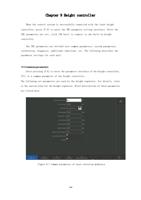
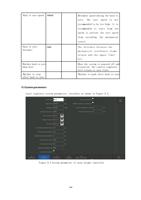
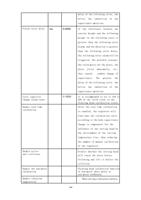
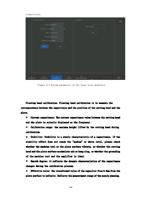
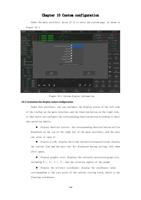
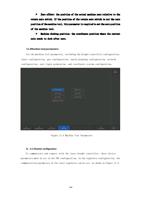
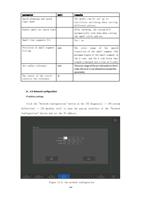
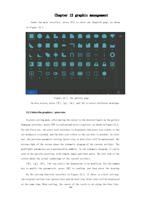
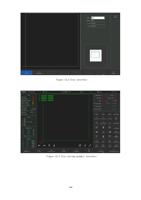
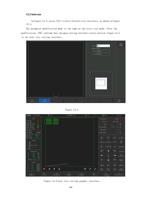
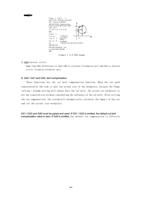
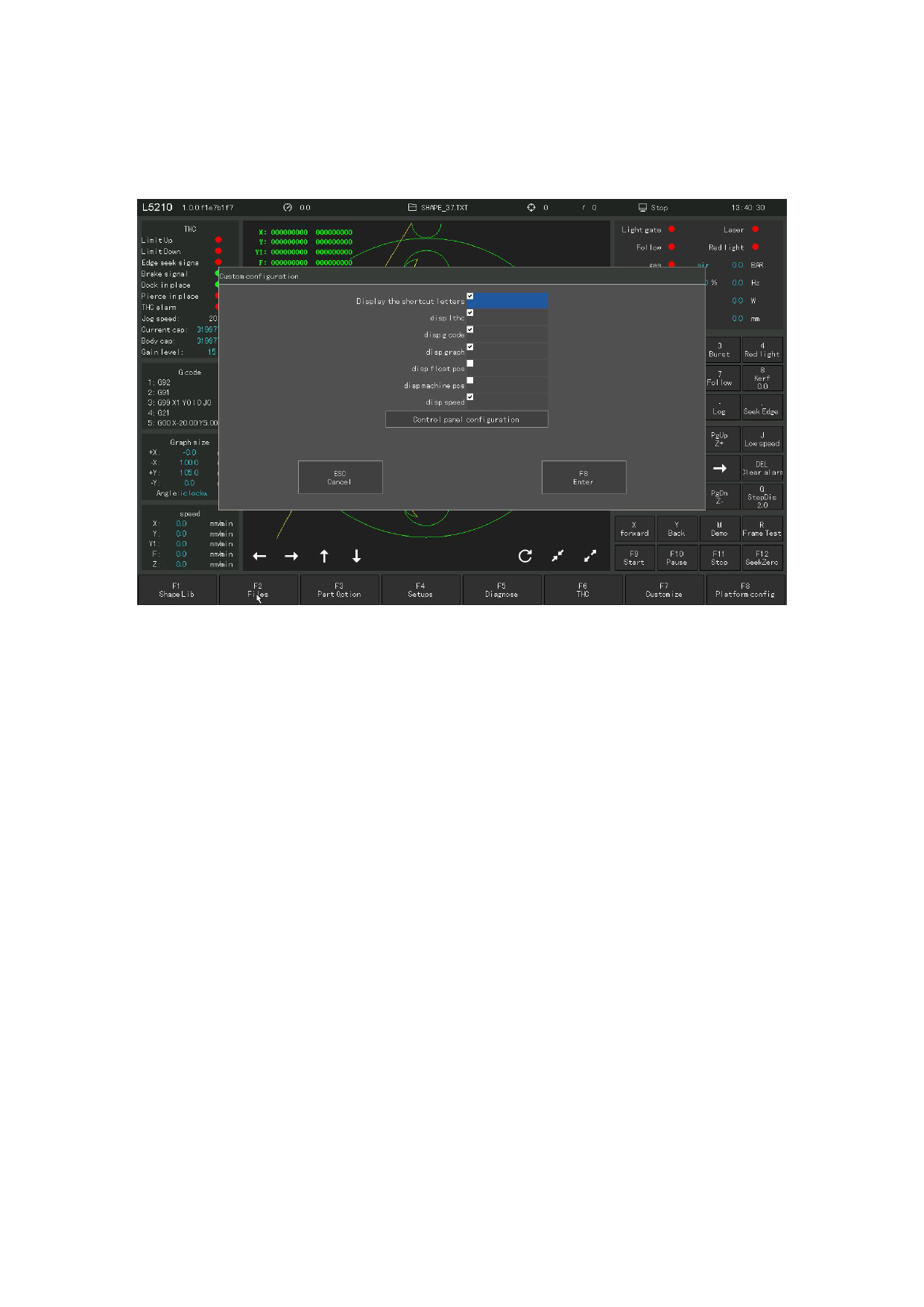
Under the main interface, press [F 7] to enter the custom page, as shown in
Figure 10.1.
Figure 10.1 Custom display information
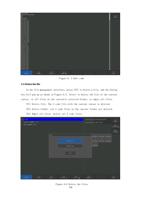
10.1 Customize the display status configuration
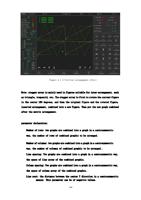
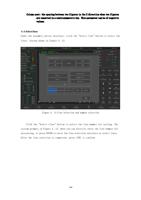
Under this interface, you can customize the display status of the left side
of the toolbar on the main interface and the function button on the right side,
so that users can configure the corresponding function button according to their
own operation habits.
Display shortcut letters: the corresponding shortcut button will be
displayed on the top of the right bar of the main interface, and the user
can close or open it.
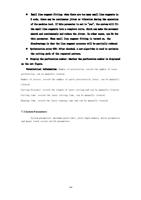
Display G code: display the G code currently being processed, display
the current line and the next row. Not displayed during cutting, only show
after pause.
Display graphic size: displays the currently processed graph size,
including X +, X-, Y +, Y-, and the rotation angles of the graph.
Display the artifact coordinate: display the coordinate value
corresponding to the zero point of the current cutting torch, which is the
floating coordinate.
110