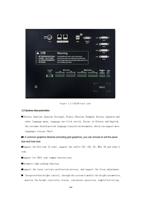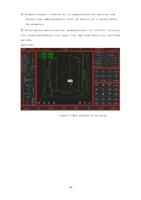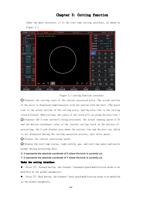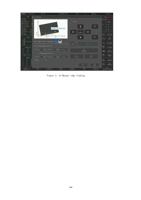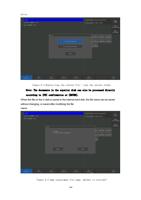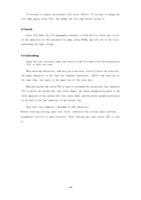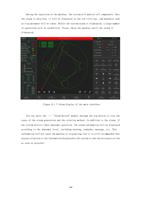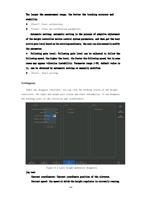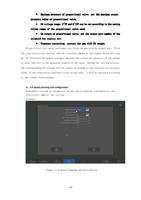
At this time, the processing graphics will be enlarged in full screen and can be tracked
dynamically.
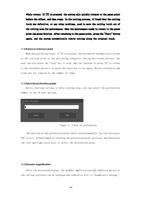
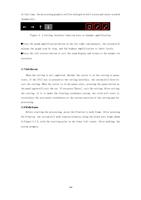
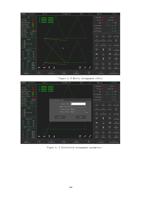
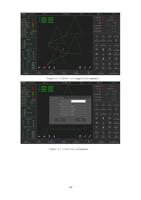
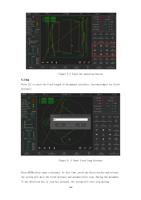
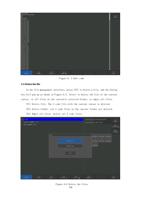
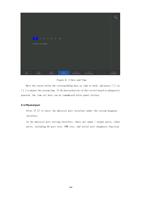
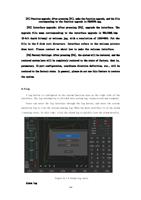
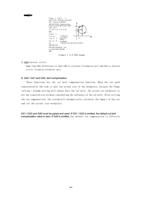
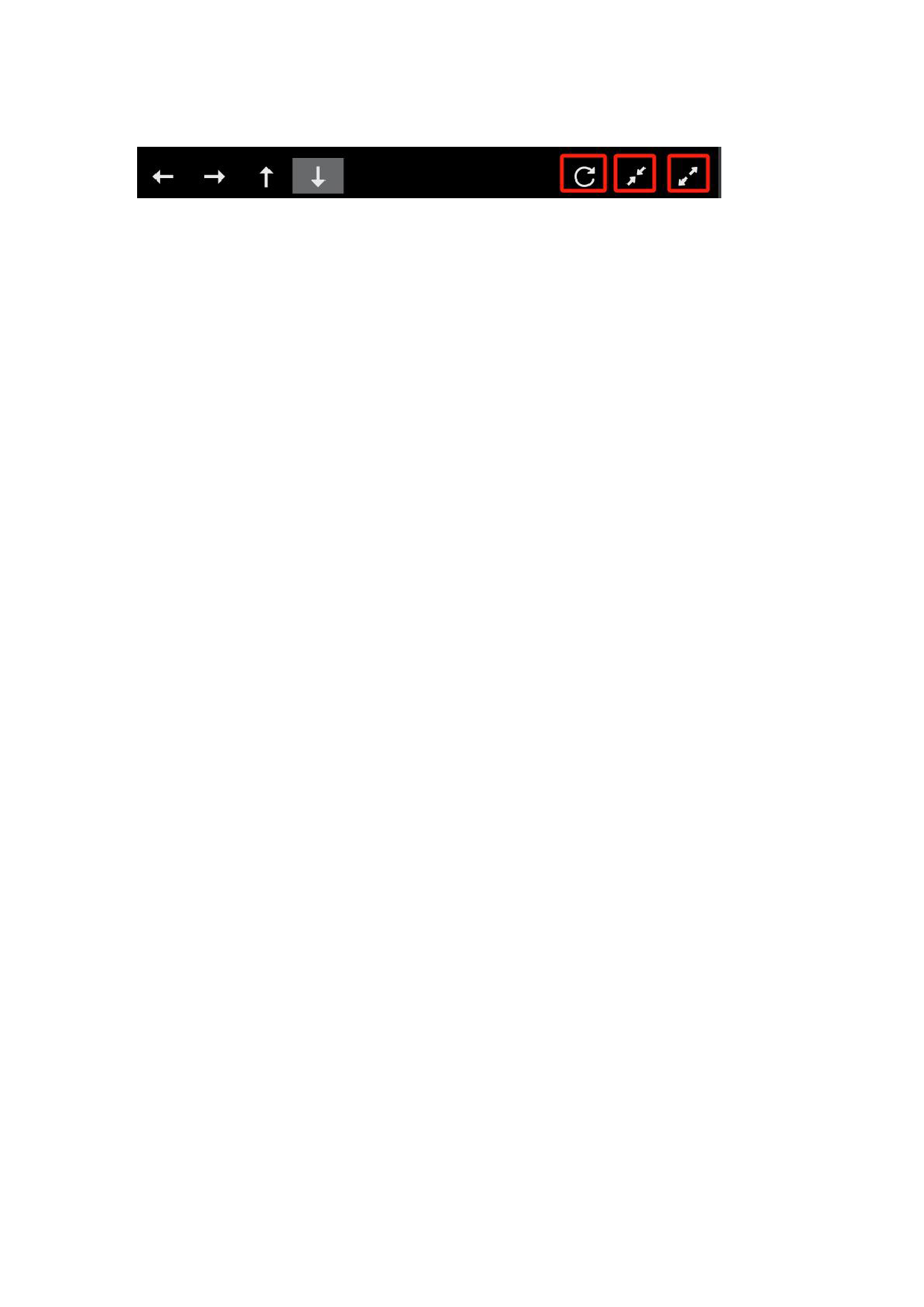
Figure 3. 4 Cutting interface function keys at dynamic amplification
Press the graph amplification button on the far right continuously, the system will
enlarge the graph step by step, and the highest amplification to three levels.
Press the left restore button to exit the zoom display and return to the normal cut
interface.
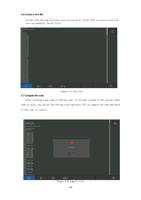
3. 7 Exit the cut
When the cutting is not completed, whether the cutter is in the cutting or pause
state, if the [F11] key is pressed at the cutting interface, the system will directly
exit the cutting. When the cutter is in the pause state, pressing the pause button on
the panel again will exit the cut. If you press [Enter], exit the cutting. After exiting
the cutting, if it is under the floating coordinate system, the click will start to
recalculate the zero-point coordinates at the current position of the cutting gun for
processing.
3. 8 Walk frame
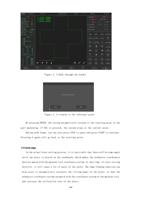
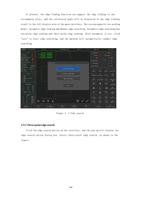
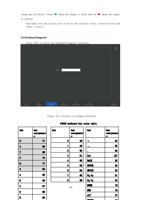
Before starting the processing, press the R button to walk frame. After pressing
the R button, the system will walk counterclockwise along the black wire frame shown
in Figure 3.1 0, with the starting point in the lower left corner. After walking, the
system prompts:
110