成都兴多维科技有限公司
Chengdu multidimensional robotization technology company
Quantity mode: Click the circle to the left of the quantity mode
to select the quantity mode. This mode means to set a specified
number of breakpoints for the selected straight curve. The distance
of each breakpoint is equidistant. The number of users can be in the
lower frame. Settings.
Manual mode: Click the circle on the left side of the manual mode
to select the manual mode. After selecting the bridge width, you can
edit it in the view box on the left. After moving the mouse over the
line, a circular box icon will appear, with the circle contained in
it indicating that this is the path that will be eliminated. It can
be eliminated with a mouse click, and the user can use the mouse
wheel to zoom in the view. You can also use the shortcut key
Ctrl+mouse wheel to move the interface up and down; the shortcut key
Shift+mouse wheel to move the interface left and right.
After completing the settings, click [OK] below
The
processed graphics will be applied to the drawing; if you need to
cancel the bridge operation, click [Cancel]
.
6.1.2.13 Chamfer
Click [Chamfer]
, Ability to enter the
chamfer function. After clicking, the mouse will become a cross.
Click on an edge that requires chamfering, then move the mouse to
the other side of the corner, and you can preview the image after the
corner chamfer in the view box. The radius of the chamfer can be set
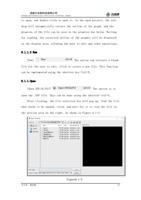
at the top of the re-view frame, as shown in Figure 6.1-10:
兴于思 维至精
82