成都兴多维科技有限公司
Chengdu multidimensional robotization technology company
are selected, and the center position can be selected by mouse
movement. The X and Y coordinates of the center of the circle can
also be input through the coordinate input box above the drawing to
complete the precise positioning. After setting the center of the
circle, you can confirm the radius by the movement of the mouse. You
can also enter the radius of the target circle through the radius
input box above the drawing.
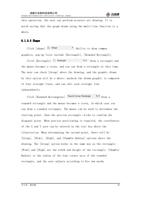
6.1.3.4 Multi-lin
Click [Multi-line]
Multi-line drawing menu
will pop up, including [Draw multi-line segments].
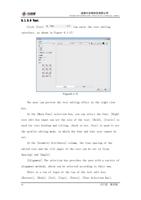
Click [Draw on the segment line]
The mouse
becomes a cross, starts drawing multiple lines, and clicks the mouse
to determine each point. Ability to set multi-line on top of the
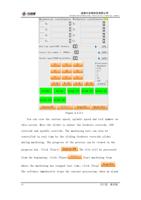
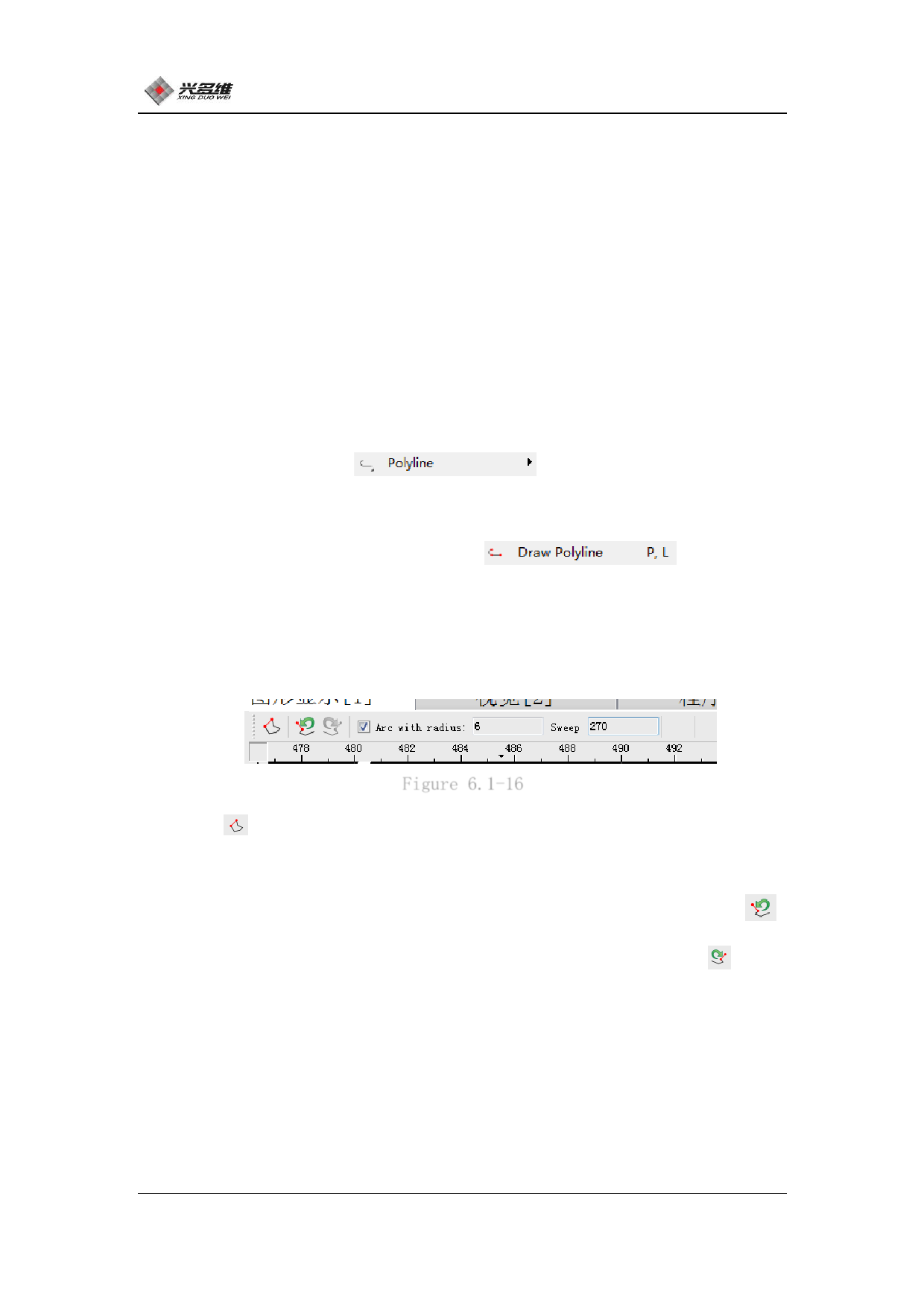
drawing, as shown in Figure 6.1-16:
Figure 6.1-16
Icon Indicates that the graphic is closed. Clicking on the
function will directly lead a line segment from the end point to
connect with the starting point to complete the graphic closure;
Indicates that the multi-line operation is revoked, the icon
Indicates to redo a multi-line operation; check [Arc with radius] to
draw from a straight line to an arc, the radius of the arc is the
value filled in by the user; the user can Use the mouse to confirm
the center angle of the arc segment. You can also set the center
angle of the arc by [Sweep] and fill in the data at the back. With
89
兴于思 维至精