5.2.3 Check file
成都兴多维科技有限公司
Chengdu multidimensional robotization technology company
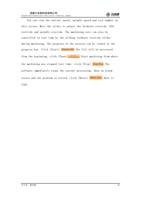
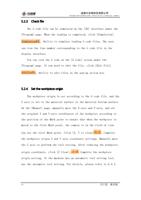
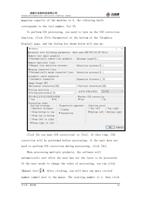
The G code file can be simulated on the [3D] interface under the
[Program] page. When the loading is completed, click [Simulation]
, Ability to simulate loading G code files. The user
can view the line number corresponding to the G code file in the
display interface.
You can view the G code on the [G Code] screen under the
[Program] page. If you need to edit the file, click [Edit File].
, Ability to edit files in the pop-up action box.
5.2.4 Set the workpiece origin
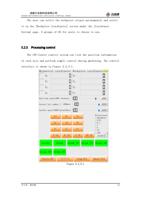
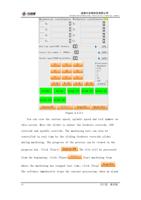
The workpiece origin is set according to the G code file, and the
Z axis is set to the material surface or the material bottom surface.
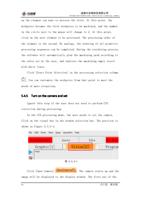
On the [Manual] page, manually move the X-axis and Y-axis, and set
the original X and Y-axis coordinates of the workpiece according to
the position of the Mark point to ensure that when the workpiece is
moved to the first Mark point, the camera is in the field of view.
Can see the first Mark point. Click [X, Y to clear] , Complete
the workpiece origin X and Y axis coordinate settings. Manually move
the Z axis to perform the tool setting. After reducing the workpiece
origin coordinate, click [Z Clear].
Complete the workpiece
origin setting. If the machine has an automatic tool setting tool,
use the automatic tool setting. For details, please refer to 6.4.3.
51
兴于思 维至精