- You are here:
- AM.CO.ZABuythisCNC Utilities Homepage
- EasyRoute-CNC-Router
- EasyRoute CNC Control Panel Manufacture Manual.pdf
- Page 93 of 114
Specialized Concentrated Focused
9. System Update
NK105G2/G3 can be used directly since the software has already been well installed before
delivered. In case of breakdown, update the system.
9.1. Software Update
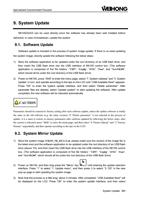
Software update is included in the process of system image update. If there is no need updating
the system image, directly update the software following the below steps:
1) Store the software application to be updated under the root directory of an USB flash drive, and
then insert the USB flash drive into the USB interface of NK105 control box. (The software
application is composed of five file folders—“CHN”, “Config”, “ENG”, “Font”, and “NewNK200”,
which should all be under the root directory of the USB flash drive)
2) Power on NK105, press “Shift” to enter the menu page, select “7. System Upkeep” and “3. System
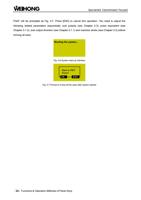
Update” in turn, and operate according to the tips on the LCD until “USB Available Now!” appears.
Press “OK” to enter the system update interface, and then select “Delete parameter”. After
parameter files are deleted, select “Update system” to start updating the software. After update
completed, the new software will be rebooted automatically.
CAUTION
Parameters should be restored to factory setting after each software update, unless the update software is totally
the same as the old software (e.g. the same version). If “Delete parameter” is not selected in the process of
update, it is a must to restore ex-factory parameters after software updated by following the below steps: after
the system is rebooted, press “Shift” to enter the menu page; and then select “6. Param Upkeep” and “3. Factory
Params” sequentially, and then operate according to the tips on the LCD.
9.2. System Mirror Update
1) Store the system image (NK105_NK_RX.X.X.nb, please make sure the version of the image file is
the latest one) and the software application to be updated under the root directory of an USB flash
drive (above 1G), and then insert the USB flash drive into the USB interface of the NK105 control
box. (The software application is composed of five file folders—“CHN”, “Config”, “ENG”, “Font”,
and “NewNK200”, which should all be under the root directory of the USB flash drive)
2) Power on NK105, and then long press the “Menu” key
until entering the update selection
interface. Press “1” to select “1: Update menu”, and then press 3 to select “3: OS” in the new
pop-up page to start updating the system image.
3) Note that this process is a little long, about 3 minutes. After completed, “USB Available Now!” will
be displayed on the LCD. Press “OK” to enter the system update interface, and then select
System Update「81」