- You are here:
- AM.CO.ZABuythisCNC Utilities Homepage
- EasyRoute-CNC-Router
- EasyRoute CNC Control Panel Manufacture Manual.pdf
- Page 55 of 114

Specialized Concentrated Focused
6.3.5.
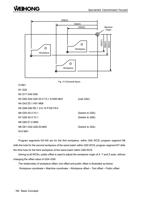
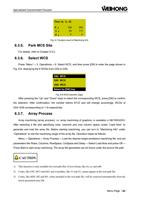
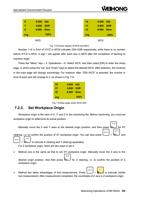
Time: 0:1:42
X :
108
205
Y :
20
117
Z :
0
5
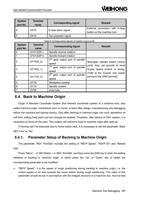
Fig. 6-7 Analytic result of Machining Info
Park MCS Site
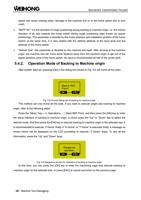
For details, refer to Chapter 5.5.2.
6.3.6. Select WCS
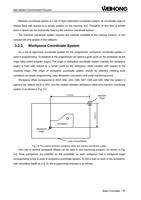
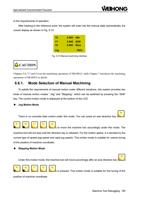
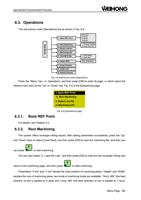
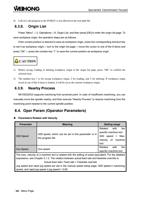
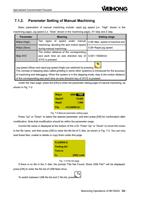
Press “Menu”→ 3. Operations→ 6. Select WCS, and then press [OK] to enter the page shown in
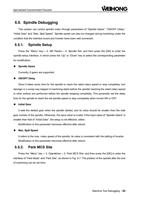
Fig. 6-8, displaying the 6 WCSs from G54 to G59.
G54 WCS
G55 WCS
G56 WCS
Select by [OK] key
Fig. 6-8 WCS selection page
After pressing the “Up” and “Down” keys to select the corresponding WCS, press [OK] to confirm
the selection. After confirmation, the number before X/Y/Z axis will change accordingly, WCSs of
G54~G59 corresponding to 1~6 respectively.
6.3.7. Array Process
Array machining (array process), i.e. array machining of graphics, is available in NK105G2/G3.
After selecting a file and specifying rows, columns and row/ column space, press “Load Now” to
generate and load the array file. Before starting machining, you can turn to “Machining Info” under
“Operations” to see the machining range of the array file. Operation steps as follows:
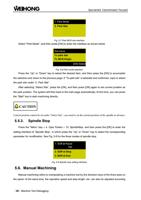
Menu→ Operations→ Array Process→ Load the desired single-workpiece machining file, and set
parameters like Rows, Columns, RowSpace, ColSpace and Delay→ Select Load Now and press OK→
Press Start to start array machining. The array file generated can be found under the source file path.
CAUTION
1) This function is only available for tool path files of text format, like txt, nc and u00.
2) Codes, like G92, M17 and G65, and #variables, like #1 and #2, cannot appear in the tool path file.
3) Codes, like M30, M2 and M1, when included in the tool path file, will be removed automatically from the
newly generated array file.
Menu Page「43」