- You are here:
- AM.CO.ZABuythisCNC Utilities Homepage
- EasyRoute-CNC-Router
- EasyRoute CNC Control Panel Manufacture Manual.pdf
- Page 46 of 114
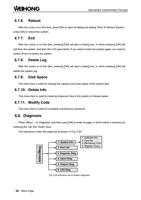
Specialized Concentrated Focused
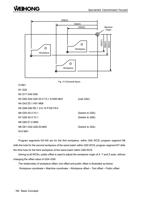
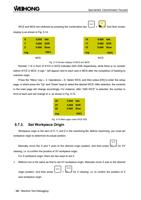
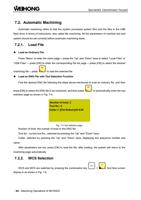
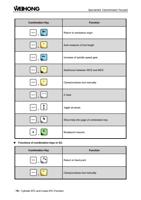
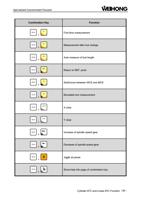
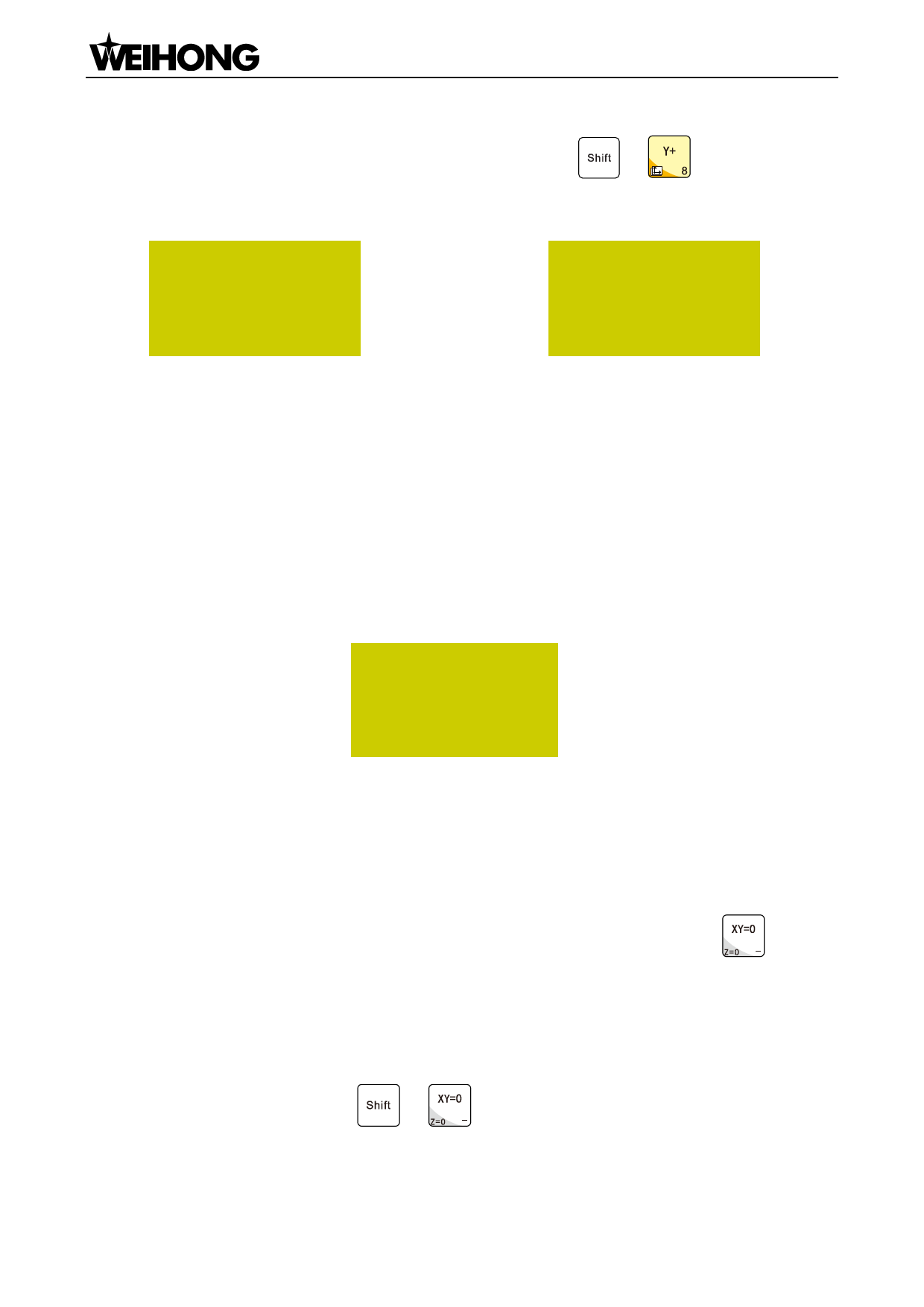
WCS and MCS are switched by pressing the combination key
display is as shown in Fig. 5-14.
+
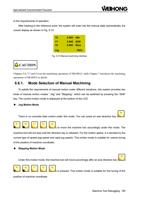
. And their screen
X
0.000 Idle
Y
0.000 SOff
Z
0.000 Slow
1X
0.000 Idle
1Y
0.000 SOff
1Z
0.000 Slow
Jog
100%
Jog
100%
MCS
WCS
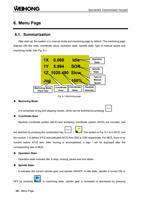
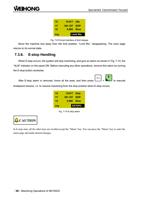
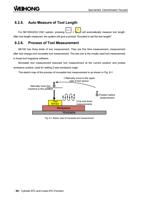
Fig. 5-14 Screen display of WCS and MCS
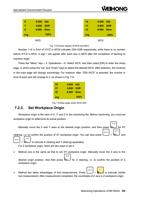
Number 1~6 in front of X/Y/Z in WCS indicates G54~G59 respectively, while there is no number
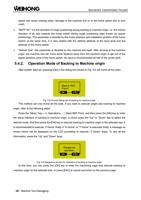
before X/Y/Z in MCS. A sign * will appear next to each axis in MCS after the completion of backing to
machine origin.
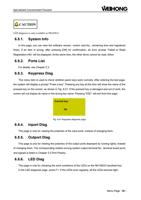
Press the “Menu” key→ 3. Operations→ 6. Select WCS, and then press [OK] to enter the setup
page, in which press the “Up” and “Down” keys to select the desired WCS. After selection, the contents
in the main page will change accordingly. For instance, after “G55 WCS” is selected, the number in
front of each axis will change to 2, as shown in Fig. 5-15.
2X
0.000 Idle
2Y
0.000 SOff
2Z
0.000 Slow
Jog
100%
5.7.3.
Fig. 5-15 Main page under WCS G55
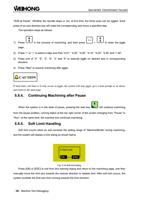
Set Workpiece Origin
Workpiece origin is the zero of X, Y, and Z in the machining file. Before machining, you must set
workpiece origin to determine its actual position.
Manually move the X and Y axes to the desired origin position, and then press
for XY
clearing, i.e. to confirm the position of XY workpiece origin.
For Z workpiece origin, there are two ways to set it:
Method one is the same as that to set XY workpiece origin. Manually move Z axis to the desired
origin position. And then press
+
for Z clearing, i.e. to confirm the position of Z
axis workpiece origin.
「34」Machine Tool Debugging