- You are here:
- AM.CO.ZABuythisCNC Utilities Homepage
- EasyRoute-CNC-Router
- EasyRoute CNC Control Panel Manufacture Manual.pdf
- Page 70 of 114
Specialized Concentrated Focused
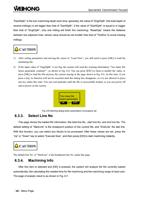
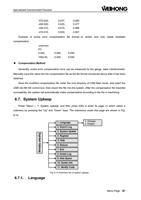
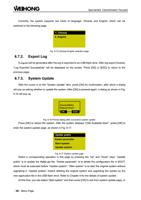
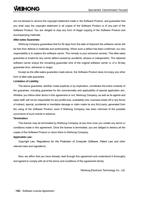
Currently, the system supports two kinds of language: Chinese and English, which can be
switched in the following page.
1. Chinese
2. English
6.7.2.
Fig. 6-15 Chinese-English selection page
Export Log
A Log.txt will be generated after the log is exported to an USB flash drive. After log export finishes,
“Log Exported Successfully” will be displayed on the screen. Press [OK] or [ESC] to return to the
previous page.
6.7.3. System Update
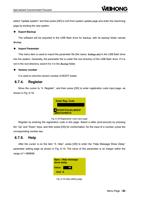
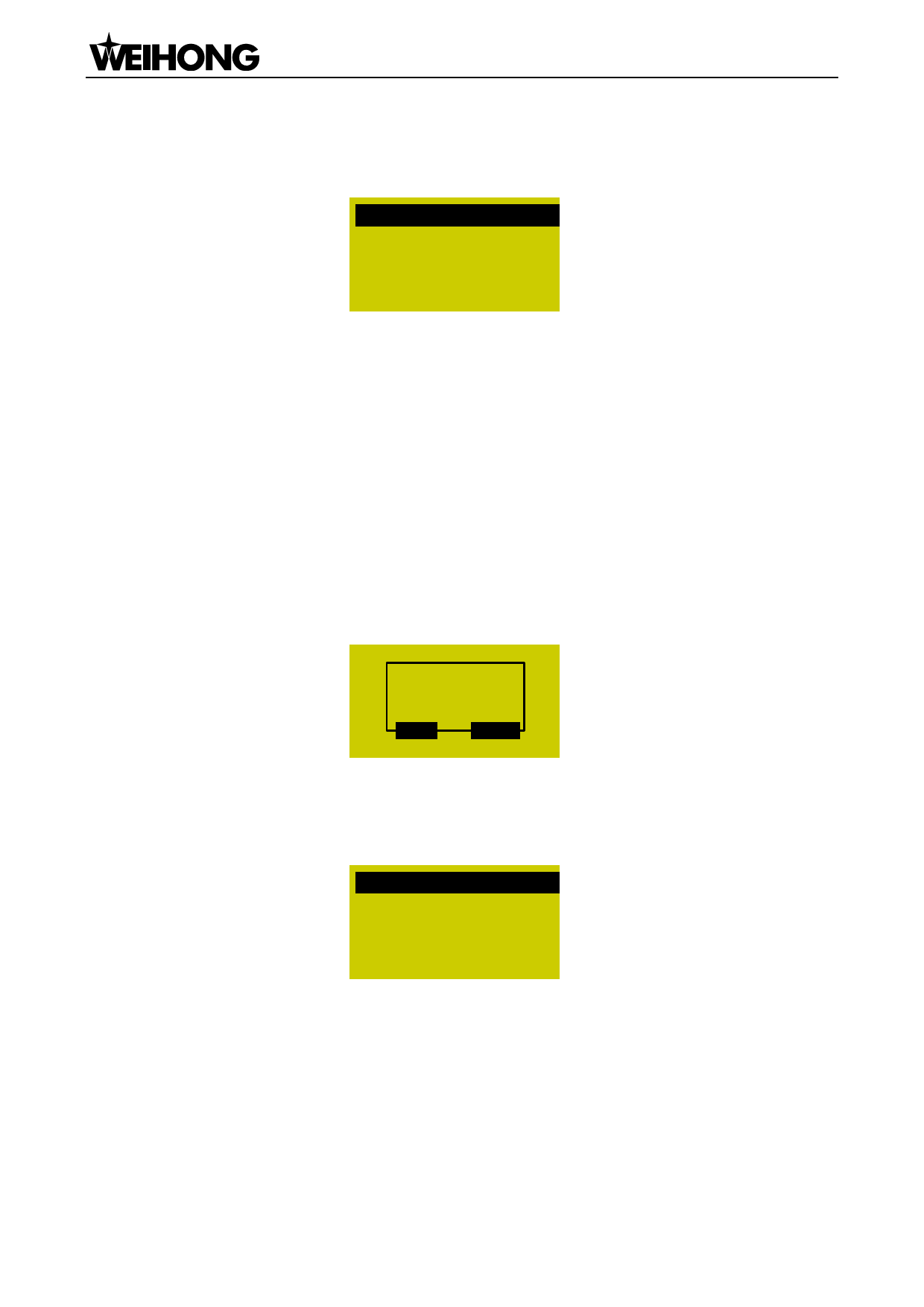
After the cursor is on the “System Update” item, press [OK] for confirmation, after which a dialog
will pop up asking whether to update the system. After [OK] is pressed again, a dialog as shown in Fig.
6-16 will pop up.
Successfully!
Reboot Now?
OK
ESC
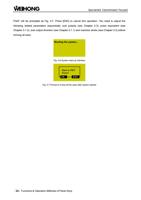
Fig. 6-16 Prompt dialog after successful system update
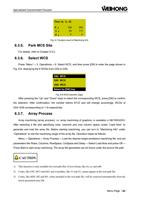
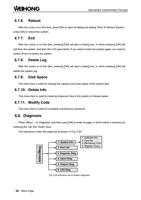
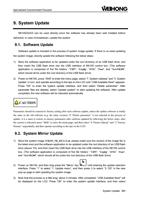
Press [OK] to reboot the system. After the system displays “USB Available Now!”, press [OK] to
enter the system update page, as shown in Fig. 6-17.
Update public
Delete parameter
Start system
Update system
Fig. 6-17 System update page
Select a corresponding operation in this page by pressing the “Up” and “Down” keys. “Update
public” is to update the Public.dat file; “Delete parameter” is to delete the configuration file in BOOT,
which must be executed before “Update system”; “Start system” is to start the original system without
upgrading it; “Update system” means deleting the original system and upgrading the system by the
new application file in the USB flash drive. Refer to Chapter 9 for the details of system update.
At this time, you can select “Start system” and then press [OK] to exit from system update page, or
「58」Menu Page