- You are here:
- AM.CO.ZABuythisCNC Utilities Homepage
- EasyRoute-CNC-Router
- EasyRoute CNC Control Panel Manufacture Manual.pdf
- Page 52 of 114
Specialized Concentrated Focused
CAUTION
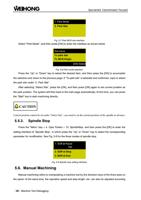
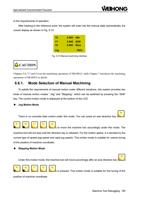
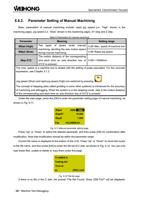
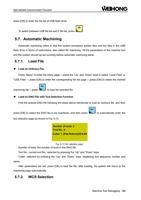
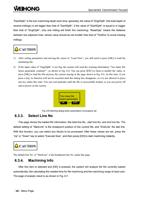
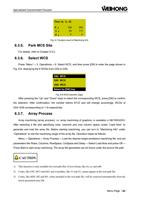
In NK105G3, you can also press the "right" key to enter the sub menu, or the "left" key to access the parent
menu.
6.2. Local Files/ USB Files
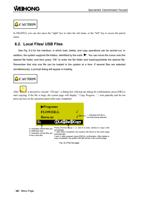
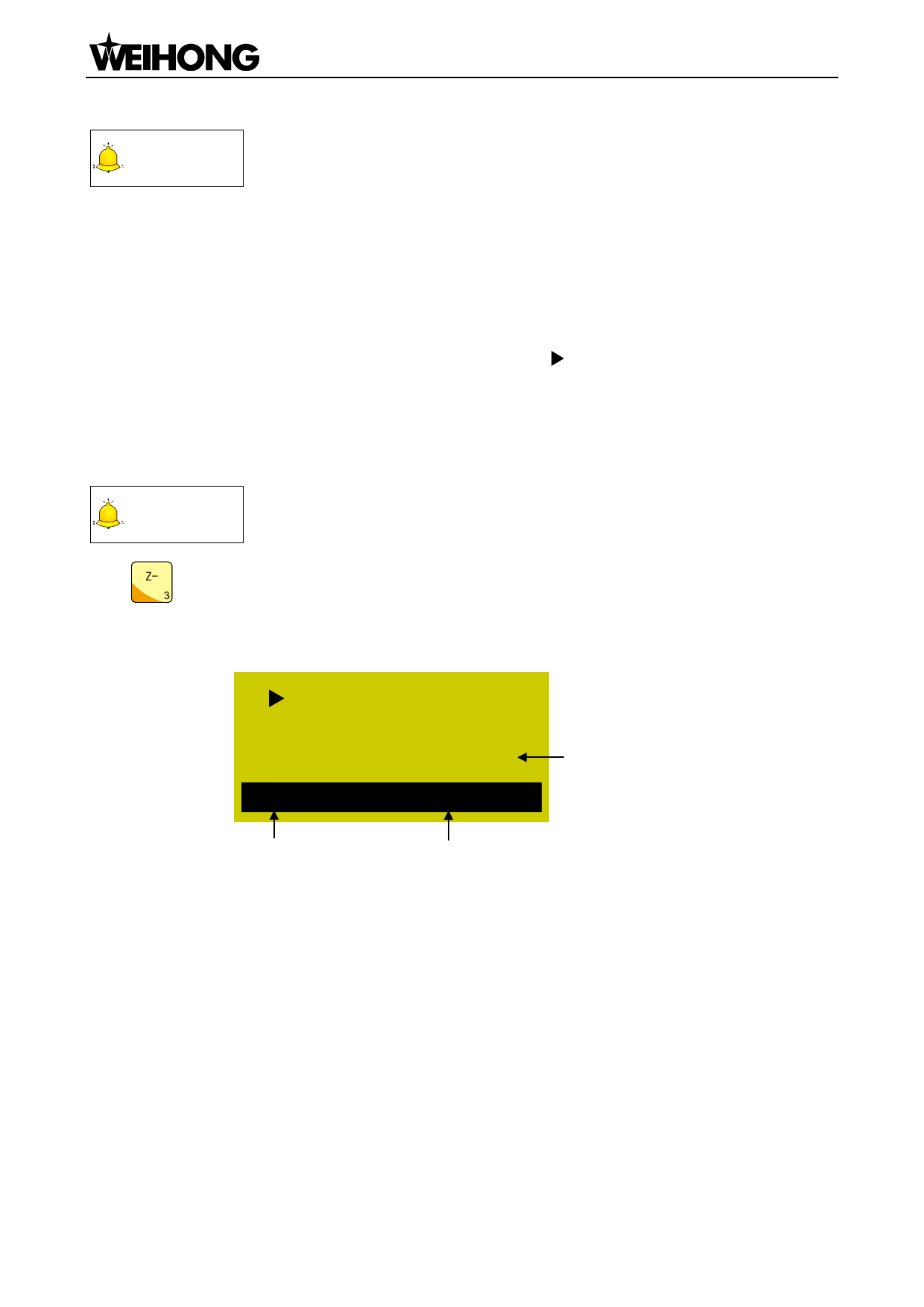
See Fig. 6-3 for the interface, in which load, delete, and copy operations can be carried out. In
addition, the system supports file folders, identified by the mark “ ”. You can move the cursor onto the
desired file folder, and then press “OK” to enter the file folder and load/copy/delete the desired file.
Remember that only one file can be loaded to the system at a time. If several files are selected
simultaneously, a prompt dialog will appear in loading.
CAUTION
After
is pressed to execute “③Copy“, a dialog box will pop up asking for confirmation; press [OK] to
start copying; if the file is large, the system page will display “ Copy Progress…”; wait patiently and do not
press any key on the operation panel until copy completed.
Programs
FLOWER.G
√
Horse.nc
√
U:
①Ld②De③Copy
√ indicates this file is
currently being selected
U: indicates current files are
in USB flash disk
C: indicates current files are
in the Local disk
Press shortcut keys 1, 2, and 3 to load, delete or copy a file
accordingly.
1: after load completed, the system will return to the main page
automatically.
2 and 3: after pressed, press [OK] for confirmation. After delete or
copy completed, the system will still remain in the current page.
Fig. 6-3 File list page
「40」Menu Page