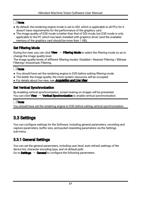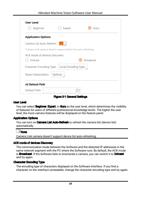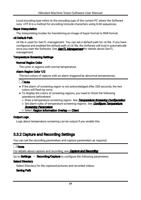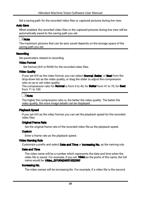
Hikrobot Machine Vision Software User Manual
6.7 Set Cross Line
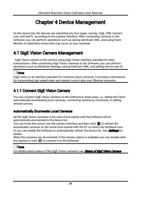
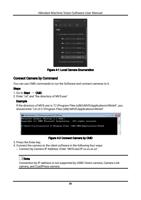
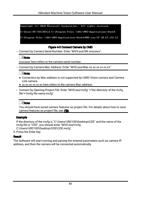
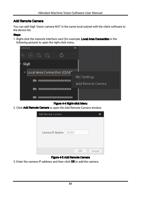
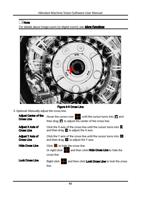
During live view, you can display a cross line on the live view image to adjust the position
of the object in the view.
Steps
1. Select a camera and start live view.
Note
See Acquisition and Live View in 1-Window Mode and Acquisition and Live View in
Multiple-Window Mode for details about how to start live view. In multiple-window mode,
you can set the cross line for each window.
2. Click
3. Click
to display the cross line on the live view image.
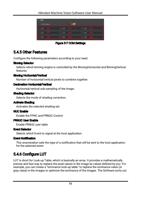
(beside ) to open the following window.
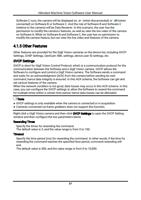
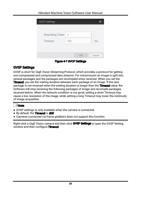
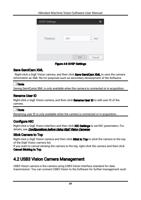
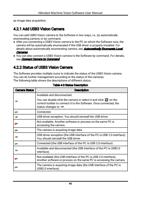
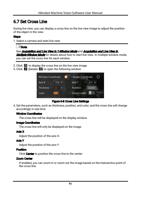
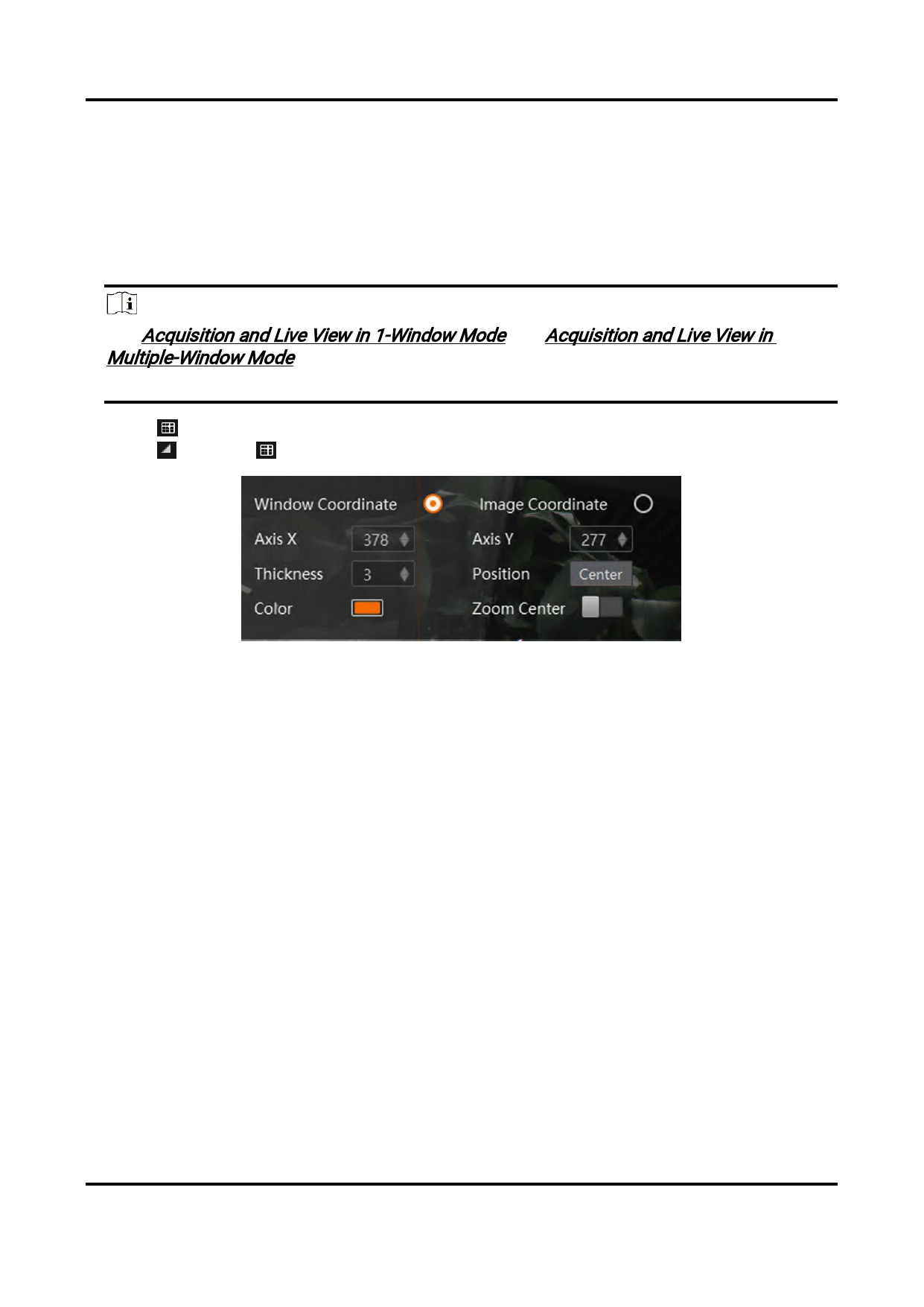
Figure 6-8 Cross Line Settings
4. Set the parameters, such as thickness, position, and color, and the cross line will change
accordingly in real time.
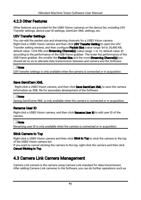
Window Coordinates
The cross line will be displayed on the display window.
Image Coordinates
The cross line will only be displayed on the image.
Axis X
Adjust the position of the axis X.
Axis Y
Adjust the position of the axis Y.
Position
Click Center to position the cross line to the center.
Zoom Center
If enabled, you can zoom in or zoom out the image based on the intersection point of
the cross line.
91