Hikrobot Machine Vision Software User Manual
functions.
Perform the following steps to configure AOI.
Steps
1. Draw an AOI.
Note
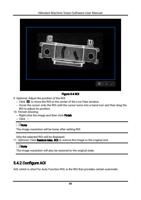
Drawing the AOI is similar to drawing ROI. You can refer to Draw ROI for details.
2. Select the AOI type.
– Select AOI1 from AOI Selector, and then enable AOI Usage Intensity to set the
exposure of the whole image to the same as the AOI exposure.
– Select AOI2 from AOI Selector, and then enable AOI Usage White Balance to set the
white balance of the whole image to the same as the AOI white balance.
Note
AOI2 is only available for color camera.
5.4.3 Embedded Information
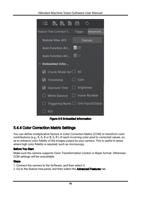
The Embedded Information feature allows you to embed data into the acquired images.
You can select data to embed them into the acquired images. The selected ones will be
displayed on the Embedded Information window, you can view the data details on it.
Note
● For details about viewing details of the embedded information on the Embedded
Information window, see View Embedded Information.
● The types of data that can be embedded into the acquired images include Timastamp,
Gain, Exposure, Brightness, White Balance, Frame Number, Triggering Number, Line
Input/Output, and ROI.
White Balance data is only available for color camera.
Embedding data into acquired images is realized in two ways, i.e., through the Hikrobot
private protocol, or through the Chunk Data Control feature. If the camera supports the
Chunk Data Control feature, the way through the Chunk Data Control feature shall prevail;
If the camera doesn't support the Chunk Data Control feature, embedding data is realized
through the Hikrobot private protocol.
● If the camera supports the Chunk Data Control feature, you should check Chunk Mode
Active first, and then select data.
● If the camera doesn't support the Chunk Data Control feature, select data directly (see
the picture below).
69