Hikrobot Machine Vision Software User Manual
interfaces and USB interfaces.
● If you select GigE, the camera list on the right will display all cameras under the GigE
interfaces.
● If you select USB, the camera list on the right will display all cameras under USB
interfaces.
● If you select a specific Interface, the camera list on the right will display all cameras
under the selected interface.
Analysis before Optimization
After connecting camera(s), click Start Analysis to start analysis, and then click Stop
Analysis to complete analyzing the bandwidth distribution of the cameras (you can also
set the analysis duration to automatically stop analysis when the duration ends). And the
value of payload received, frame sent, frame received, etc., will be displayed.
Note
You can click Reset Data to reset the value of the above-mentioned parameters to 0.
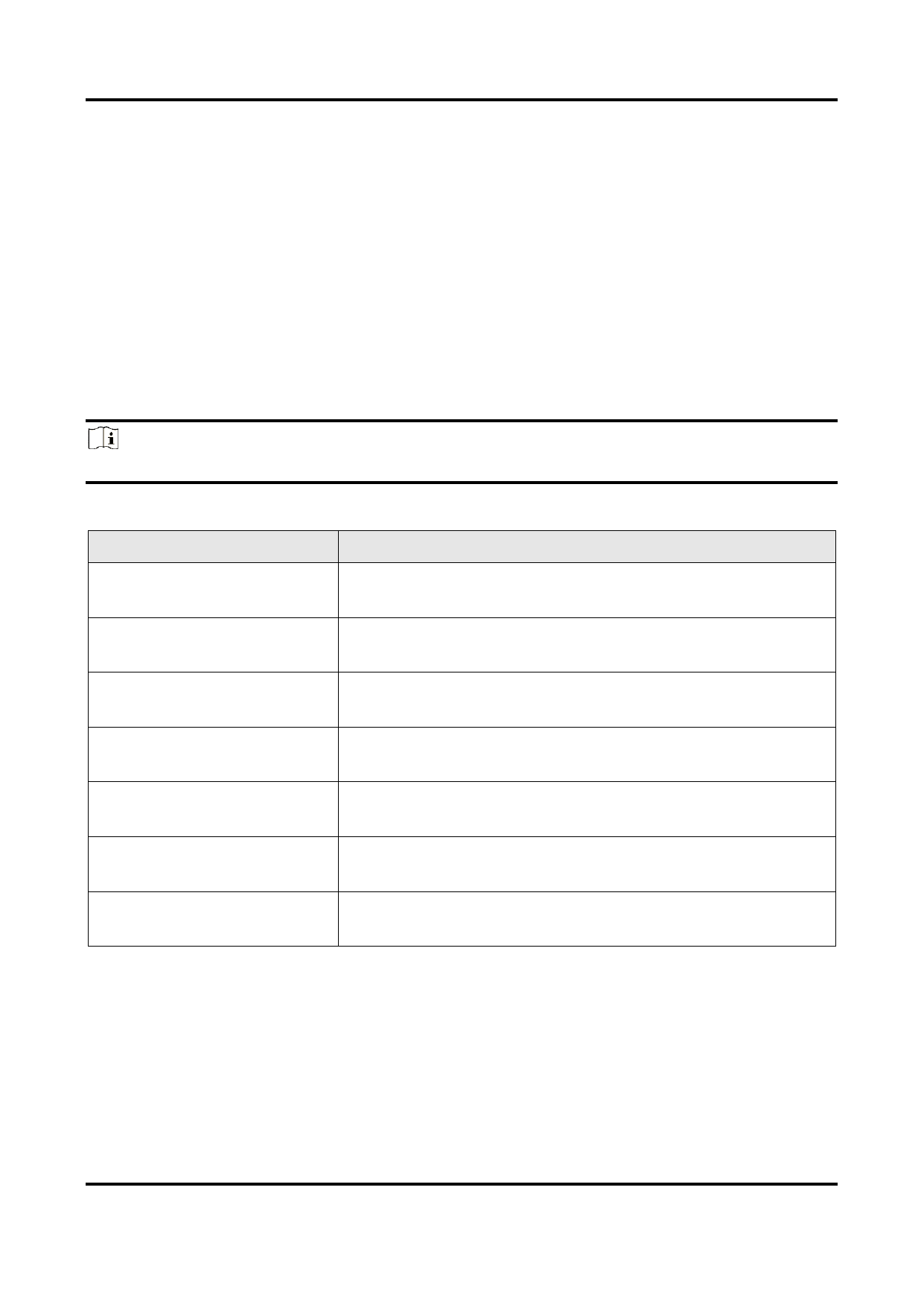
Table 7-1 Information Item Description
Information Item
Description
Payload Sent (Mbps)
The payloads that the camera sent to the PC during
analysis.
Payload Received (Mbps)
The payloads that the camera received from the PC during
analysis.
Frame Sent (fps)
The frames that the camera sent to the PC during
analysis.
Frame Received (fps)
The frame that the camera received from the PC during
analysis.
Images
The number of images that the PC received from the
camera during analysis.
Lost Packets
The amount of packets that the PC failed to receive from
the camera during analysis.
Lost Frames
The amount of the frames that the PC failed to receive
from the camera during analysis.
Bandwidth Optimization
Based on the analysis result, you can optimize bandwidth distribution of the connected
cameras in the following two ways:
● Select a GigE interface and then click Optimize Now to automatically optimize the
bandwidth of the selected camera(s).
121