Hikrobot Machine Vision Software User Manual
5.4 Advanced Features
On the Advanced Features tab, you can configure features related to ROI feature, AOI
feature, embedded information, color correction matrix settings, LUT (Look-up Table)
feature, and other features.
5.4.1 Draw ROI
After ROI (Region of Interest) being configured, the system only acquires the image data
within the ROI, which improves the acquisition efficiency.
Before You Start
Make sure you have exited the AOI drawing mode.
Steps
Note
You can also go to Feature Tree → Image Format Control and then configure Width,
Height, Offset X, and Offset Y to set ROI. The value of Width plus the value of Offset X
should not be larger than the Max. Width, and the value of Height plus the value of
Offset Y should not be larger than the Max. Height.
1. Click or double-click the camera to connect it with the Software.
2. Select the connected camera.
3. Click Advanced Features on the Feature List panel.
4. Click to display the ROI features.
5. Select an ROI from the ROI Selector drop-down list.
6. Select pixel format from the Pixel Format drop-down list.
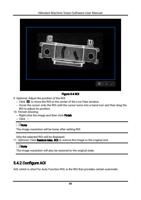
7. Draw ROI.
– Click ReDraw, and then drag the cursor on the image to draw ROI (displayed as a blue
rectangle).
– Click Edit, and then the ROI (displayed as a blue rectangle) will cover the whole image.
You can move the cursor to the edge of the rectangle, and then drag the two-way
arrow to adjust the ROI.
8. Perform one of the following operations.
– Manually adjust the OffsetX, OffsetY, width of ROI, and height of ROI.
– Move the cursor to the edge of the blue rectangle, and then drag the two-way arrow to
adjust the size of the ROI.
67