Hikrobot Machine Vision Software User Manual
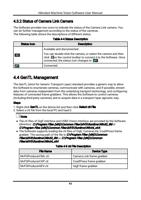
4.3.2 Status of Camera Link Camera
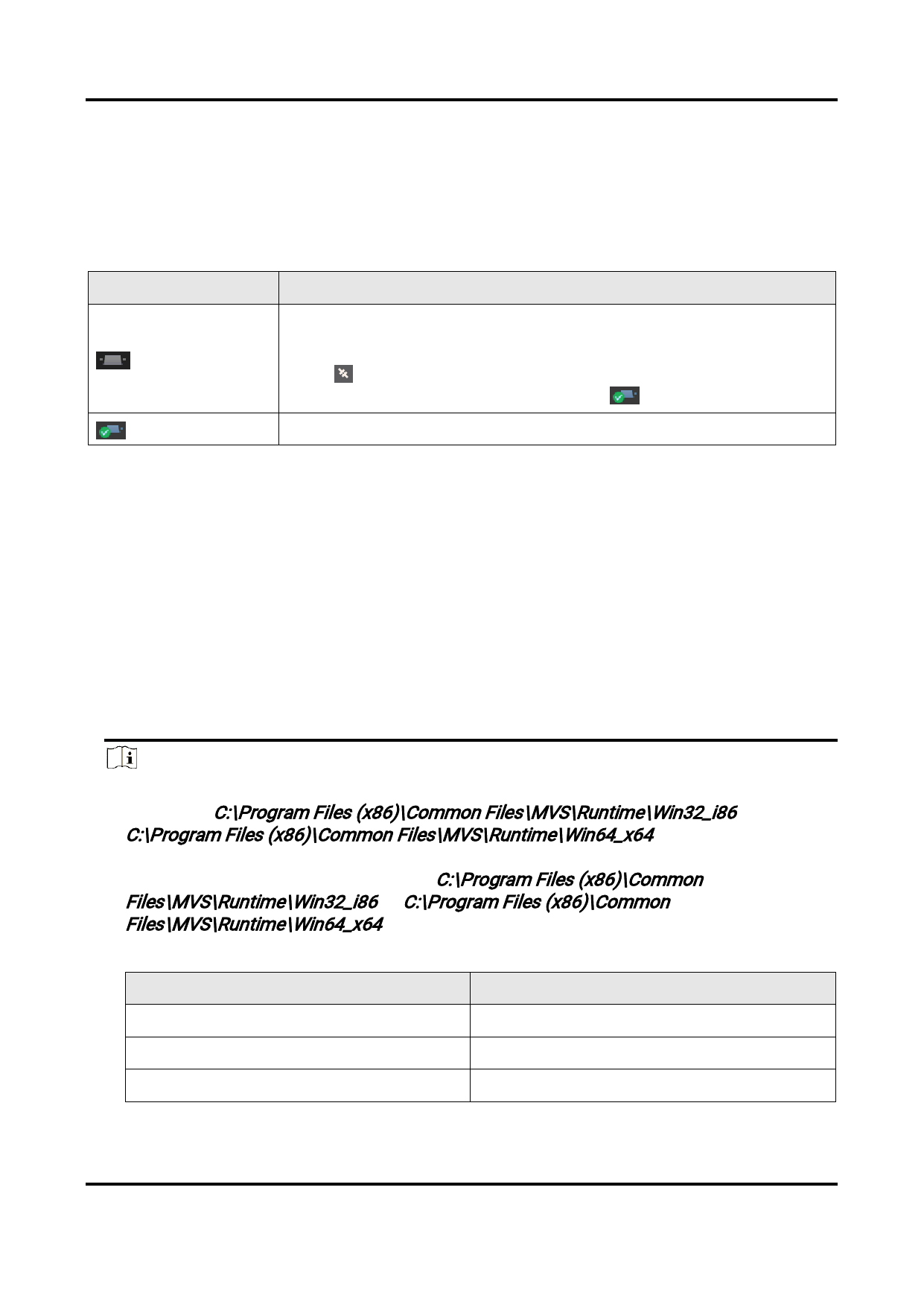
The Software provides two icons to indicate the status of the Camera Link camera. You
can do further management according to the status of the cameras.
The following table shows the descriptions of different status.
Table 4-4 Status Description
Status Icon
Description
Available and disconnected.
You can double-click the camera, or select the camera and then
click on the control toolbar to connect it to the Software. Once
connected, the status icon changes to .
Connected.
4.4 GenTL Management
The GenTL (short for Generic Transport Layer) standard provides a generic way to allow
the Software to enumerate cameras, communicate with cameras, and if possible, stream
data from cameras independent from the underlying transport technology, and configuring
features of connected frame grabbers. This allows the Software to control cameras
(including third-party cameras) and to acquire data in a transport layer agnostic way.
Steps
1. Right-click GenTL on the device list and then click Select cti File.
2. Select a cti file from the local PC and load it.
Note
● The cti files of GigE interface and USB3 Vision interface are provided by the Software
(directory: C:\Program Files (x86)\Common Files\MVS\Runtime\Win32_i86 or
C:\Program Files (x86)\Common Files\MVS\Runtime\Win64_x64).
● The Software supports loading the cti files of GigE, CameraLink, CoaXPress frame
grabber. The saving path of the file is C:\Program Files (x86)\Common
Files\MVS\Runtime\Win32_i86 or C:\Program Files (x86)\Common
Files\MVS\Runtime\Win64_x64.
Table 4-5 cti File Description
File Name
Device Type
MvFGProducerCML.cti
Camera Link frame grabber.
MvFGProducerCXP.cti
CoaXPress frame grabber.
MvFGProducerGEV.cti
GigE frame grabber.
43