Hikrobot Machine Vision Software User Manual
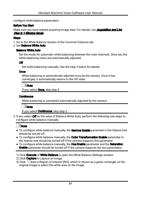
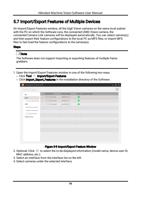
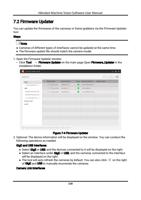
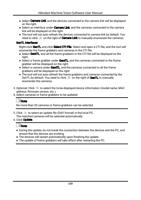
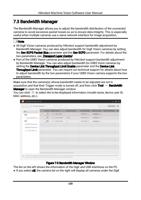
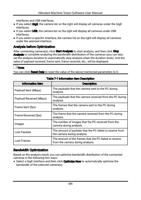
configure white balance parameters.
Before You Start
Make sure you have started acquiring image data. For details, see Acquisition and Live
View in 1-Window Mode.
Steps
1. Go to the White Balance section of the Common Features tab.
2. Set Balance White Auto.
Balance White Auto
Set the mode for automatic white balancing between the color channels. Once set, the
white balancing ratios are automatically adjusted.
Off
Set white balancing manually. See the step 3 below for details.
Once
White balancing is automatically adjusted once by the camera. Once it has
converged, it automatically returns to the Off state.
Note
If you select Once, skip step 3.
Continuous
White balancing is constantly automatically adjusted by the camera.
Note
If you select Continuous, skip step 3.
3. If you select Off as the value of Balance White Auto, perform the following sub-steps to
configure white balance manually.
Note
● To configure white balance manually, the Gamma Enable parameter in the feature tree
should be turned off.
● To configure white balance manually, the Color Transformation Enable parameter in
the feature tree should be turned off if the camera supports this parameter.
● To configure white balance manually, the Hue Enable parameter and the Saturation
Enable parameter should be turned off if the camera supports the two parameters.
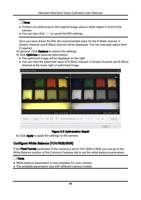
1) Click Execute of White Balance to open the White Balance Settings window.
2) Click Capture to capture an image.
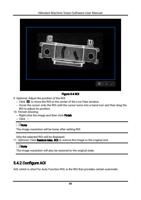
3) Click draw a Region of Interest (ROI), which is shown as a green rectangle, on the
original image to select the white area on the image.
57