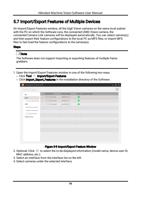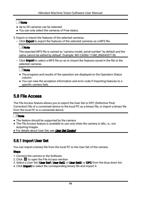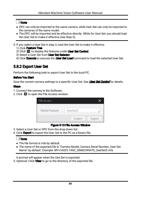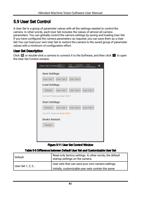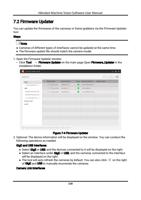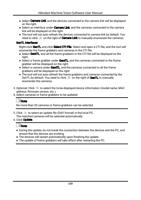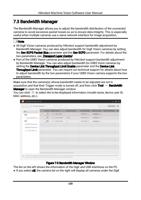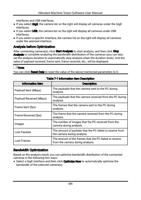
Hikrobot Machine Vision Software User Manual
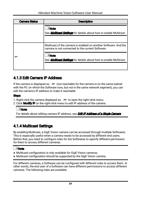
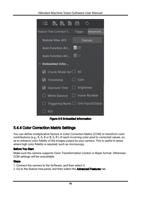
Camera Status
Description
Note
See Multicast Settings for details about how to enable Multicast.
Multicast of the camera is enabled on another Software. And the
camera is not connected to the current Software.
Note
See Multicast Settings for details about how to enable Multicast.
4.1.3 Edit Camera IP Address
If the camera is displayed as
(not reachable for the camera is on the same subnet
with the PC on which the Software runs, but not in the same network segment), you can
edit the camera's IP address to make it reachable.
Steps
1. Right-click the camera displayed as
to open the right-click menu.
2. Click Modify IP on the right-click menu to edit IP address of the camera.
Note
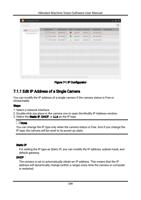
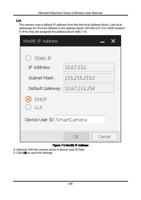
For details about editing camera IP address, see Edit IP Address of a Single Camera.
4.1.4 Multicast Settings
By enabling Multicast, a GigE Vision camera can be accessed through multiple Softwares.
This is especially useful when a camera needs to be accessed by different end users.
Before that, you need to configure roles for the Softwares to specify different permission
for them to access different cameras.
Note
● Multicast configuration is only available for GigE Vision cameras.
● Multicast configuration should be supported by the GigE Vision camera.
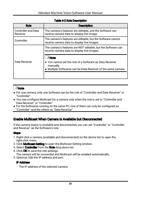
For different cameras, a Software can be configured with different roles to access them. In
other words, the end user of a Software can have different permissions to access different
cameras. The following roles are available:
34