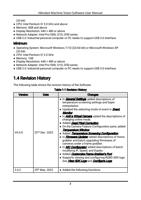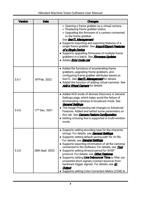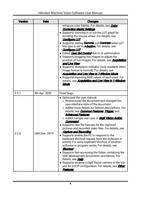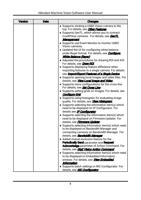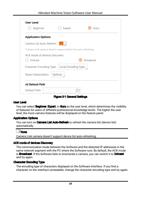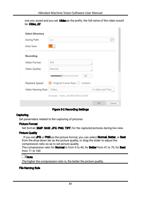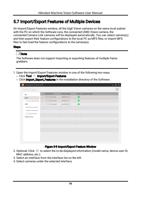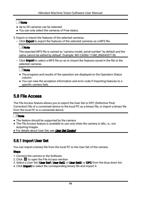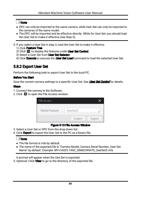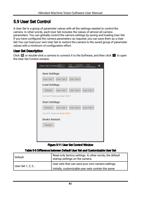
Hikrobot Machine Vision Software User Manual
the frequently-used LUT parameters in the LUT section on the Image Processing tab.
Before You Start
Make sure you have set LUT Index and LUT Value in the feature tree.
LUT Index
Set a pixel value that you want to replace with a new value.
LUT Value
Set a new pixel value to replace the value you set in LUT Index.
Steps
1. Connect the camera to the Software and select the camera.
2. Go to the Advanced Features tab on the Feature List panel.
3. Click to display the LUT parameters.
4. Select a value (e.g., Luminance, Red, Green, or Blue) from LUT Selector to set the LUT
type.
Luminance
Luminance LUT, i.e., the look-up table for optimizing luminance of the images.
Red
Red LUT, i.e., the look-up table for optimizing red value of the images.
Green
Green LUT, i.e., the look-up table for optimizing the green value of the images.
Blue
Blue LUT, i.e., the look-up table for optimizing the blue value of the images.
Note
The available LUT types vary with different camera models.
5. Turn on LUT Enable to enable LUT.
6. Select the type of line (Fold Line, Curve, Free Line, and Adaptive) to be displayed on the
LUT graph.
Note
● Each point on the line defines the Output value in corresponding to an Input value. The
Input values represent the pixel values that need to be replaced, while the Output
values represent the new pixel values that will replace the old ones.
● By default, the maximum Input value for the line is the value you set for LUT Index, and
the maximum Output value for the line is the value you set for LUT Value.
7. Optional: Adjust the line on the LUT graph.
– For Fold Line and Curve, drag each node to edit the line.
73