Hikrobot Machine Vision Software User Manual
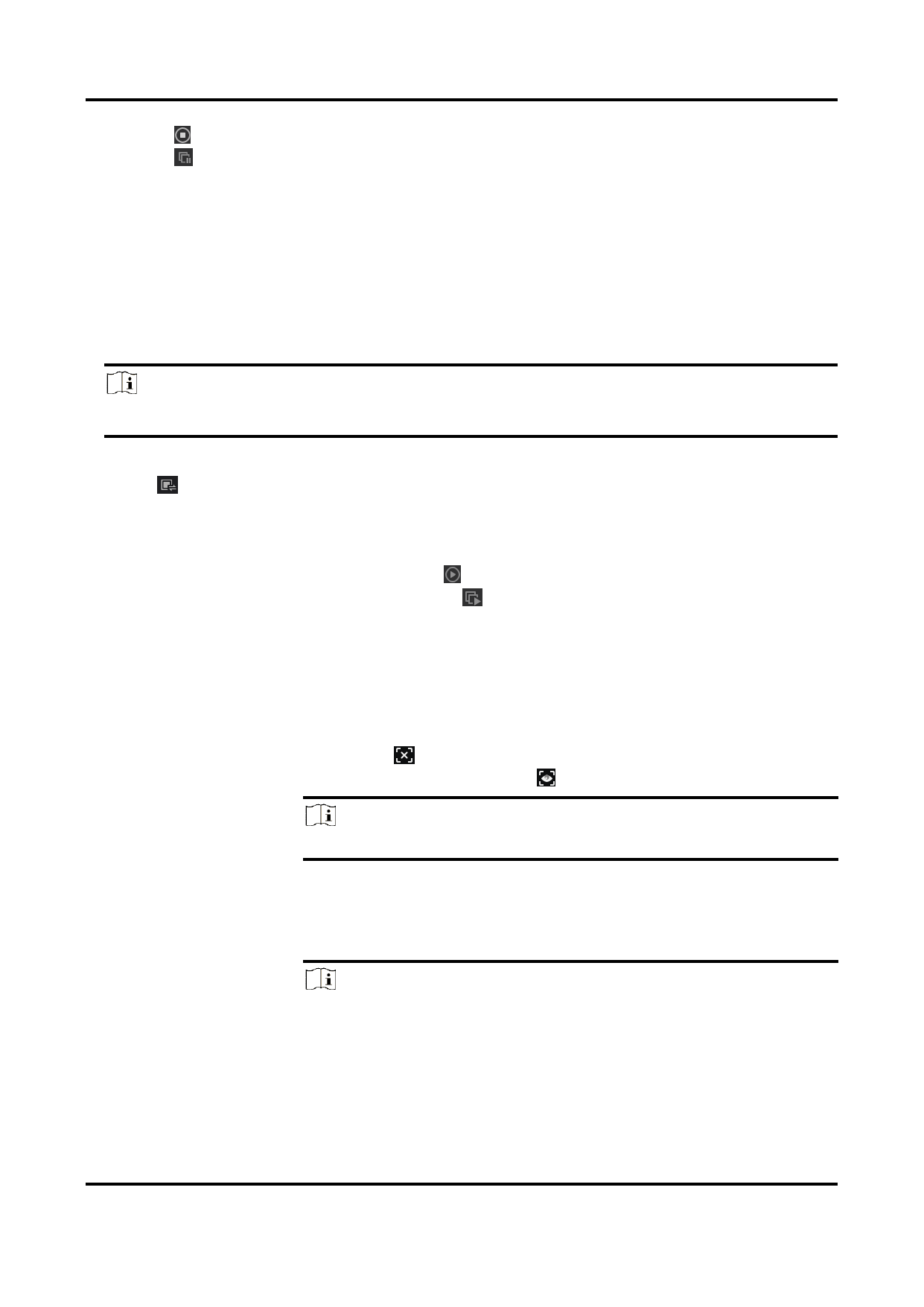
– Click to stop acquiring image data from the currently selected camera.
– Click to batch stop acquiring image data from the connected cameras.
6.2 Acquisition and Live View in Multiple-Window Mode
You can view the live view of a specific camera or the live videos of multiple cameras in
multiple-window mode. In this mode, you can view the live videos of multiple cameras
simultaneously.
Steps
Note
You can acquire image data from up to 16 cameras simultaneously.
1. Connect camera(s) to the Software.
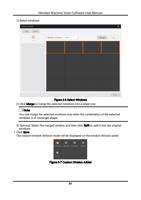
2. Click , and then select a multiple-division mode.
3. Drag the connected camera(s) from the device list to the display window(s) to view the
camera’s live video.
4. Start acquiring image data.
– If only one camera is connected, click to start acquiring streams from the camera.
– If multiple cameras are connected, click to start acquiring image data from the
connected cameras simultaneously.
5. Optional: Perform the following operations after starting acquisition.
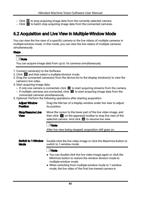
Adjust Window
Position
Drag the title bar of a display window under live view to adjust
its position.
Stop/Resume Live
View
Move the cursor to the lower part of the live video image, and
then click on the appeared toolbar to stop live view of the
selected camera. And click to resume live view.
Note
After live view being stopped, acquisition still goes on.
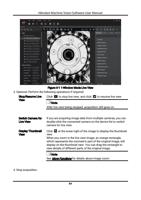
Switch to 1-Window Double-click the live video image or click the Maximize button to
Mode
switch to 1-window mode.
Note
● You can double-click the live video image again or click the
Minimize button to restore the window division mode to
multiple-window mode.
● When switching from multiple-window mode to 1-window
mode, the live video of the first live-viewed camera in
85