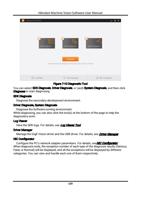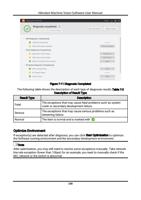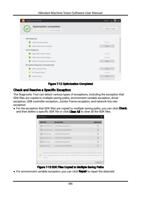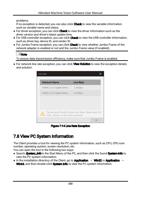
Hikrobot Machine Vision Software User Manual
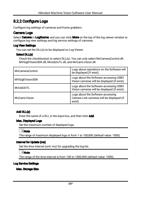
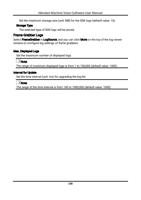
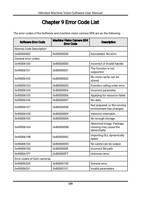
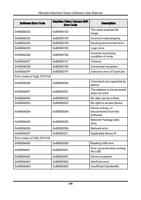
6.6 Capture and Recording
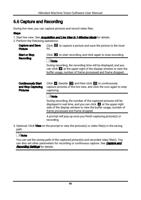
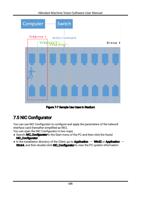
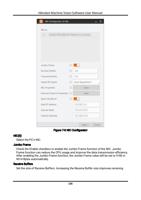
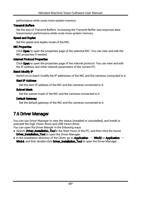
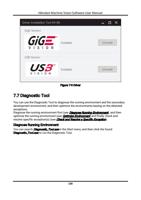
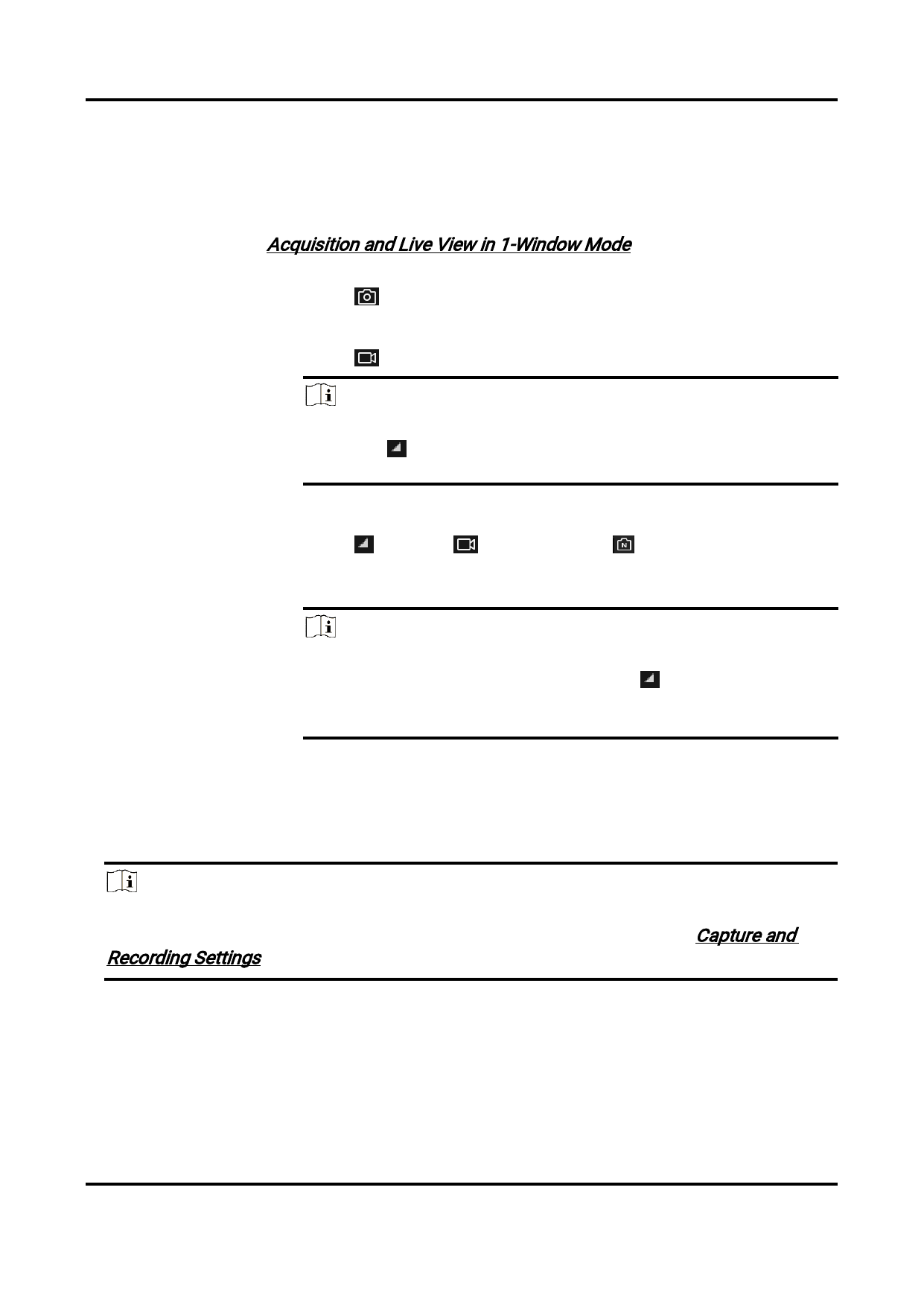
During live view, you can capture pictures and record video files.
Steps
1. Start live view. See Acquisition and Live View in 1-Window Mode for details.
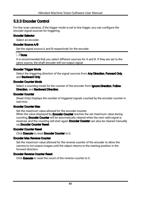
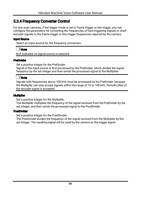
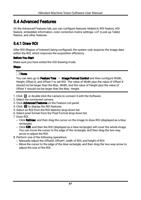
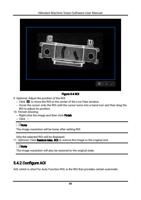
2. Perform the following operations.
Capture and Save
Picture
Click
PC.
to capture a picture and save the picture to the local
Start or Stop
Recording
Click to start recording, and click again to stop recording.
Note
During recording, the recording time will be displayed, and you
can click at the upper-right of the display window to view the
buffer usage, number of frame processed and frame dropped.
Continuously Start
and Stop Capturing
Pictures
Click (beside ) and then click to continuously
capture pictures of the live view, and click the icon again to stop
capturing.
Note
During recording, the number of the captured pictures will be
displayed in real time, and you can click at the upper-right
side of the display window to view the buffer usage, number of
frame processed and frame dropped.
A prompt will pop up once you finish capturing picture(s) or
recording.
3. Optional: Click View on the prompt to view the picture(s) or video file(s) in the saving
path.
Note
You can set the saving path of the captured picture(s) and recorded video file(s). You
can also set other parameters for recording or continuous capture. See Capture and
Recording Settings for details.
90