Hikrobot Machine Vision Software User Manual
as image data acquisition.
4.2.1 Add USB3 Vision Camera
You can add USB3 Vision camera to the Software in two ways, i.e., by automatically
enumerating camera, or by command.
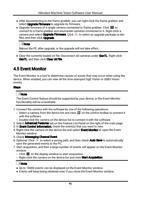
● After you connecting a USB3 Vision camera to the PC on which the Software runs, the
camera will be automatically enumerated if the USB driver is properly installed. For
details about automatically enumerating camera, see Automatically Enumerate Local
Cameras.
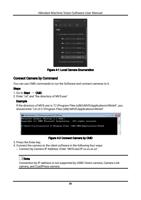
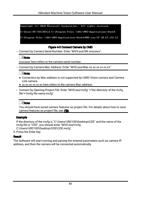
● You can also connect a USB3 Vision camera to the Software by command. For details,
see Connect Camera by Command.
4.2.2 Status of USB3 Vision Camera
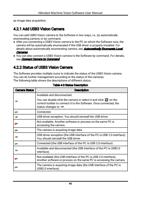
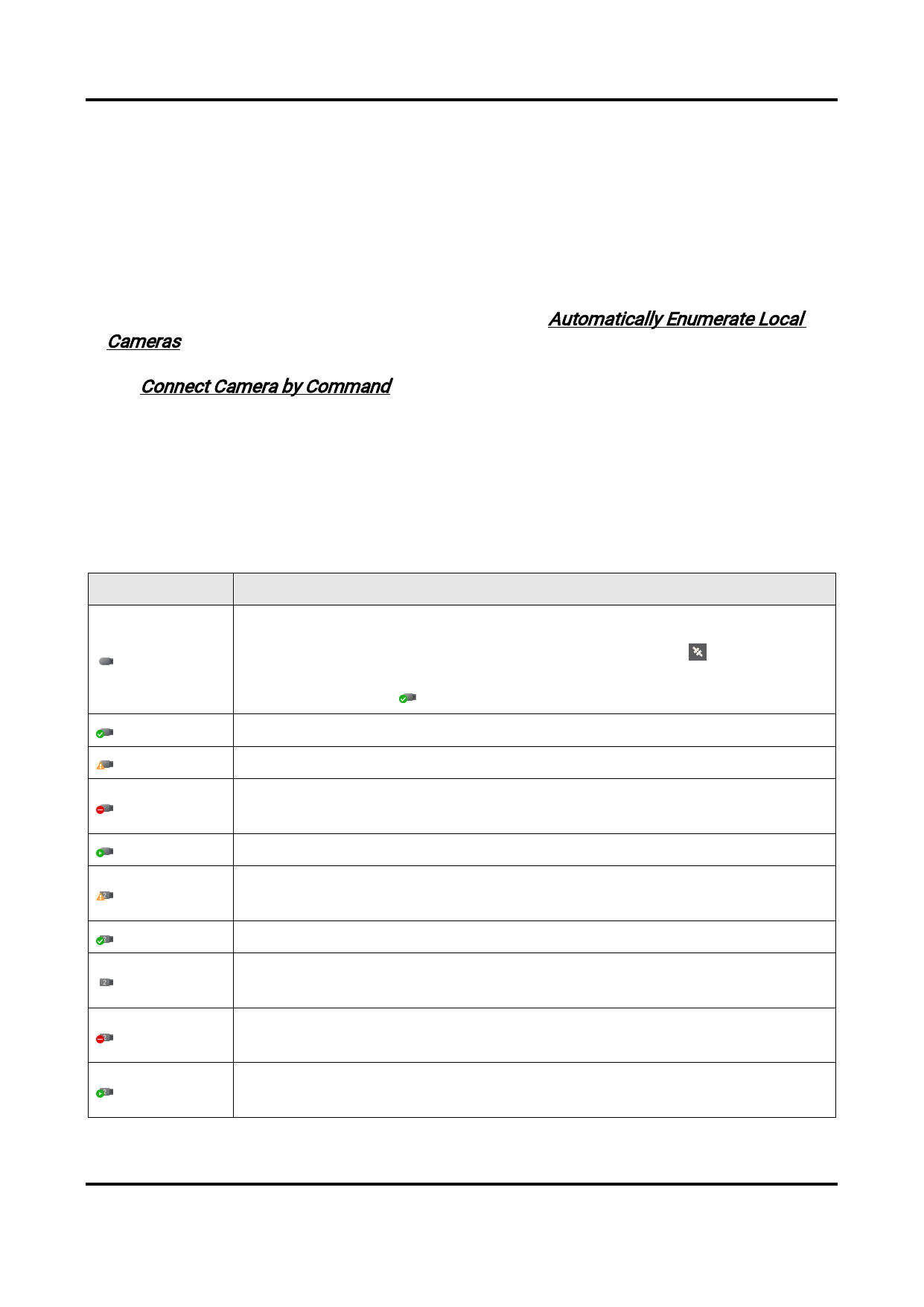
The Software provides multiple icons to indicate the status of the USB3 Vision camera.
You can do further management according to the status of the cameras.
The following table shows the descriptions of different status.
Table 4-3 Status Description
Camera Status
Description
Available and disconnected.
You can double-click the camera or select it and click on the
control toolbar to connect it to the Software. Once connected, the
status changes to .
Connected.
USB driver exception. You should reinstall the USB driver.
Not available. Another software or process on the same PC is
accessing the camera.
The camera is acquiring image data.
USB driver exception (the USB interface of the PC is USB 2.0 interface).
You should reinstall the USB driver.
Connected (the USB interface of the PC is USB 2.0 interface).
Available and disconnected (the USB interface of the PC is USB2.0
interface).
Not available (the USB interface of the PC is USB 2.0 interface).
Another software or process on the same PC is accessing the camera.
The camera is acquiring image data (the USB interface of the PC is
USB2.0 interface).
40