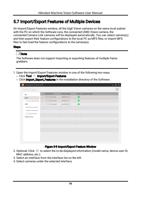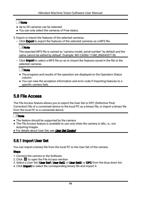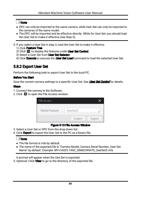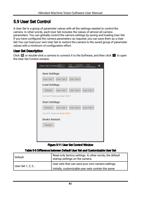
Hikrobot Machine Vision Software User Manual
Note
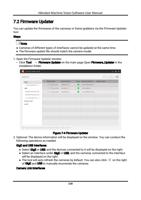
● If there's no white area on the original image, place a white object in front of the
camera.
● You can also click to cancel the ROI settings.
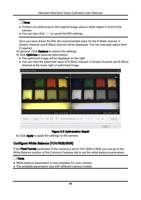
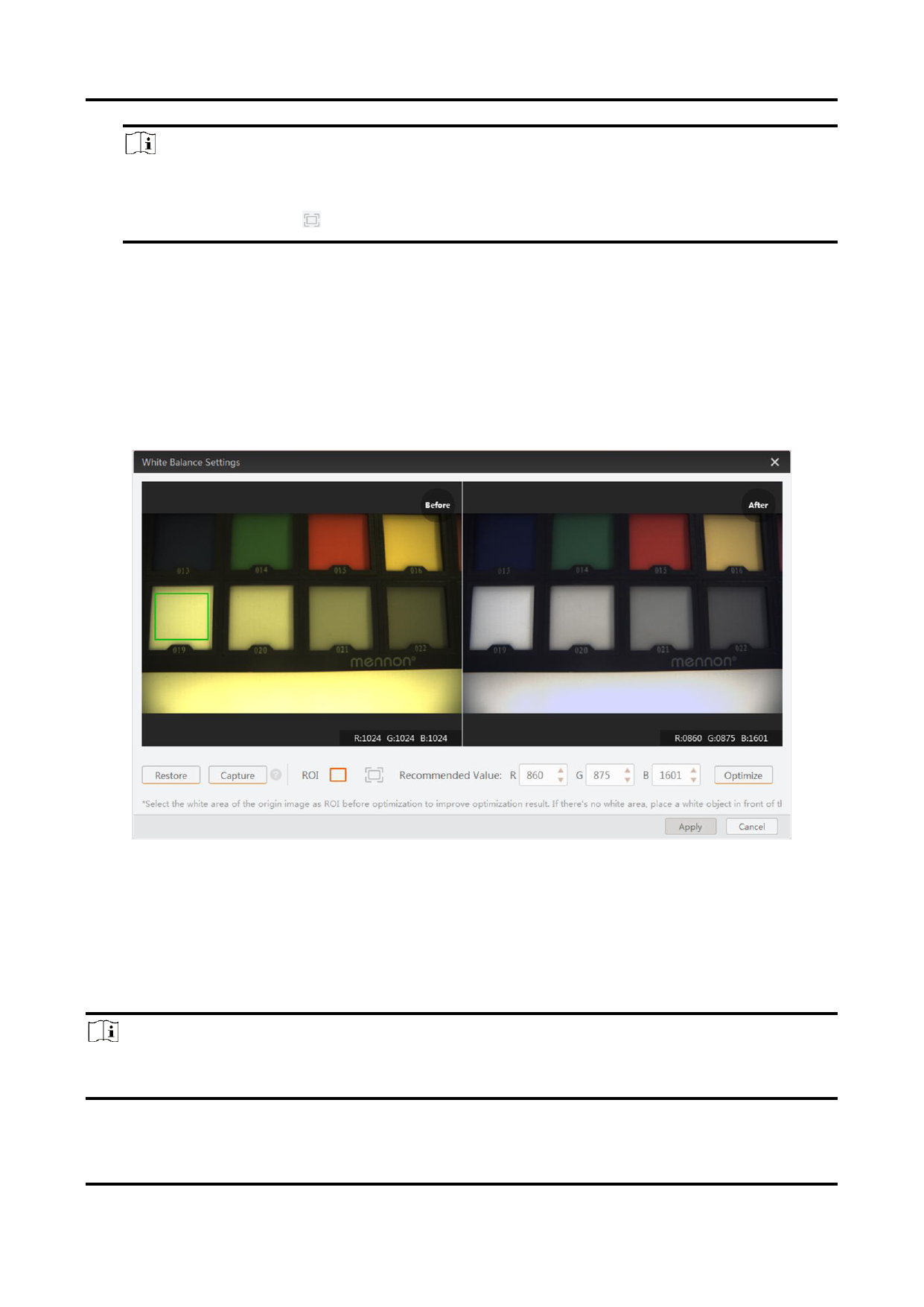
Once you have drawn the ROI, the recommended value for the R (Red) channel, G
(Green) channel, and B (Blue) channel will be displayed. You can manually adjust them
if required.
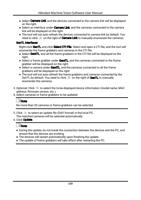
4) Optional: Click Restore to restore the settings.
5) Click Optimize to execute optimization.
● The optimized image will be displayed on the right.
● You can view the optimized value of R (Red) channel, G (Green) channel, and B (Blue)
channel at the lower right of optimized image.
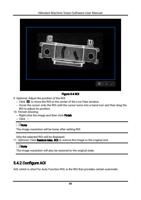
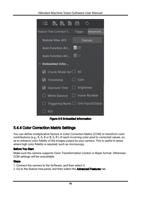
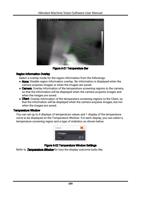
Figure 5-3 Optimization Result
6) Click Apply to apply the settings to the camera.
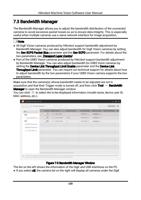
Configure White Balance (YUV/RGB/BGR)
If the Pixel Format parameter of the camera is set to YUV, RGB or BGR, you can go to the
White Balance section of the Common Features tab to set the white balance parameters.
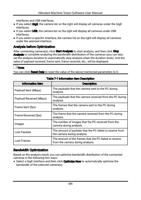
Note
● White balance parameters in only available for color camera.
● The available parameters vary with different camera models.
58