Hikrobot Machine Vision Software User Manual
Note
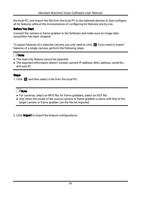
● Up to 20 cameras can be selected.
● You can only select the cameras of Free status.
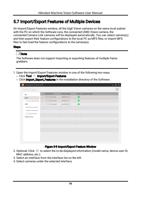
5. Export or import the features of the selected cameras.
– Click Export to export the features of the selected cameras as a MFS file.
Note
The exported MFS file is named as "camera model_serial number" by default and the
name cannot be edited by default. Example: MV-CA060-11GM_00604207150.
– Click Import to select a MFS file so as to import the features saved in the file to the
selected cameras.
Note
● The progress and results of the operation are displayed on the Operation Status
column.
● You can view the exception information and error code if importing features to a
specific camera fails.
5.8 File Access
The File Access feature allows you to export the User Set or DPC (Defective Pixel
Correction) file of a connected device to the local PC as a binary file, or import a binary file
from the local PC to a connected device.
Note
● The feature should be supported by the camera.
● The File Access feature is available to use only when the camera is idle, i.e., not
acquiring images.
● For details about User Set, see User Set Control.
5.8.1 Import User Set
You can import a binary file from the local PC to the User Set of the camera.
Steps
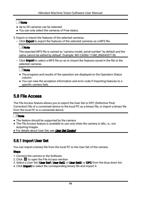
1. Connect the camera to the Software.
2. Click to open the File Access window.
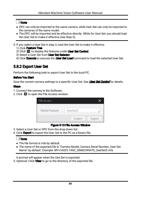
3. Select a User Set (User Set1, User Set2, or User Set3) or DPC from the drop-down list.
4. Click Import to select the corresponding binary file and import it.
79