Hikrobot Machine Vision Software User Manual
Port
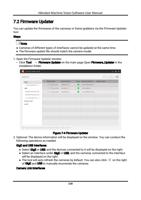
The port No. of the selected camera.
6. Click OK to save the settings.
After enabling Multicast mode of a camera on Software A, if the camera is remotely
added to Software B, or the camera is on the same local subnet of the PC on which the
Software C runs, the camera will be displayed as (when disconnected) or
(when
connected) on Software B or Software C. And the role of Software B and Software C
(relative to the camera) will be "Data Receiver".
Enable Multicast When Camera is Connected
For a connected camera, you can only set the Software's role to "Controller and Receiver".
Steps
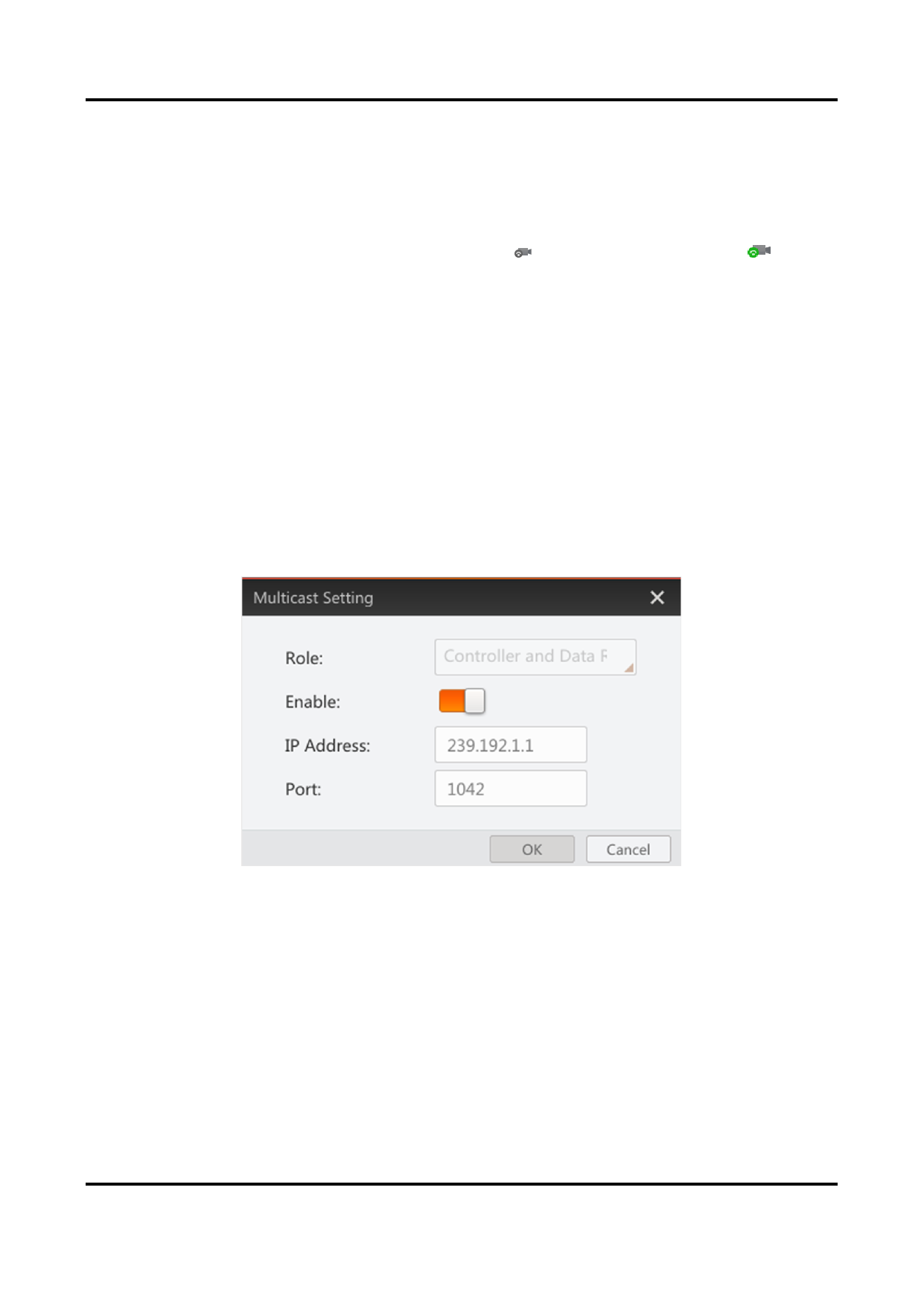
1. Right-click the camera and then click Multicast Setting to open the Multicast Setting
window.
The role for the current Software is set to "Controller and Data Receiver" by default and
cannot be edited.
2. Turn on the Enable switch to enable Multicast.
The IP Address field and Port field appear.
Figure 4-6 MutlticastStettingWindow
3. Optional: Edit the IP address and port.
IP Address
The IP address of the selected camera.
Port
The port No. of the selected camera.
4. Click OK to save the settings.
After enabling Multicast mode of a camera on Software A, if the camera is remotely
added to Software B, or the camera is in the same local subnet of the PC on which the
36