Hikrobot Machine Vision Software User Manual
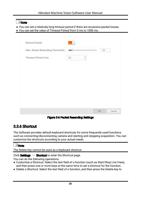
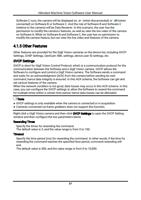
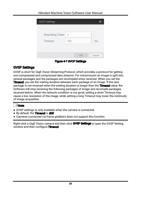
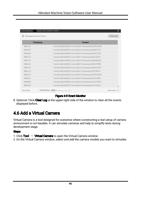
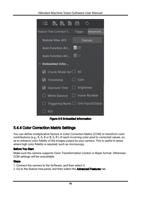
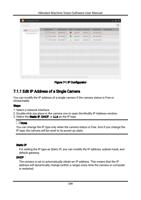
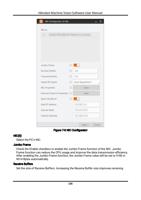
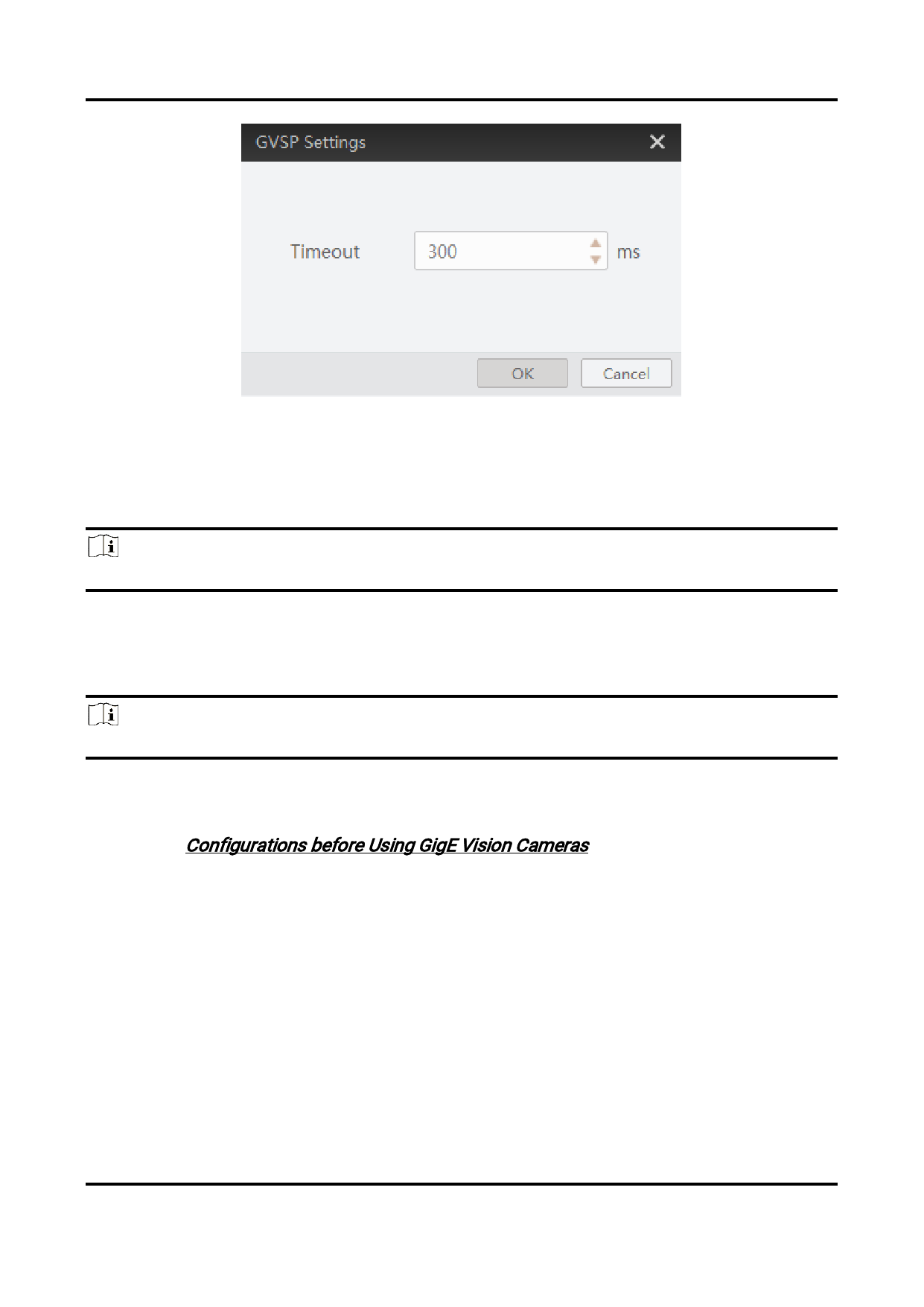
Figure 4-8 GVSP Settings
Save GemICam XML
Right-click a GigE Vision camera, and then click Save GemICam XML to save the camera
information as XML file for purposes such as secondary development of the Software.
Note
Saving GemICame XML is only available when the camera is connected or in acquisition.
Rename User ID
Right-click a GigE Vision camera, and then click Rename User ID to edit user ID of the
camera.
Note
Renaming user ID is only available when the camera is connected or in acquisition.
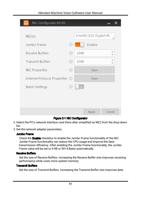
Configure NIC
Right-click a GigE Vision interface and then click NIC Settings to set NIC parameters. For
details, see Configurations before Using GigE Vision Cameras.
Stick Camera to Top
Right-click a GigE Vision camera and then click Stick to Top to stick the camera to the top
of the GigE Vision camera list.
If you want to cancel sticking the camera to the top, right-click the camera and then click
Cancel Sticking to Top.
4.2 USB3 Vision Camera Management
USB3 Vision camera is the camera using USB3 Vision interface standard for data
transmission. You can connect USB3 Vision to the Software for further management such
39