Hikrobot Machine Vision Software User Manual
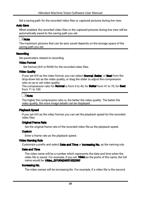
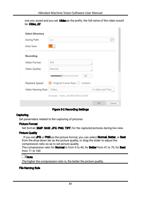
Set a saving path for the recorded video files or captured pictures during live view.
Auto Save
When enabled, the recorded video files or the captured pictures during live view will be
automatically saved to the saving path you set.
Note
The maximum pictures that can be auto saved depends on the storage space of the
saving path you set.
Recording
Set parameters related to recording.
Video Format
Set format (AVI or RAW) for the recorded video files.
Video Quality
If you set AVI as the video format, you can select Normal, Better, or Best from the
drop-down list as the video quality, or drag the slider to adjust the compression
ratio so as to set video quality.
The compression ratio for Normal is from 0 to 40, for Better from 41 to 70, for Best
from 71 to 100.
Note
The higher the compression ratio is, the better the video quality. The better the
video quality, the more image details can be displayed.
Playback Speed
If you set AVI as the video format, you can set the playback speed for the recorded
video files.
Original Frame Rate
Set the original frame rate of the recorded video file as the playback speed.
Custom
Enter a frame rate as the playback speed.
Video Naming Rule
Customize a prefix and select Date and Time or Increasing No. as the naming rule.
Date and Time
The video name will be a number which represents the data and time when the
video file is saved. For example, if you set Video as the prefix of the name, the full
name would be Video_20190424051532390.
Increasing No.
The video names will be increasing No. For example, if a video file is the second
20