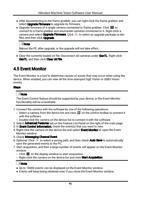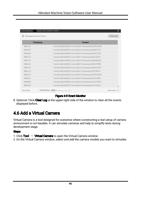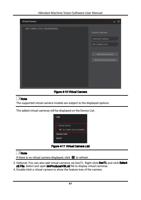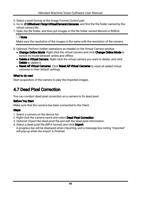
Hikrobot Machine Vision Software User Manual
Note
● By default, the rendering engine mode is set to GDI, which is applicable to all PCs for it
doesn't have requirements for the performance of the graphics card.
● The image quality of D3D mode is better than that of GDI mode, but D3D mode is only
applicable to the PC which has been installed with graphics driver (and the available
memory of the graphics card should be more than 1 GB).
Set Filtering Mode
During live view, you can click View → Filtering Mode to select the filtering mode so as to
change the image quality level.
The image quality levels of different filtering modes: Disabled < Nearest Filtering < Bilinear
Filtering< Anisotropic Filtering.
Note
● You should have set the rendering engine to D3D before setting filtering mode.
● The better the image quality, the more system resources will be occupied.
● For details about live view, see Acquisition and Live View.
Set Vertical Synchronization
By enabling vertical synchronization, screen tearing on images will be prevented.
You can click View → Vertical Synchronization to enable vertical synchronization.
Note
You should have set the rendering engine to D3D before setting vertical synchronization.
3.3 Settings
You can configure settings for the Software, including general parameters, recording and
capture parameters, buffer size, and packet resending parameters via the Settings
sub-menu.
3.3.1 General Settings
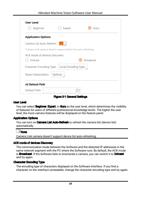
You can set the general parameters, including user level, auto-refresh settings of the
device list, character encoding type, and cti default path.
Go to Settings → General to configure the following parameters.
17