Hikrobot Machine Vision Software User Manual
5.7 Import/Export Features of Multiple Devices
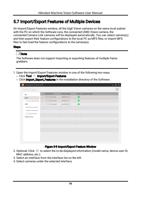
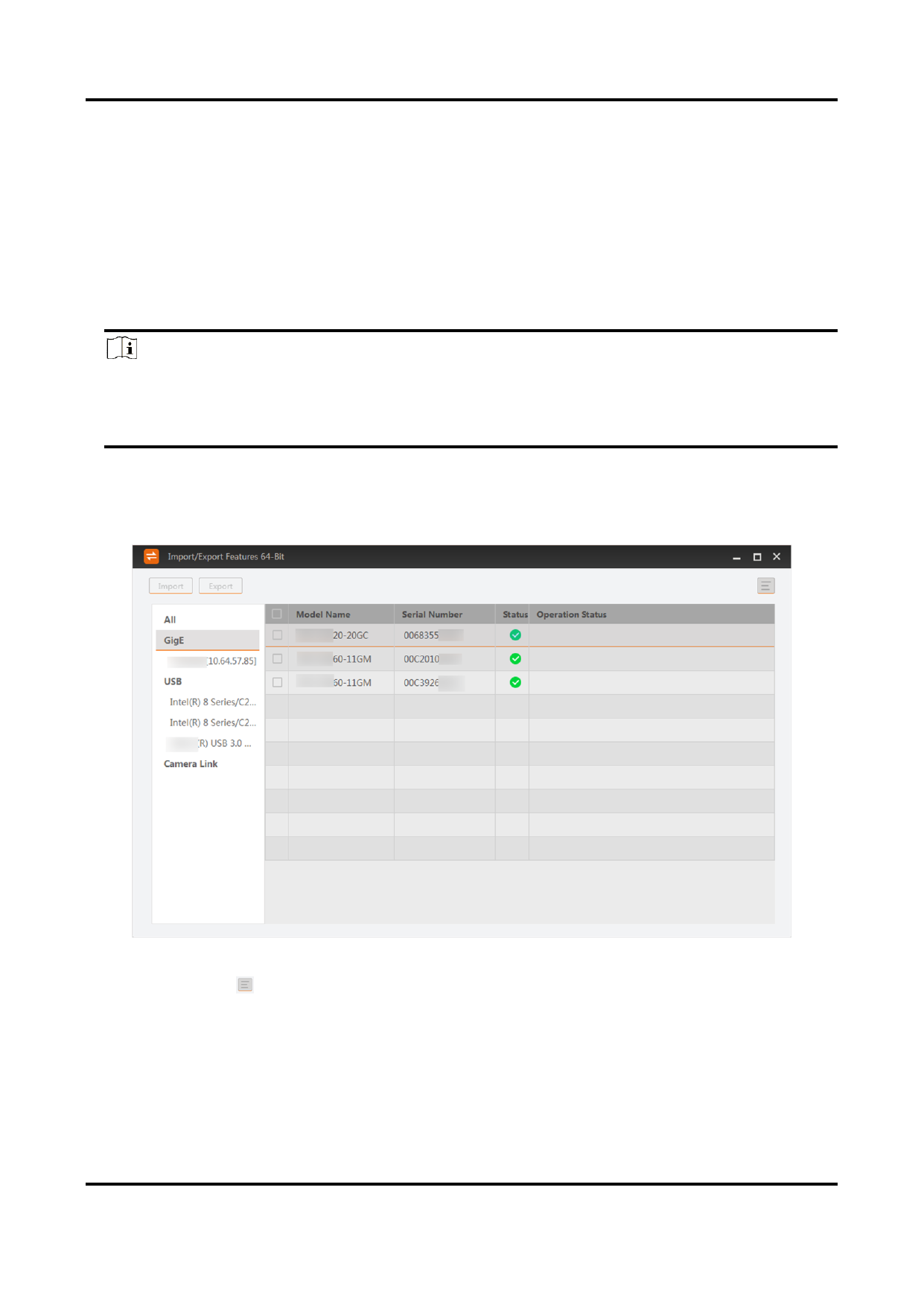
On Import/Export Features window, all the GigE Vision cameras on the same local subnet
with the PC on which the Software runs, the connected USB3 Vision camera, the
connected Camera Link cameras will be displayed automatically. You can select camera(s)
and then export their feature configurations to the local PC as MFS files, or import MFS
files to fast load the feature configurations to the camera(s).
Steps
Note
The Software does not support importing or exporting features of multiple frame
grabbers.
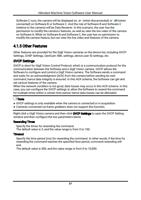
1. Open the Import/Export Features window in one of the following two ways.
– Click Tool → Import/Export Features.
– Click Import_Export_Features in the installation directory of the Software.
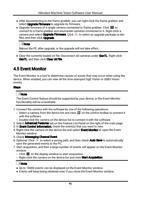
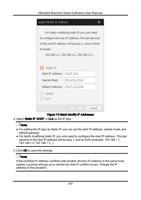
Figure 5-9 Import/Export Feature Window
2. Optional: Click to select the to-be-displayed information (model name, device user ID,
MAC address, etc.).
3. Select an interface from the interface list on the left.
4. Select cameras under the selected interface.
78