






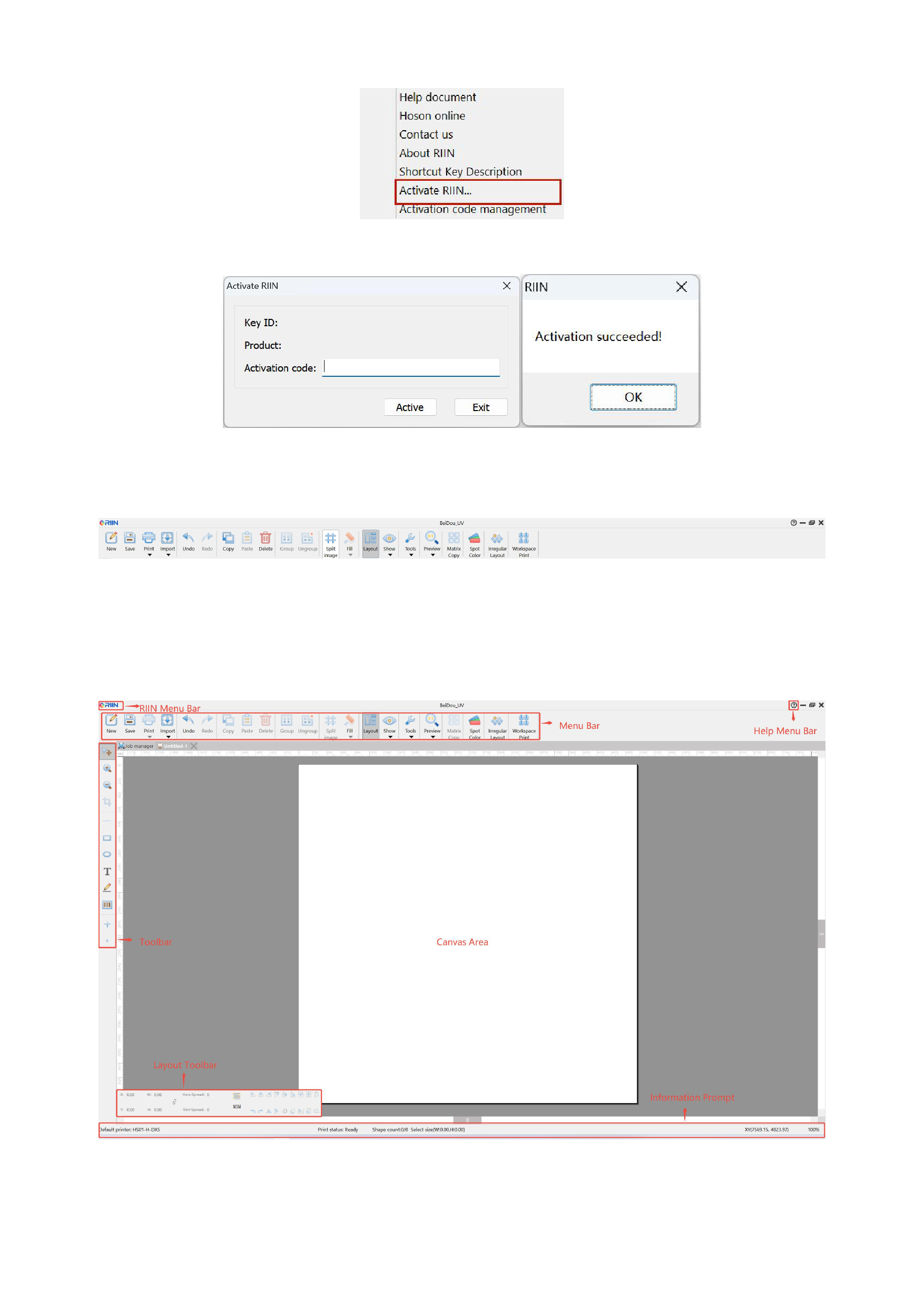
5)Enter the activation code and click [Activate]. If the activation is successful, the words "Activation Successful" will appear.
6)Return to the RIIN software interface, if the top text changes to the corresponding software version and no longer displays the
words "Demonstration", then the activation is successful.
02 Interface Introduction
The RIIN interface is divided into ten functional areas, which are: menu bar, toolbar, RIIN menu bar, help menu bar, print
management center, canvas area, outside canvas area, information prompt area, layout toolbar (which can be controlled to show or
hide by the layout function in the menu bar), and the right-click menu. Please see the positions they occupy in the illustration below.
1. Menu Bar
The menu bar contains all the menu items for using the software's functions, including creating a new canvas project, importing
8






























































