






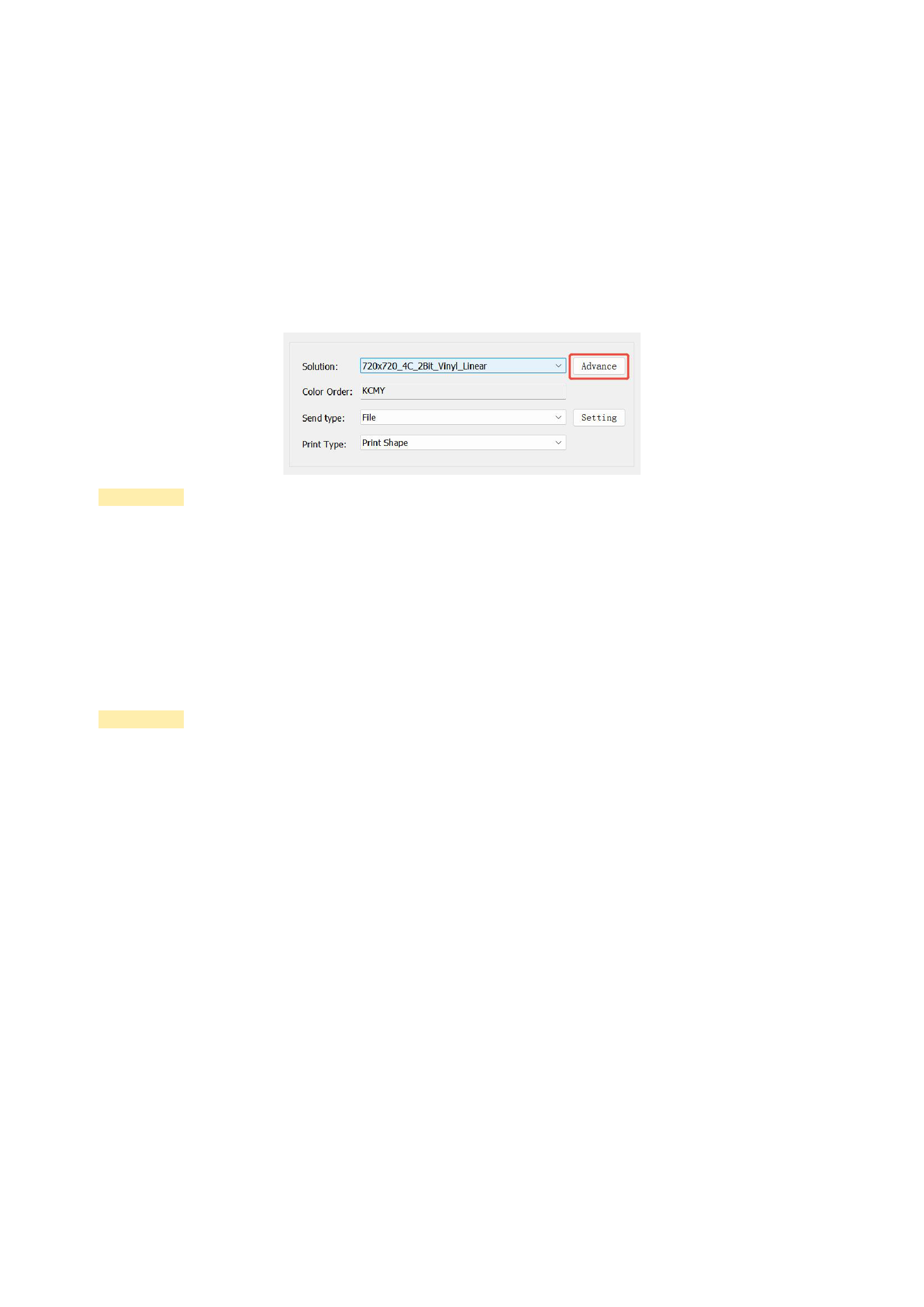
printing on the machine.
11)Canvas:Canvas settings please refer to the description of setting canvas parameters mentioned above.
12)Disk Information:Check the total storage space and available remaining space of the current computer disk.
After the above settings are completed and saved, when you click [Print], you will automatically jump to the Print
Management Center. You can view the current process, and you can also terminate the printing process at any time.
The above is only the basic settings for printing. In actual operations, you may also need to use advanced functions related to
color. See Chapter 6 for advanced printing settings.
Precautions:
Before printing, the software will check if any image exceeds the canvas boundary. If so, the interface will give a reminder.
If the printing output is in a file format, you will need to enter the storage location and name of the file by yourself.
The time required for printing is related to the size of the image to be printed. The larger the image, the longer the printing
time.
8. End of Printing
After printing is completed, you can exit the RIIN software, or you can create a new canvas project for another printing task.
Precautions:
The relevant parameters of the printer settings and canvas settings will be saved automatically by the software. If the
parameter settings you use next time remain unchanged, you can skip steps 2 and 3 in your printing process.
Before printing, you can adjust the printing color parameters by clicking on the color management module in the software's
menu bar to make the printing effect more in line with your needs.
When printing starts, the software will occupy a large amount of memory. If your memory configuration is low, it will
slightly extend the printing time.
04 Detailed Explanation of Basic Functions
1. Select Image
1)Select a single image:
Click the left mouse button on the image you want to select, and the image will be selected.
2)Select multiple or all images:
You can directly click the left mouse button in the blank area around the candidate image, hold down the left button and move
the mouse, and you will see a dashed rectangle. When you release the left mouse button, the images within this dashed rectangle will
be marked as selected. You can also hold down the Ctrl key and click the images you want to select one by one with the left mouse
23






























































