






canvas until there is not enough space on the canvas.
Specify the horizontal and vertical spacing when pasting onto the canvas. You can choose the unit of length measurement
you are familiar with. The software provides units of measurement such as inches, millimeters, centimeters, meters, picas,
points, etc. for you to choose from.
Specify the number of rows and columns for pasting. If you set row and column pasting, the program will paste the number
of rows and columns you have set onto the canvas.
After setting the parameters, click the [OK] button, and the program will start pasting the images in the way you specified.
5. Save/Open the Canvas
When you have finished editing a canvas project file, you can save this canvas file for future use. Click the [Save] button in the
Ruiyin menu bar (or the [Save] button in the menu bar or the shortcut key [Ctrl+S]), and the program will pop up a save file dialog
box.
You select the storage path and storage file name of the canvas project here, and then click the save button. The program will
save all the information related to the current printing task in the file you specified (the file name is the name you entered, and the
file extension is.rcf). Later, you can use the [Open Canvas] function to load the canvas project file into the RIIN software, and the
software interface will return to the state when you saved the canvas project file. You can continue to edit this canvas or directly
output it.
6. Add Footnotes
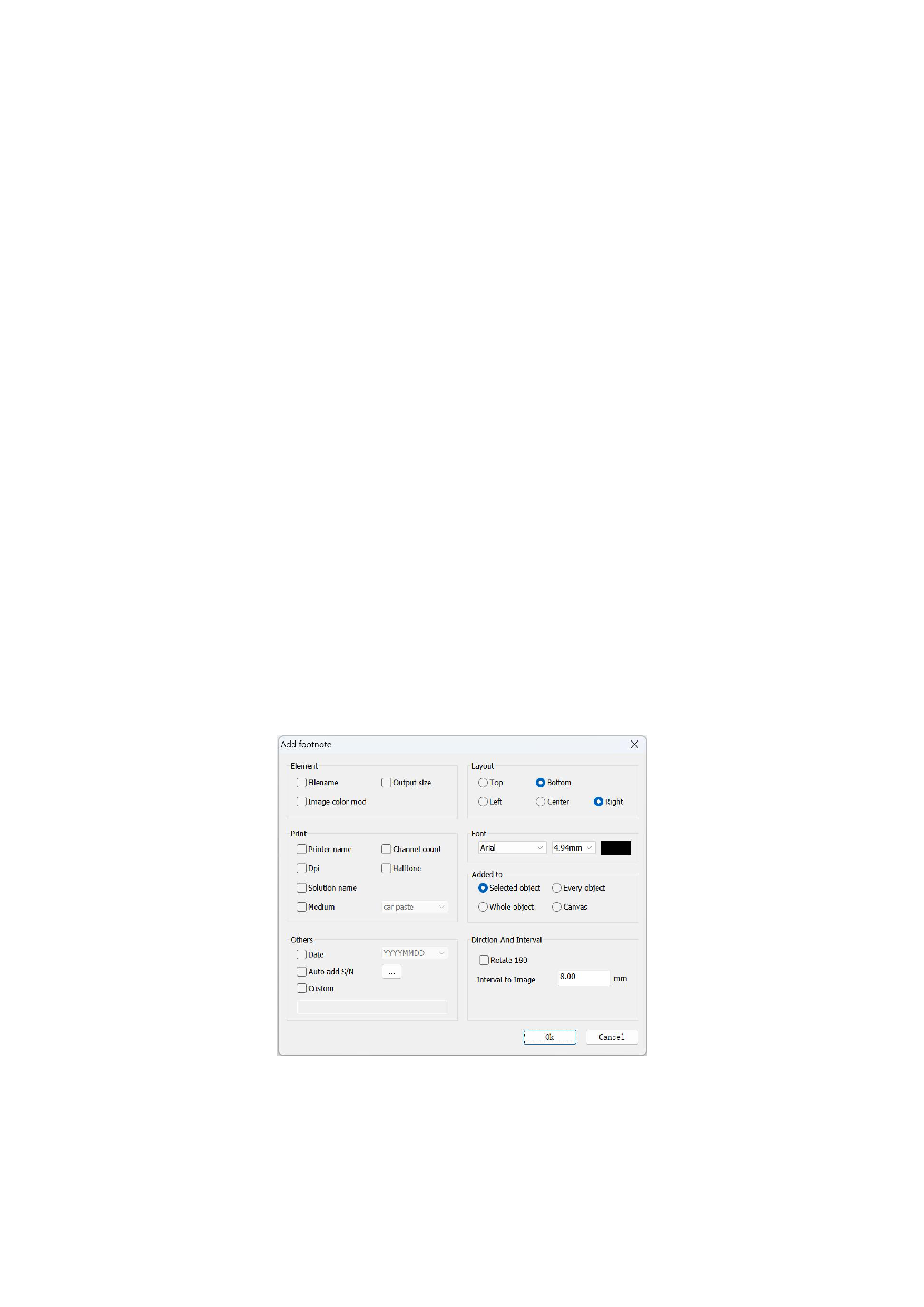
When you need to add footnotes to the images in the canvas, you can click the [Add Footnotes] button on the toolbar, and the
program will pop up the following dialog box:
After setting the footnote information you want to add in the adding footnotes interface, click the [OK] button, and the
footnotes will be added. You will be able to see the added footnote information in the printed output of your images.
7. Split Image
When the output size of an image on the canvas exceeds the canvas, you can try rotating the image. If part of the rotated image still
exceeds the canvas, then you can complete the printing by segmenting the image.
26






























































