






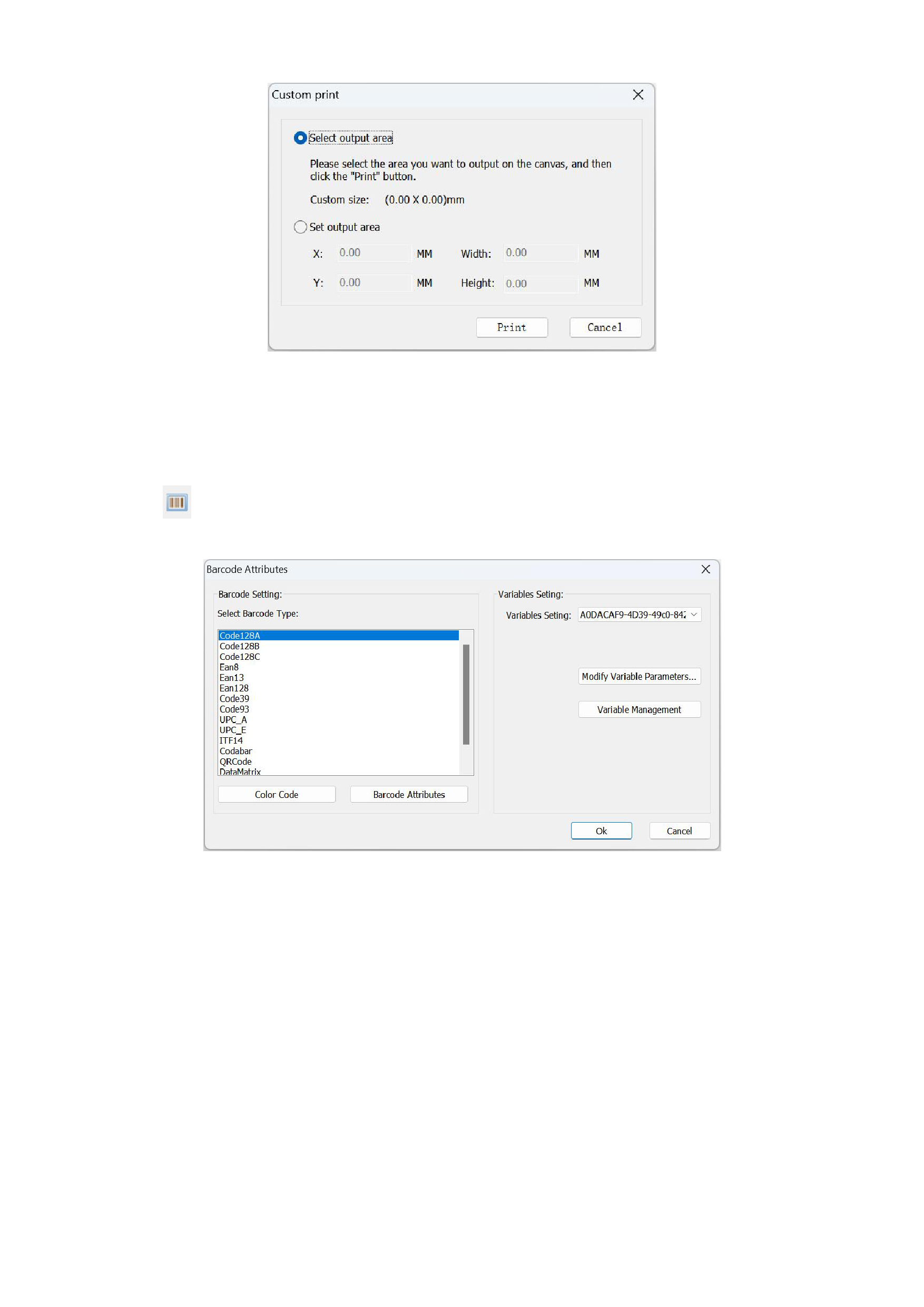
After clicking area print, there will be an additional red rectangle on the canvas, and the image within this rectangle is the
sample to be output. Before outputting, you use the mouse to adjust the position and size of this rectangle. After adjustment, you
click the [Print] button on the custom sampling dialog box to directly output the sample.
10. Barcodes
Click
on the toolbar,place the mouse on the canvas and drag the mouse to draw a barcode. Double-click the barcode, and
the following barcode attribute interface will appear:
Currently, 15 types of barcodes are supported, namely Code128A, Code128B, Code128C, Ean8, Ean13, Ean128, Code39,
Code93, UPC_A, UPC_E, ITF14, Codabar, QRCode, DataMatrix, PDF417.
1)Code128A code has unlimited length; the characters supported by Code128A code: 0~9, A~Z, control characters (the actual
code supports ASCII codes 0-95).
2)Code128B code has unlimited length; the characters supported by Code128B code: 0~9, A~Z, a~z, characters (the actual code
supports ASCII codes 0-126).
3)Code128C code has unlimited length; the characters supported by Code128C code: 0~9.
4)Ean8 code length: 7 + 1, 7 valid data digits plus 1 check digit; the characters supported by Ean8 code: 0~9.
5)Ean13 code length: 12 + 1, 12 valid data digits plus 1 check digit; the characters supported by Ean13 code: 0~9.
29






























































