






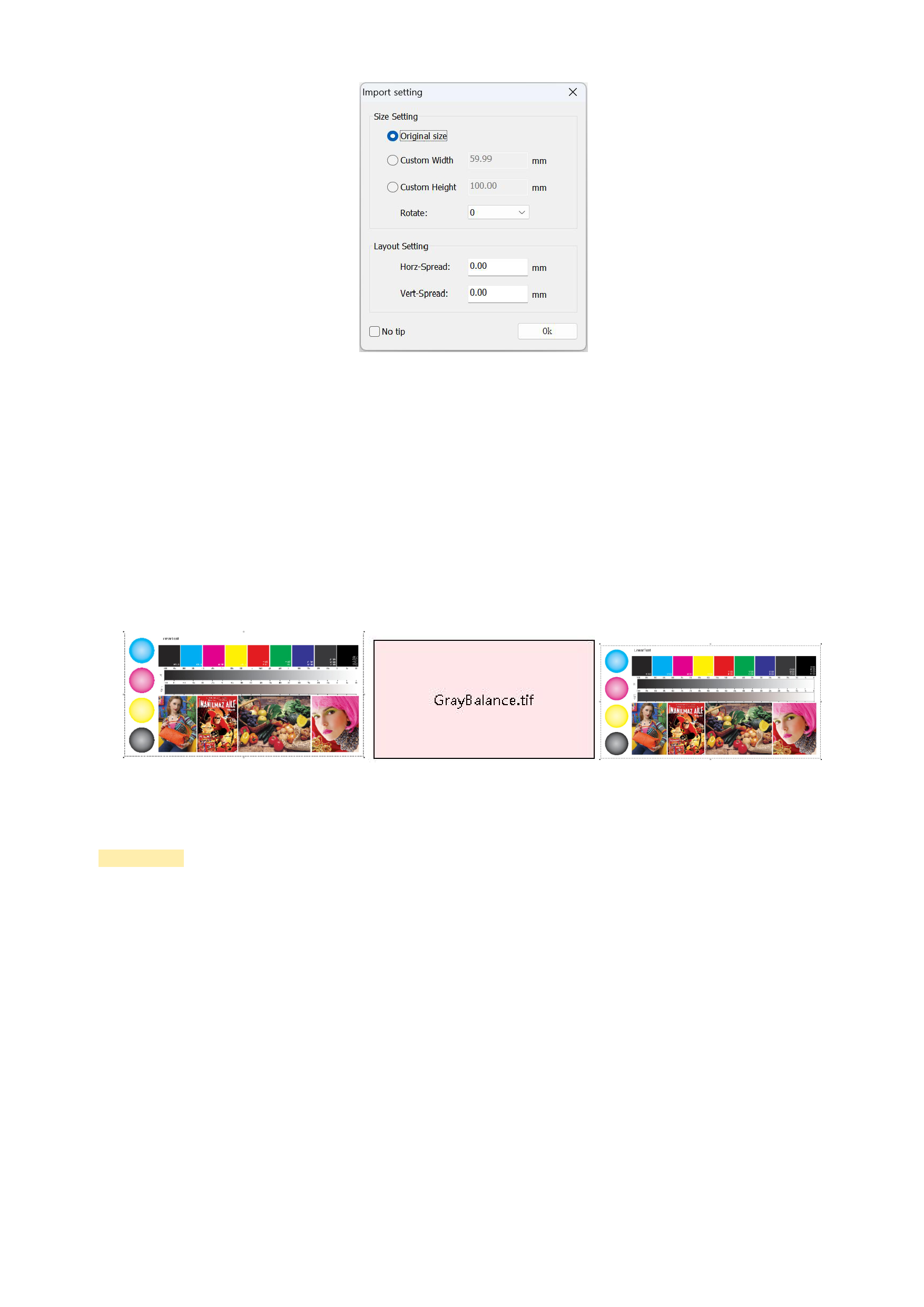
Select the image to be added, and the interface will give a reminder asking whether you want to keep the original size or
customize the imported image size. When customizing the image size, you can import with the aspect ratio locked or set the aspect
ratio yourself before importing. After setting, the image will be placed on the canvas. If you don't want the interface to give the
reminder for importing image settings, you can set to hide this reminder (the method is to click [Show] in the menu bar and uncheck
[Import tip] in the drop-down list). After hiding, there will be no reminder box when importing images again.
The software provides three display modes (which can be set in [Display Thumbnails] in the drop-down list of [Show] in the
menu bar). Depending on your different settings, you will see different display results. The default display mode of the image is to
show thumbnails. You can place multiple images on the same canvas, and you just need to repeat the process of adding images.
Normal Mode
Edge Mode
High Precision Mode
Precautions:
If you need to print multiple copies of the same image on the canvas, you can use the software's [Copy-Paste] or
[Copy-Multiple Paste] function (you can see this function option by right-clicking on the selected image), which is much
faster than repeatedly adding the same image.
When the width or length of the added image exceeds the canvas range, the software will give a reminder that the graphic
element exceeds the canvas and the excess part will be automatically cropped, and whether you want to continue cropping
and printing. At this time, you can choose to continue printing or appropriately adjust the image's [Output Size] or perform
[Split Image].
6. Setting Image Output Size and Image Layout
After adding the images, you can set the output size of the images. If there are more than one image to be printed on the canvas,
you also need to complete the image layout work.
19






























































