






Shortcut Key Description
Activate RIIN
Activation Code
Management
Details of specific operations for each software command, and you can also customize shortcut key
combinations according to your operating habits.
Used for activating the RIIN software. You can bind the RIIN software by entering the activation code.
Used for managing activation codes and can jump to the activation code management platform with one
click.
9. Print Management Center
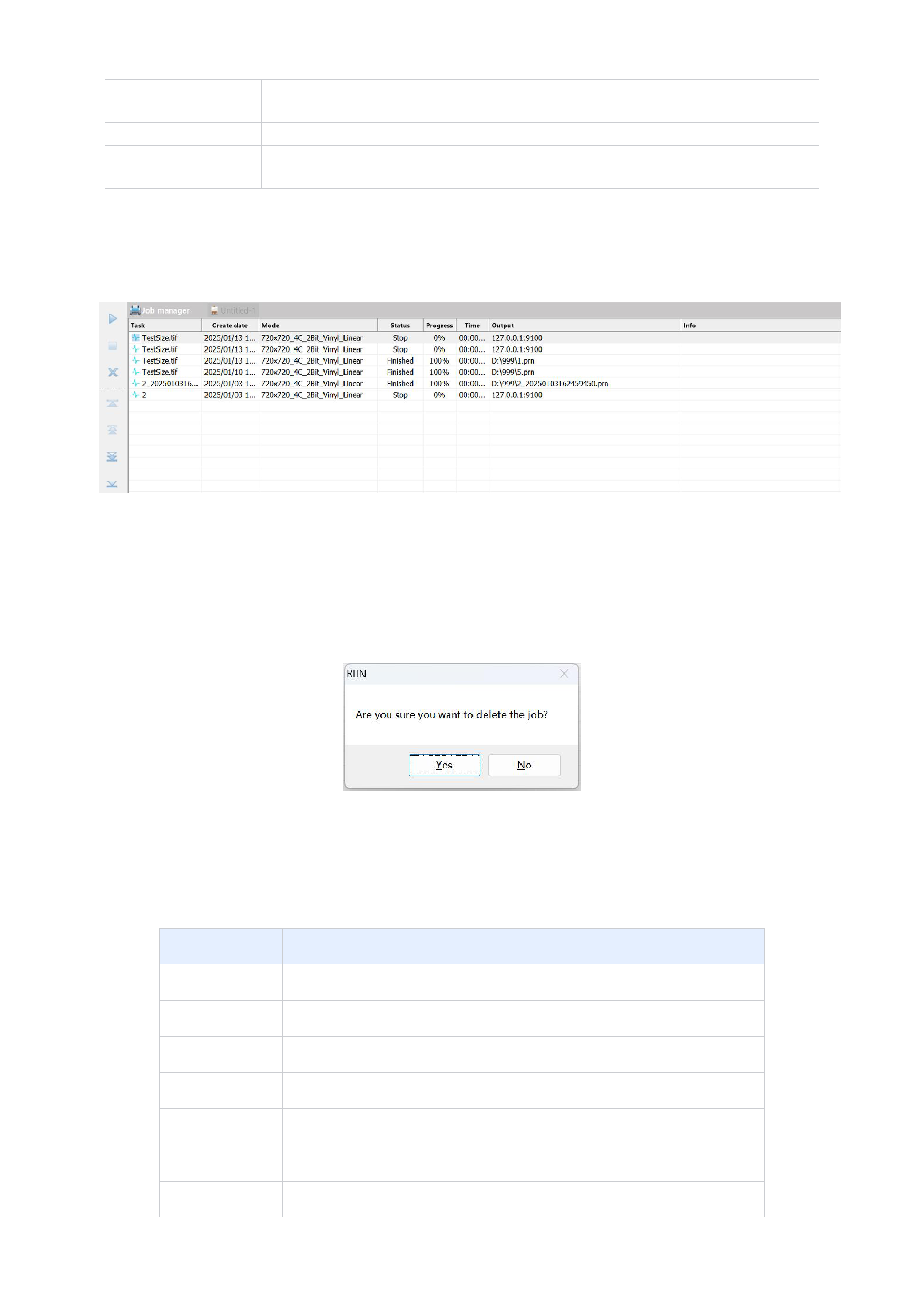
When you have started printing, the software will default to jumping to the print management center interface, and of course,
you can also set it not to jump to this interface. The print management center interface is shown in the figure.
Each time the software prints, a print task will be created in the print management center, and users can see the status, progress, time
used, etc. of each print task in the print management center. Users can use the [Start Printing], [Stop Printing], [Delete Task], [Move
Up], [Move Down], [Move to Top], and [Move to Bottom] on the left to perform corresponding operations on the task. If you want to
delete a print task, select this task and click the [Delete] button on the left, and the program will pop up a confirmation dialog box, as
shown in the figure:
If you click [Yes], the program will delete the print task, and the print task will not be displayed in the print management center
list. If you click [No], the print task will still be displayed in the print management center list.
10. Right-click Menu Bar
When you right-click on the blank area of the canvas, the right-click menu will expand. The right-click menu contains the
following command functions:
Function
Function Details
Import Image
/( all "/" indicate that they have appeared many times above)
Undo
/
Redo
/
Recover Size
Restore the selected graphic elements to their original size.
Copy
/
Paste
/
Multiple Paste
Paste multiple copies of the copied image in the current canvas and distribute them in a tiled
14






























































