






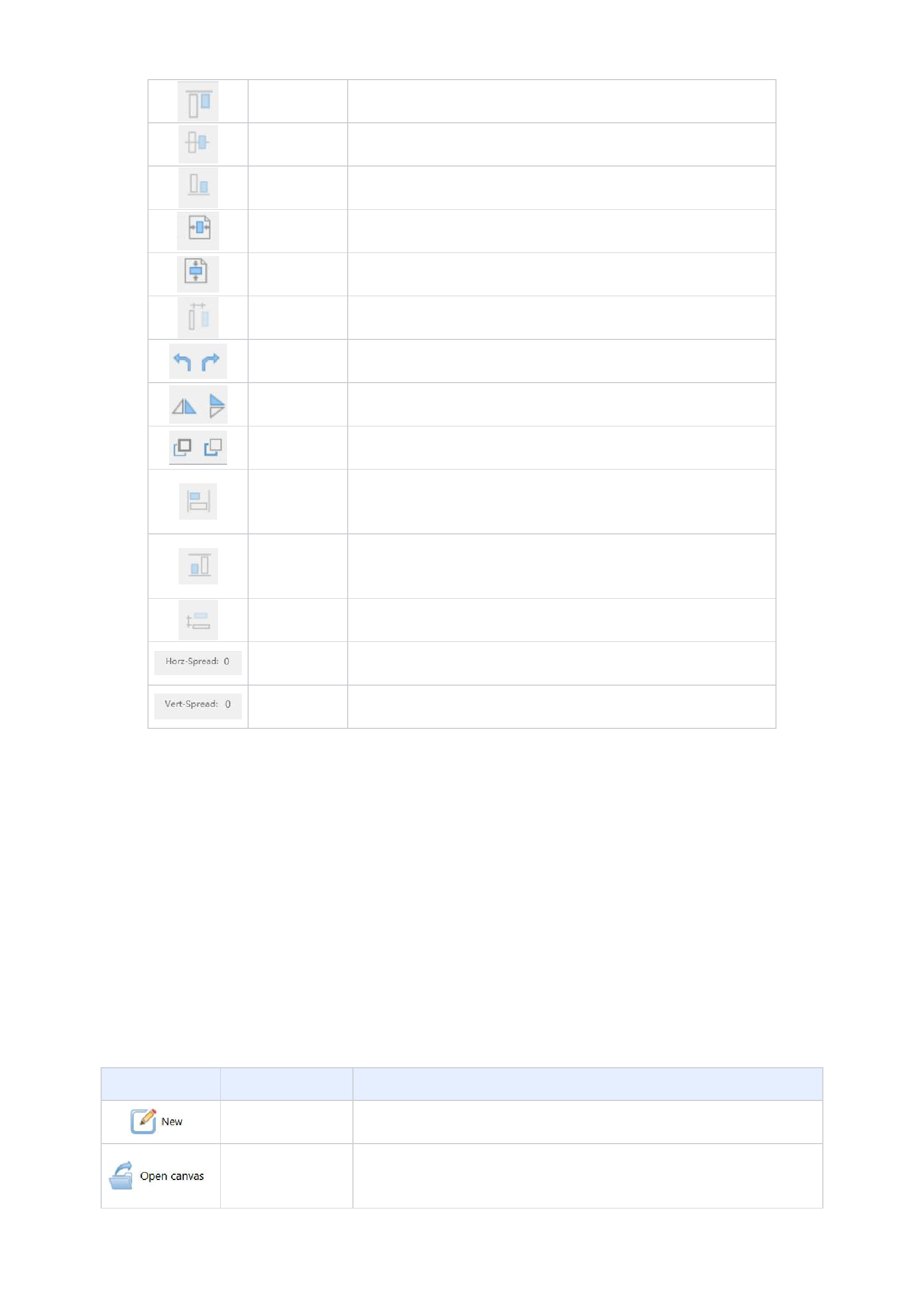
Align top
Center top and
bottom
Align bottom
Horizontally
center
Align the other images in the selected image to the top with the image at the
topmost boundary.
Align the midlines of the other images in the selected image with the midline
of the image at the topmost boundary.
Align the other images in the selected image to the bottom with the image at
the bottommost boundary.
Position the selected image horizontally centered on the canvas.
Vertical center Position the selected image vertically centered on the canvas.
5. Canvas Area
Horizontal Space the selected three or more images equidistantly in the horizontal
equidistant direction.
Output the selected image after rotating it 90 degrees to the left.
Rotate left/right
Output the selected image after rotating it 90 degrees to the right.
Horizontal/Vertic Output the selected image after mirroring it in the horizontal direction.
al flip
Output the selected image after mirroring it in the vertical direction.
Move to the Move the layer of the selected overlapping image up one layer.
top/bottom Move the layer of the selected overlapping image down one layer.
Set the width of the selected image equal to the width of the "active image",
Same width where the active image is the last selected image and is surrounded by a black
solid rectangle frame, and the width is based on the active image.
Set the height of the selected image equal to the height of the "active image",
Same height where the active image is the last selected image and is surrounded by a black
solid rectangle frame, and the height is based on the active image.
Vertical
equidistant
Space the selected three or more images equidistantly in the vertical direction.
Horz-Spread
Arrange the selected images from left to right in sequence with the specified
horizontal spacing.
Vert-Spread
Arrange the selected images from top to bottom in sequence with the specified
vertical spacing.
When you create a canvas project, the RIIN RIP software will display a rectangular frame with black edges on the interface.
This rectangular frame is called the canvas, and the area within the rectangular frame is called the canvas area. You can imagine this
frame as a real canvas, and we need to perform operations (such as importing images, moving images, etc.) in this canvas area in
subsequent operations.
6.Area Outside the Canvas
In the software interface, the area outside the canvas area is called [Outside the Canvas], and these areas are not within the
scope of operation. If you place an image in the area outside the canvas, Ruiyin RIP will remind you during printing.
7.RIIN Menu Bar
When you click on [RIIN] in the upper left corner of the software, the menu bar contains the following commands:
Function
Shortcut Keys
Function Details
Ctrl + N
Create a new canvas.
Open an existing canvas project (*.rcf). If you want to open a saved canvas, you need to
/
create a new empty canvas first and then open the canvas. If you want to open multiple
12






























































