






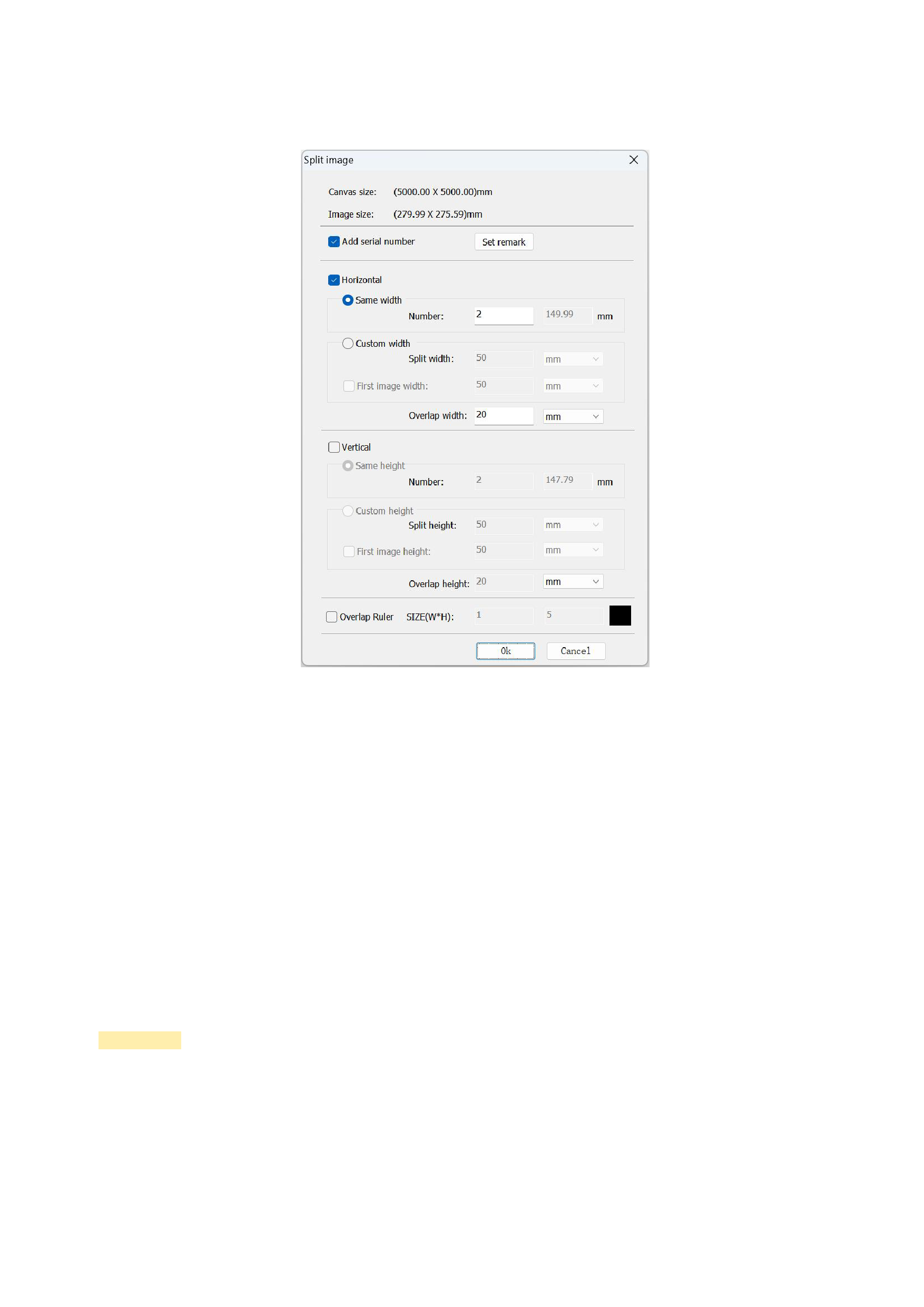
Select the image that needs to be segmented, and click the [Split Image] button in the menu bar (or use the shortcut key Alt + S), and
the program will pop up a dialog box as shown in the following figure.
The default segmentation width for horizontal segmentation is the difference between the current canvas width and the
horizontal canvas margin (default is 2 centimeters), and the default overlapping width is 2 centimeters. You can separately specify
the width of the first horizontal segmentation block.
The default segmentation height for vertical segmentation is the difference between the current canvas height and the vertical
canvas margin (default is 2 centimeters), and the default overlapping height is 2 centimeters. You can separately specify the height
of the first vertical segmentation block.
Of course, you can modify the segmentation parameter values according to your segmentation intention. The width and height
of the current canvas and the image to be segmented are displayed above the segmentation setting box, and you can set them by
referring to these values. When setting, you can select the unit of length measurement you are familiar with. The software provides
units of measurement such as inches, millimeters, centimeters, meters, picas, points, etc. for you to choose from.
After setting, click the OK button to complete the image segmentation.
Precautions:
1)The software does not support image segmentation for grouped images.
2)If you need to restore the segmented image, click the [Undo] button in the menu bar (or the [Undo] item in the right-click
menu or use the shortcut key Ctrl + Z) to return to the state of the image before segmentation.
27






























































