






program pauses printing. If the user wants to continue printing, clicking the [Start Printing] button allows the program to
resume printing. If you want to stop printing midway, you can click the [Stop Printing] button, and the program will stop
printing. After the program stops printing, you can perform other operations.
4)Printing Type: It supports [Print Shape], [Absolute Coordinate], [Print Canvas], and [Canvas Width]. [Print Shape]
means only printing the effective area of the graphic elements within the canvas. [Absolute Coordinate] means printing from
the origin position to the maximum width and height area of the graphic elements within the canvas. [Print Canvas] means
printing the entire canvas area. [Canvas Width] means only printing the effective area that conforms to the canvas width and
the height of the graphic elements.
5)Horizontal Mirror: Select whether the currently printed image needs horizontal mirror output.
6)Vertical Mirror: Select whether the currently printed image needs vertical mirror output.
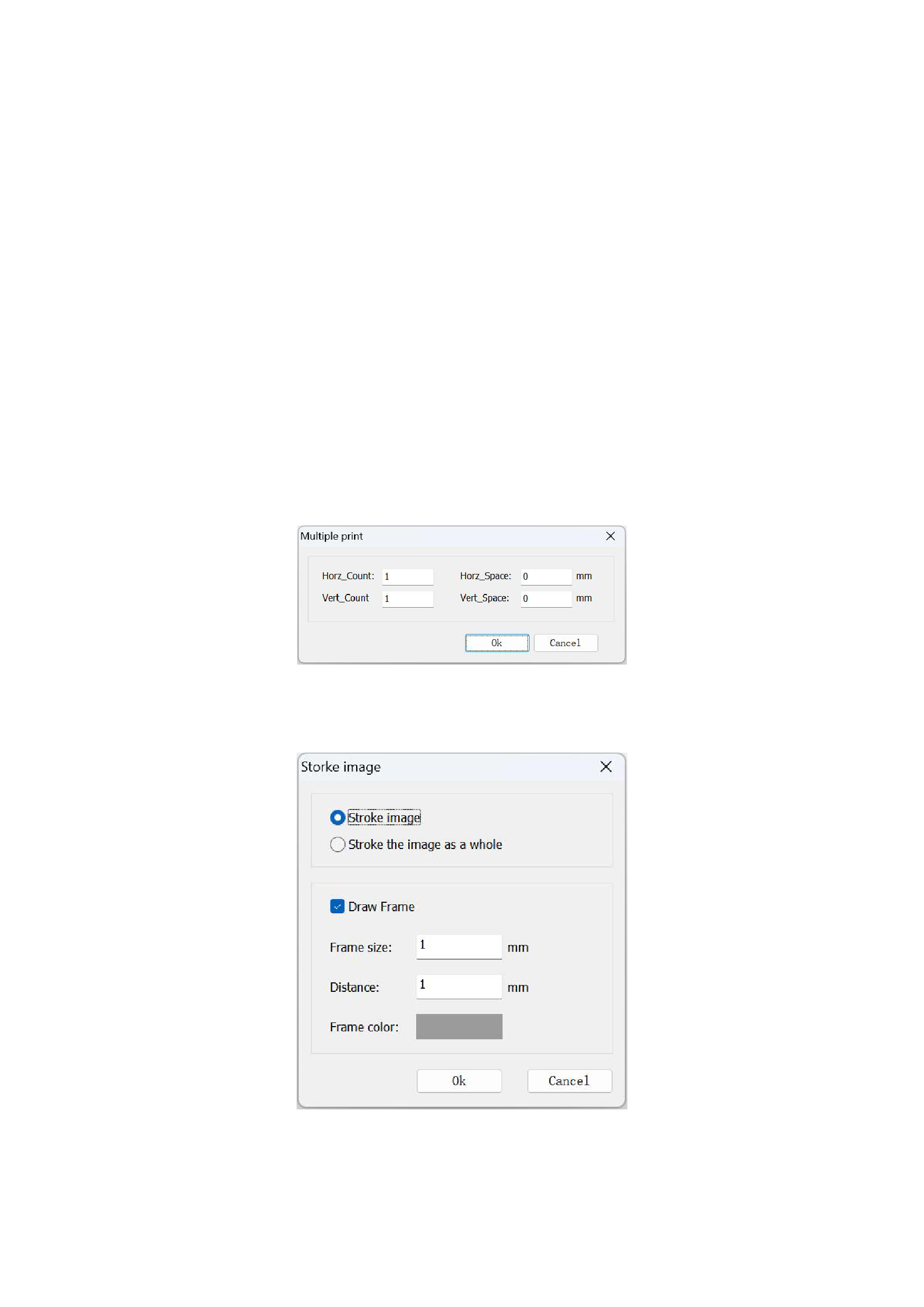
7)Multiple Print: When selecting multiple copies printing, you can set relevant information for multiple copies printing.
Clicking the three-dot button on the right side pops up the following dialog box:
8)Storke Image:Outlining the individual image or the whole. Select border printing, click the three-dot button on the right, and
the following dialog box pops up:
9)Generating a JPG Preview File: When the option to generate a JPG preview file is checked, a JPG preview file with the same
name will be saved in the same path while outputting the prn file in the local file mode.
10)Forward Output:Checking the forward output option will cause the graphic elements on the canvas to rotate 180 degrees for
22






























































