






6)If you need to hide the edge tracing contour, you can click the [Hide Contour] button at the upper right of the interface. The
contour will only be hidden on the current page, and you can still see the image contour in the canvas.
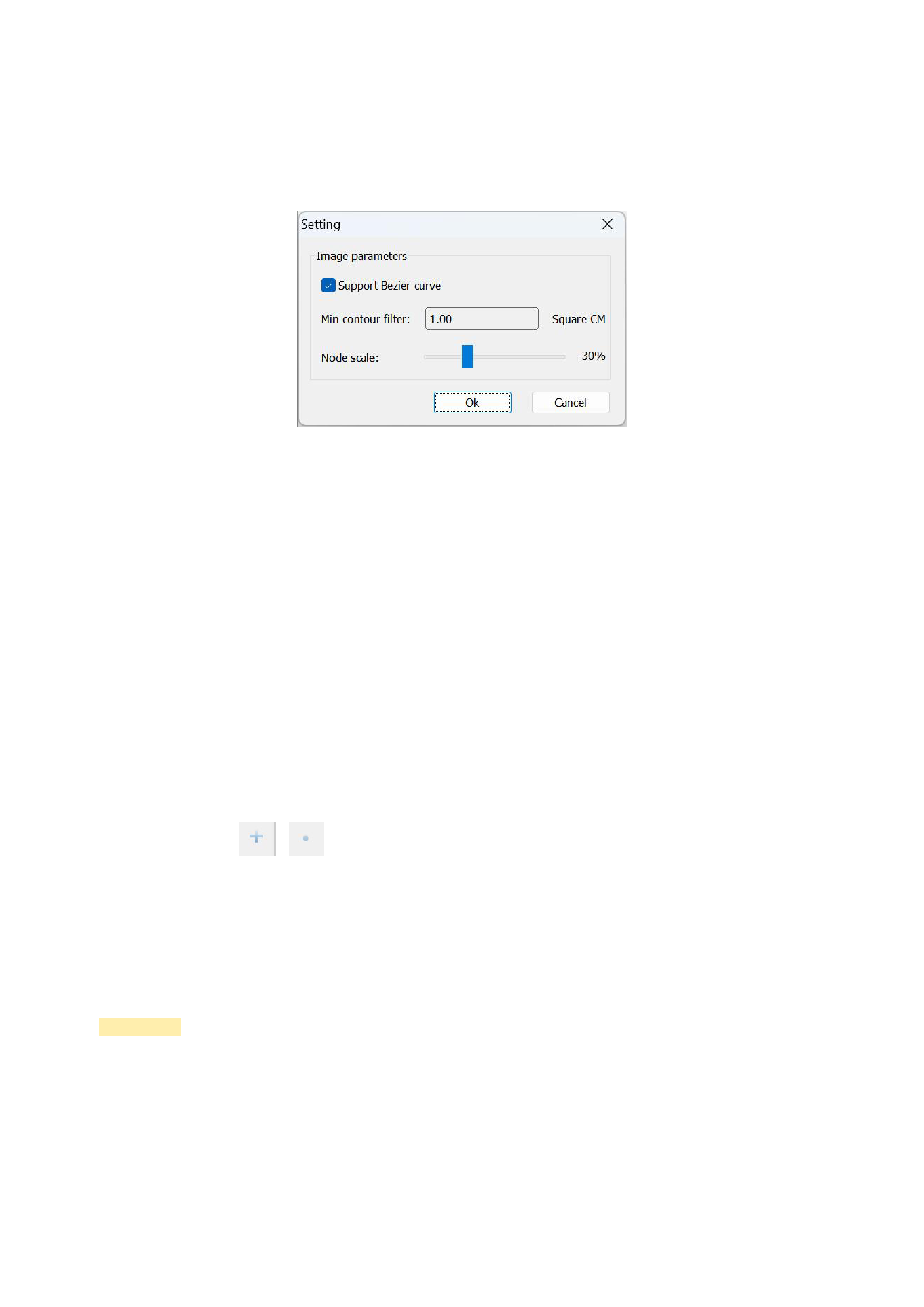
7)Click [Setting], and the pop-up window is as follows:
The default selection supports Bezier curves, making the edge tracing contour smoother.
The minimum contour filtering is default to 1.00 square centimeters, which means that areas smaller than 100 square
centimeters will not have contours drawn. You can set it according to your needs.
The scale of generated nodes is default to 30%. The larger the scale of generated nodes, the more nodes there will be, and
the more detailed the stroking will be. However, the cost is resource consumption, which may cause the software to lag, so it
is not necessarily the larger the better. You can choose according to your own needs.
8)Click [Trace Edge]. After generating the edge tracing contour, you can use the mouse to drag the edge nodes to adjust the
edge contour. After confirming that the edge contour meets your requirements, click OK. Click [Save PLT File] in the RIIN menu
bar to obtain the overall cutting contour of the image.
2. Locator
After the typesetting file is printed, a path file can be exported along with it for use by the cutting machine.
1)Click the button
or
place the mouse on the canvas and drag the mouse to draw a locator. Double-clicking the
locator will display the following interface, where you can set the filling color of the locator.
You can adjust the size of the locator by stretching the small black rectangular frames around it with the mouse.
2)After setting the locator standards, click the RIIN icon in the upper left corner to save a PLT format file. After selecting the
storage path and saving, it can be imported for use by the cutting machine.
Precautions:
For saving the cutting path of irregularly shaped images, the image path must be saved as the cutting path for RIIN to recognize
it.
3. Locator Settings
Set locator in the canvas. The function of locator is to serve as symbols for the cutting machine to easily identify the cutting,
and the positioning information is saved in the PLT file. You can adjust the relevant parameters of the locator through [Locator
38






























































