






Show
Tools
Preview
Spot Color
The entrance for setting whether to display certain content on the page.
Here, you can set whether to display the ruler, select the unit of the displayed ruler,
whether to show the snap-to guides, whether to show the snap-to graphic elements, set
/
the snap distance, whether to display thumbnails, whether to show borders, whether to
show dividing lines, whether to set a reminder when importing pictures, select the
language, and choose the theme.
The entrance to clear cache, error compensation, border settings, color matching
/
settings, and vector settings. If you want to use the relevant functions, you can find
them here. The specific usage will be introduced in the advanced functions section.
Adjust the canvas view to the canvas height, or the canvas width, or a 100% canvas
/
preview, or a custom canvas preview.
This is for setting up white ink spot color printing.
If you want to use this function, you can directly click with the mouse to set the
/
relevant parameters. The specific usage will be introduced in the advanced functions
section.
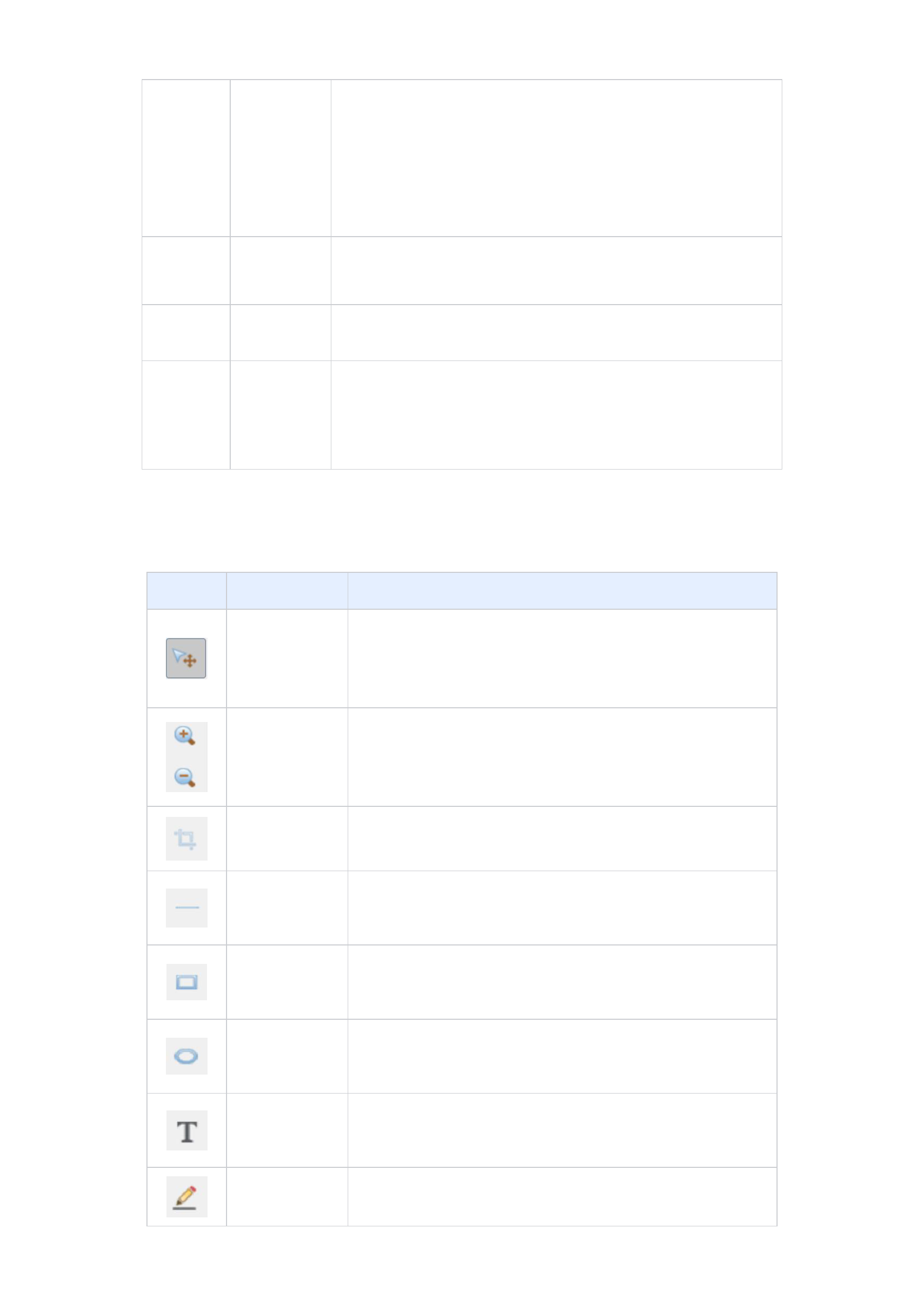
2. Toolbar
The toolbar contains small tools for drawing vector graphics. You can draw shapes such as rectangles and ellipses via the
toolbar.
Icon
Function
Function Details
Selection Mode
Zoom in/out
It is used for switching the tool menus.
When you have finished using a certain tool in the tool menu and want to use
another tool in the menu, you can use the selection mode button to switch, so
as to meet your needs.
It is used to adjust the display scale of the current canvas.
You can also hold down the "Ctrl" key on the keyboard while scrolling the mouse
wheel. Scrolling upwards enlarges the display scale of the current canvas, while
scrolling downwards shrinks it.
Clipping image It is used to crop the images on the canvas.
Draw Straight Line
Draw Rectangle
Draw Ellipse
Draw Static text
It is used to draw a straight line.
Click the icon in the toolbar, and while holding down the "Ctrl" key on the
keyboard, drag the mouse to draw a straight line.
It is used to draw a rectangle.
Click the icon in the toolbar, place the mouse on the canvas, and then drag the
mouse to draw a rectangle.
It is used to draw an ellipse.
Click the icon in the toolbar, place the mouse on the canvas, and then drag the
mouse to draw an ellipse.
It is used to draw a text on the canvas. Click the icon in the toolbar, place the
mouse on the canvas and drag it. Then, enter the text content you want to add
in the pop-up Add Text dialog box.
Add Footnote
It is used to add footnotes to the graphic elements on the canvas. For adding
footnotes, please refer to the description of the footnote-adding operation in
10






























































