






7. Basic Settings for Printing Images
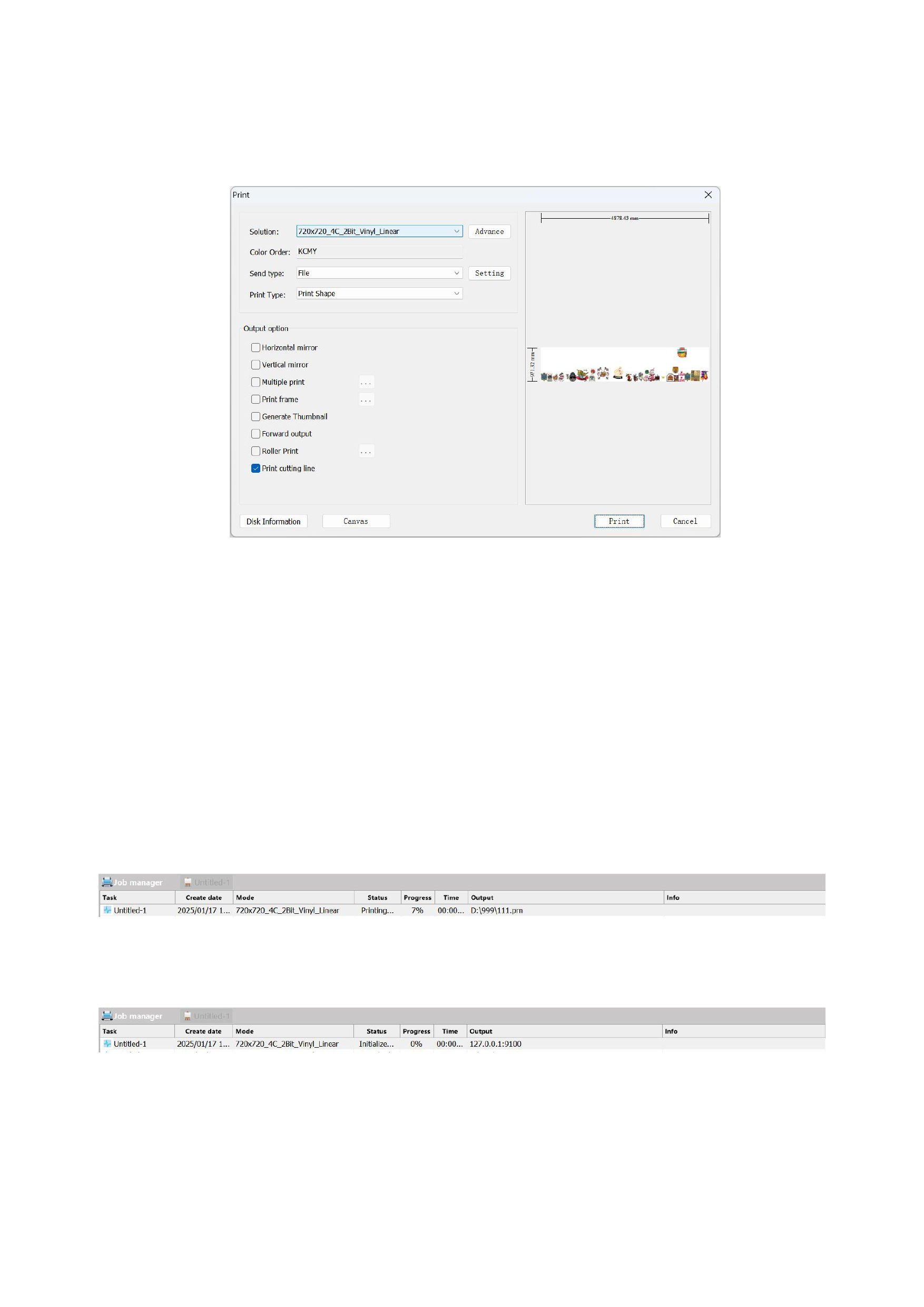
Click the [Print] button in the RIIN menu bar (shortcut key Ctrl+P), and the program will pop up a print confirmation dialog
box, as shown in the following figure:
Here you can set relevant printing parameters:
1)Solution: Select a printing solution you need for printing from all the newly created solution.
2)Set printing parameters according to your needs. The sending method can be selected as [File] or [TCPIP]. Choosing to
print to the file port means generating a PRN file first, and then the printing software opens the PRN file for printing. Choosing to
print to the TCPIP port means processing the image and printing simultaneously without generating a PRN file. The printing
software only needs to stay open in the background and have the parameters set, which saves time and space but requires higher
computer configuration.
When choosing to print to the file port and clicking the [Print] button on the print confirmation interface, the interface is as
follows:
When choosing to print to the TCPIP port and clicking the [Print] button on the print confirmation interface, the progress
indication is as shown in the following figure:
3)Here, the meanings of parameter progress, time, and output method need to be explained:
22% represents the percentage of the currently RIP quantity, 00:00:04 indicates that it took 4 seconds to complete 22% of
the RIP process, and the output method shows the path and file name where the file is saved.
In addition, when printing to the network port, the user can pause printing. After clicking the [Stop Printing] button, the
21






























































