






3)Setting Printer Properties:
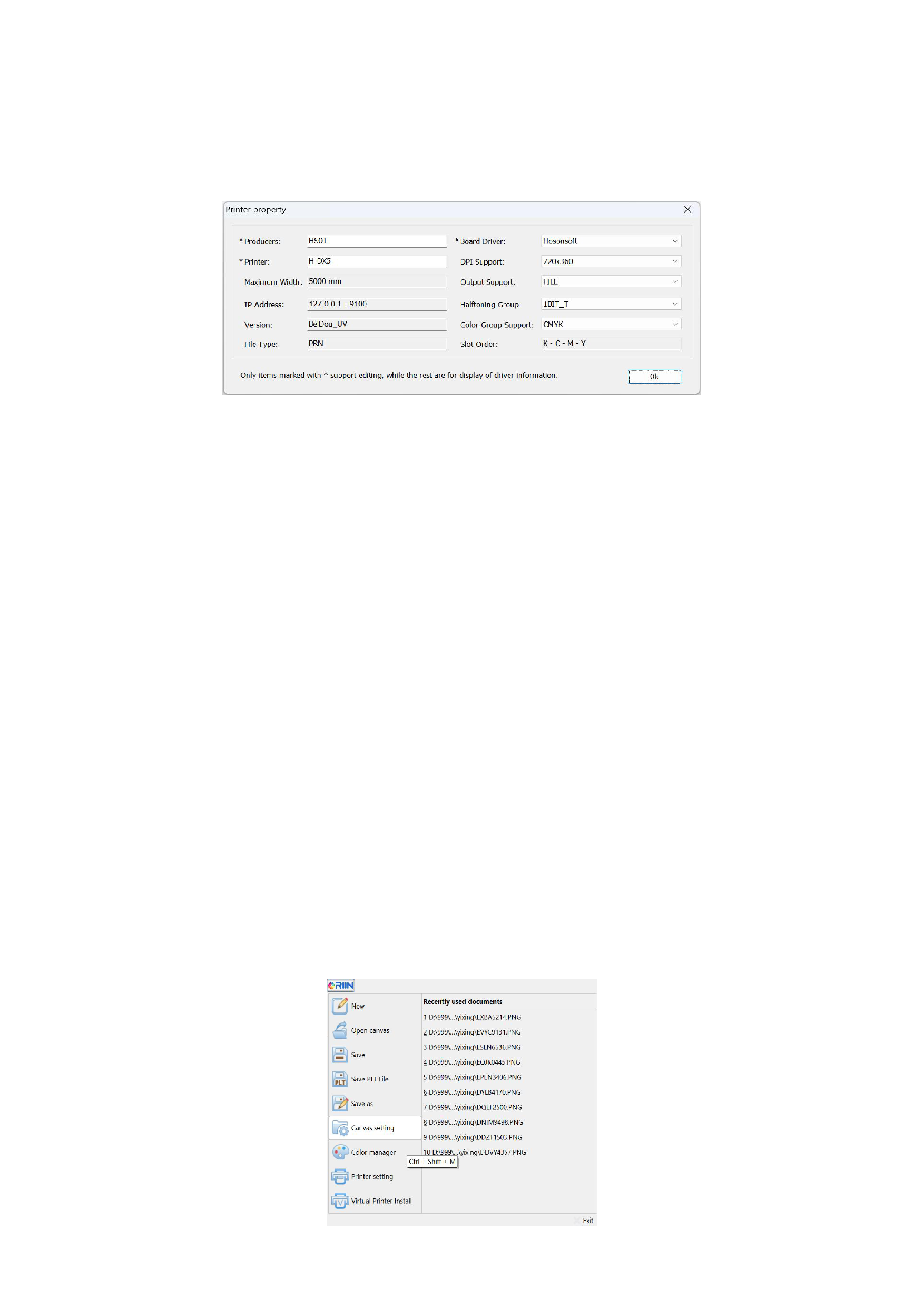
Select the printer to be set, click the [Printer Properties] button, and the program will pop up the printer properties dialog box, as
shown in the following figure:
Here, you can view parameters such as the output resolution, color combination, and output mode of the printer's work. After
viewing, click [OK] to exit.
4)Setting as the Default Printer:
After setting the printer's parameters, you need to set the printer you selected as the default printer. Select the printer and click
the [Set as Default] button, and the subscript of the printer will show that this printer is the default printer.
5)Importing a Printer:
During your use, if you need to import the printer driver of another model, you can import a DPF format file (this file contains
plate card driver files, curves, and software drivers) to facilitate your software installation.
6)Exporting a Printer:
During your use, if you need to export the printer driver of this model, you can export a DPF format file for use on the printer.
3. Set Canvas Parameters
For example, if you want to print a 1.2m × 2m advertising banner for a customer, the first thing you need to do is to start the
RIIN software to create a new canvas.
When creating a new canvas, the canvas in the program will have a default width and height, but usually, we need to adjust the
width of the canvas according to the width of the printer paper to achieve the most paper-saving output.
Click the [Canvas Settings] in the RIIN menu bar (shortcut key Ctrl+Shift+M).
17






























































