






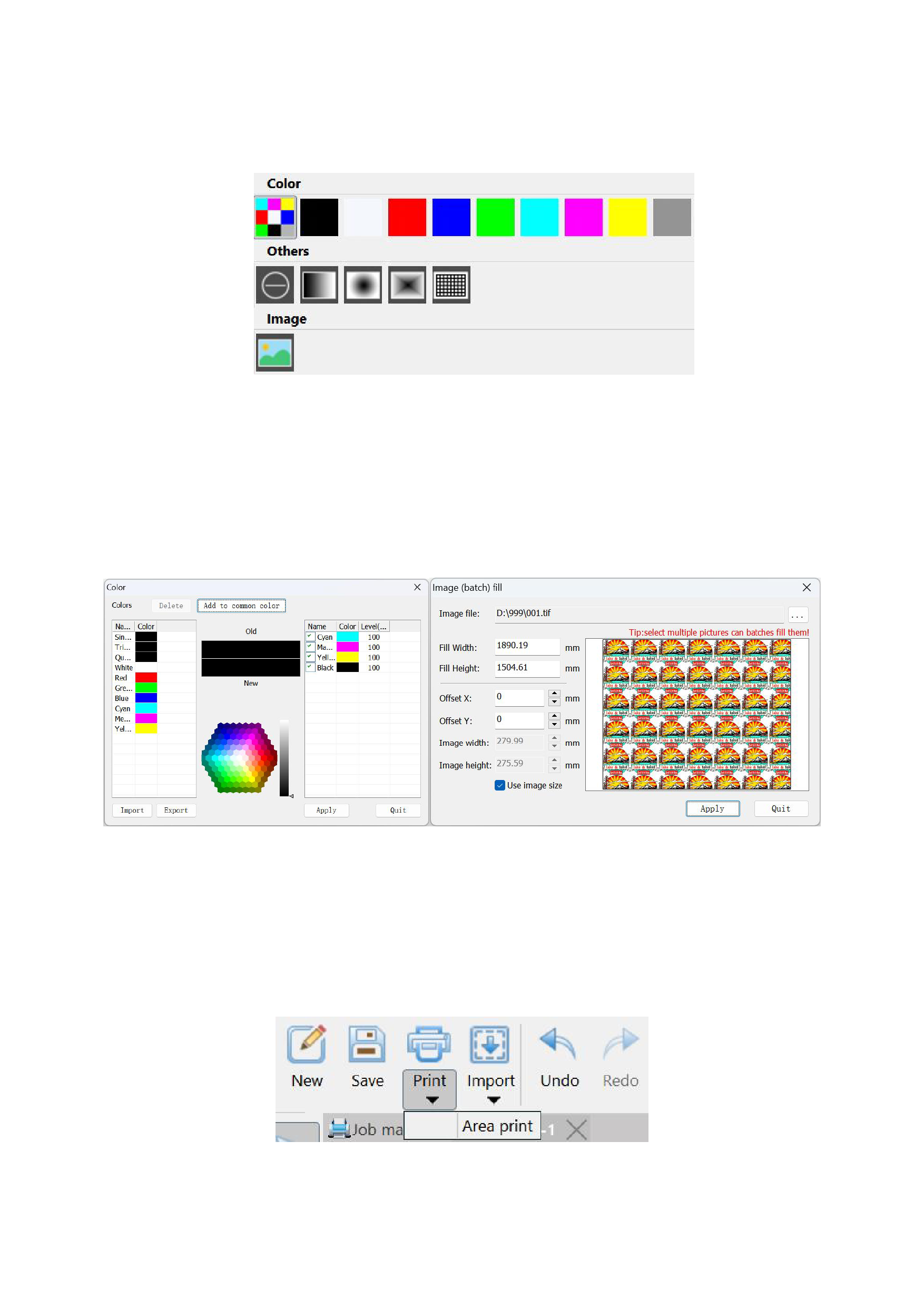
8. Fill
Sometimes when you draw a rectangle or an ellipse on the canvas using the tools on the toolbar and you want to fill it with
color, you can use the color fill function.
After selecting the rectangle or ellipse to be filled, click the fill option in the Ruiyin menu bar. You can use the colors from the
default commonly used color palette, or you can select the color you want to fill from the color library by yourself. After the
operation is completed, the rectangle or ellipse will be filled with the color you desire.
If you draw a rectangle on the canvas using the tools on the toolbar and you want to fill it with an image, you can choose image
fill. After selecting the image to be filled and setting a fixed size, you can proceed (batch processing of images is also possible).
The color library and image fill pop-up windows are shown in the following figure.
9. Area Print (Custom Sample)
If you want to preview the output effect of the canvas before outputting it, RIIN supports area printing, and you can customize a
sample for the current canvas.
You need to click the black inverted triangle below the [Print] function in the menu bar, and the [Area Print] function will
appear.
Clicking will pop up a pop-up window as shown in the following figure:
28






























































