






pattern according to the settings.
Delete Footnote
Show Thumbnail
Delete the footnote information of the graphic element. The prerequisite for performing this
operation is that the graphic element has already had a footnote added.
There are three modes to choose from: standard mode, border mode, and high-precision mode.
Group
/
Ungroup
/
Output Size
You can set the horizontal width and vertical height of the selected image.
Cut Image
Crop the selected graphic elements.
Image Attribute
You can view the basic information of the selected image in the canvas, such as file information,
output information, and status information.
Edit Text
Edit the content of the text again when the text has already been created.
Storke Image
You can set the edges of self-drawn vector rectangles and ellipses, and support setting no edge,
solid line, dashed line, dotted line, edge width, and edge color.
Image Trace Edge
It is used as an aid in cutting and trimming. After edge tracing of the selected picture, draw a thin
edge line on the edge of the picture, and exporting the PLT can obtain the overall cutting contour
of the picture.
You can view the basic information of the current canvas, such as canvas properties, graphic
Canvas Information
element statistics, and other statistics.
03 Basic Operation Process
The following will demonstrate the software's operation process through an example. Suppose there is an image that needs to
be printed, with a size of 2.4×2.0 meters. The image file has already been created using Photoshop (or other image processing
software) and is stored in a certain directory on the disk, and the image file name is a.tif.
1. Open the RIIN Software
According to the previous step 01 where the RIIN software was installed and activated, you don't need to bind the software
again each time you open it. You can use it immediately after opening.
2. Set Printer Parameters
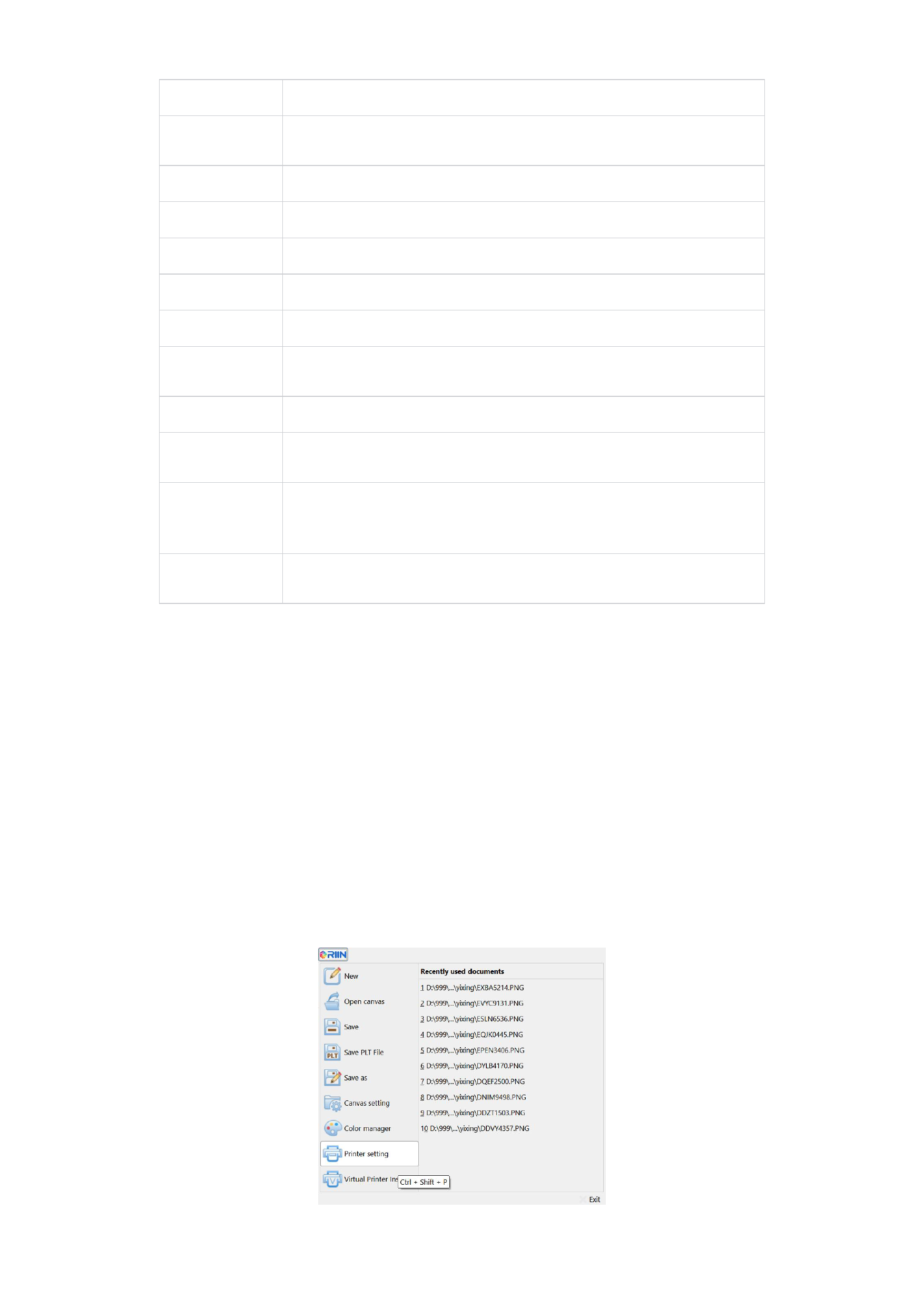
Click the icon in the upper left corner of the software, that is, the [Printer Setting] in the RIIN menu bar (or use the shortcut
key Ctrl+Shift+P), and complete the corresponding printer settings in the printer setting interface.
15






























































