Shanghai Fangling Computer Software co., Ltd
2.1.9.3 Automatically clear micro joint
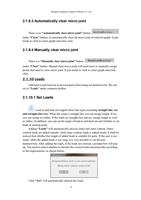
There is an “Automatically clear micro joint” button
under “Clear” button, to automatically clear all micro joint of selected graph. It just
needs to click to select graph and click clear.
2.1.9.4 Manually clear micro joint
There is a “Manually clear micro joint” button
under “Clear” button. Manual clear micro joint will need users to manually assign
points that need to clear micro joint. It just needs to click to select graph and click
clear.
2.1.10 Leads
Add lead in and lead out to prevent parts from being cut destructively. We can
set in “Leads” under common toolbar.
2.1.10.1 Set Leads
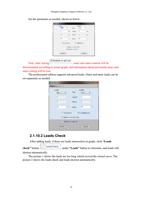
Lead in and lead out support three line types including straight line, arc
and straight line+arc. When the setup is straight line you can assign length. If arc,
you can assign its radius. If the leads are straight line and arc, assign length as well
as radius. In addition, you can set the angle of lead in and lead out and whether to set
leads at starting point.
Adding “Leads” will automatically process inner and outer contour. Outer
contour leads are added outside, while inner contour leads is added inside. It shall be
noticed that whether the length of added leads is suitable for parts. If the part is too
small, while the added leads is too long, it is very possible to cut the part
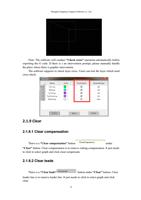
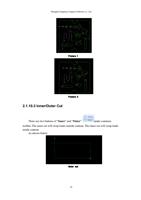
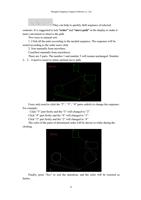
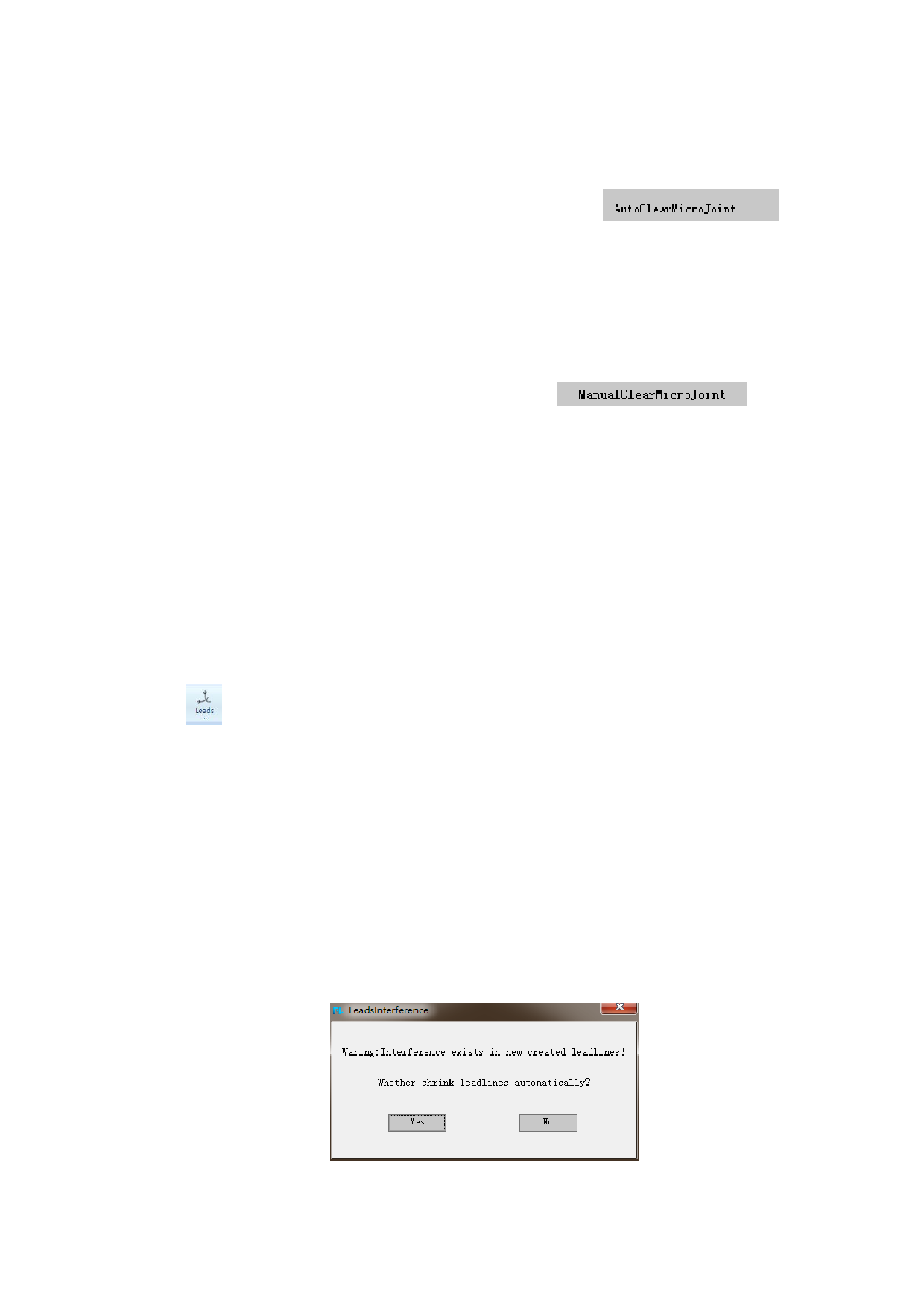
destructively. After adding the leads, if the leads are crossed, a prompt box will pop
up. You need to select whether to shorten the crossed leads automatically according
to the requirements, as shown below:
Click “Yes” will automatically shorten the leads.
42