Shanghai Fangling Computer Software co., Ltd
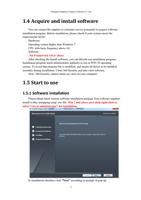
installation path selection interface select software installation catalogue based on
your own demand, default is C:\Program Files (x86)\FL\FLCAM\ .You can modify
the installation path as needed.
After installation, the desktop will display shortcut icon. If it does not display,
manually open software installation catalogue, select FLCAM .exe file, right-click to
select “Sent to” - “Desktop shortcut”, then the shortcut will appears on desktop.
1.5.2 User interface
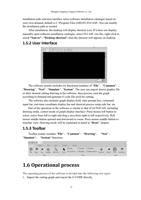
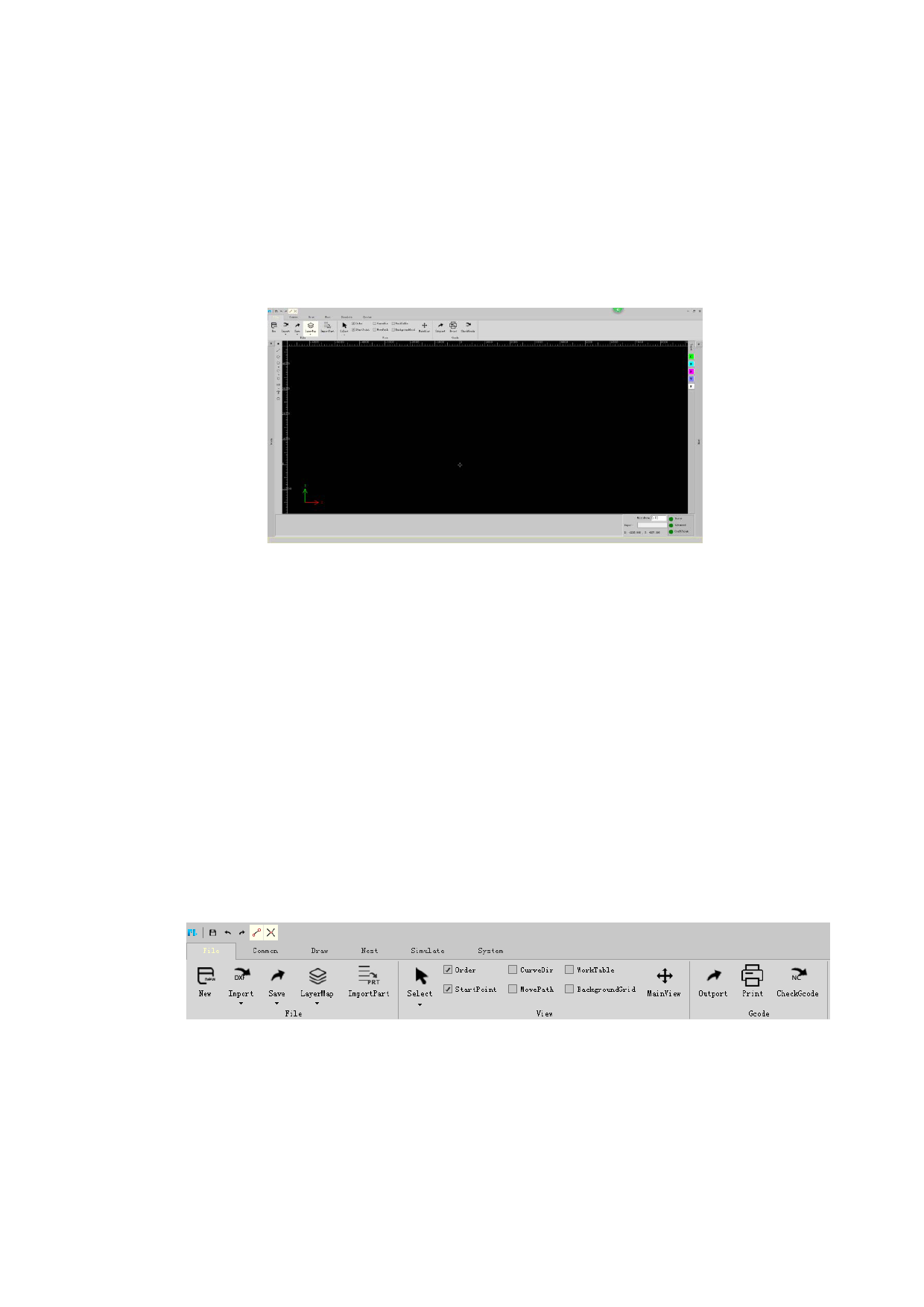
The software mainly includes six functional modules of “File”、“Common”,
“Drawing”、“Nest”、“Simulate”、“System”. The user can import drawn graphic file
or draw desired cutting drawing in the software, then process, nest the graph
according to demand and generate G code file used for cutting.
The software also includes graph display field, state prompt box, command
input bar, real-time coordinate display bar and shortcut process setup side bar, etc.
Part of the operation in the software is similar to that of AUTOCAD, including
drawing mode, control mode of graph display interface: Press mouse left button to
select, select from left to right and drag a area from right to left respectively. Roll
mouse middle button upward and downward to zoom. Press mouse middle button to
translate view. Drawing mode will be explained in detail in “Draw” chapter.
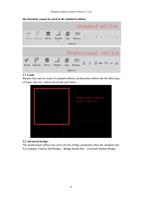
1.5.3 Toolbar
Toolbar mainly includes “File”、“Common”、“Drawing”、 “Nest”、
“Simulate”、 “System” functions.
1.6 Operational process
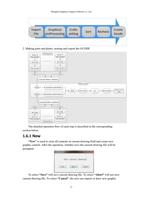
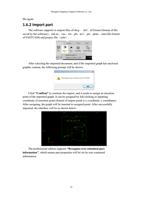
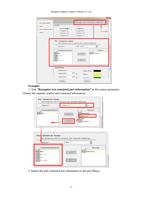
The operating process of the software is divided into the following two types:
1. Import the cutting graph and export the G CODE directly.
12