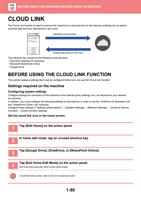
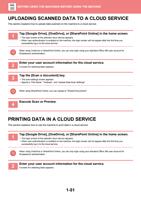
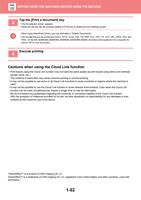
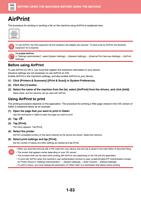
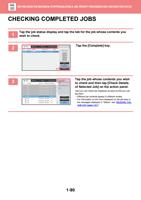
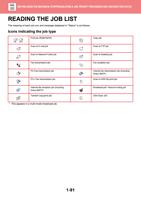
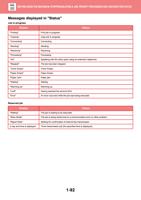
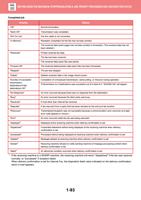
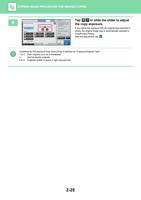
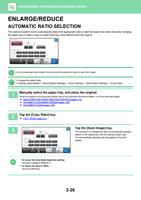
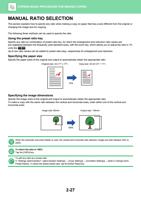
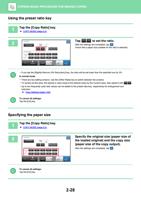
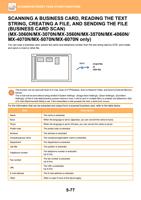
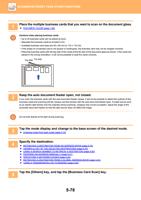
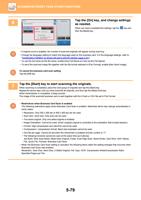
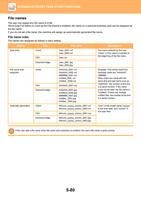
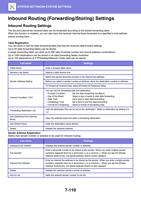
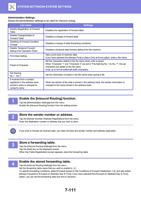
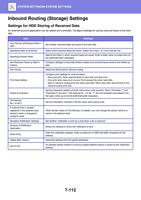
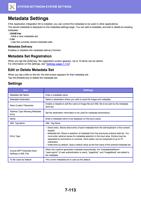
- You are here:
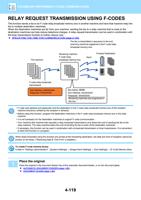
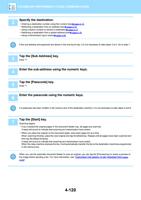
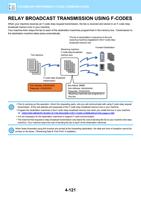
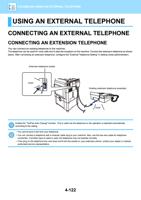
- AM.CO.ZABuythisCNC Utilities Homepage
- Office-Softwares
- Sharp MX Printer Manual.pdf
- Page 27 of 934
BEFORE USING THE MACHINE►BEFORE USING THE MACHINE
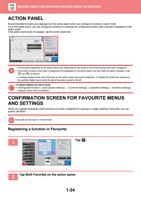
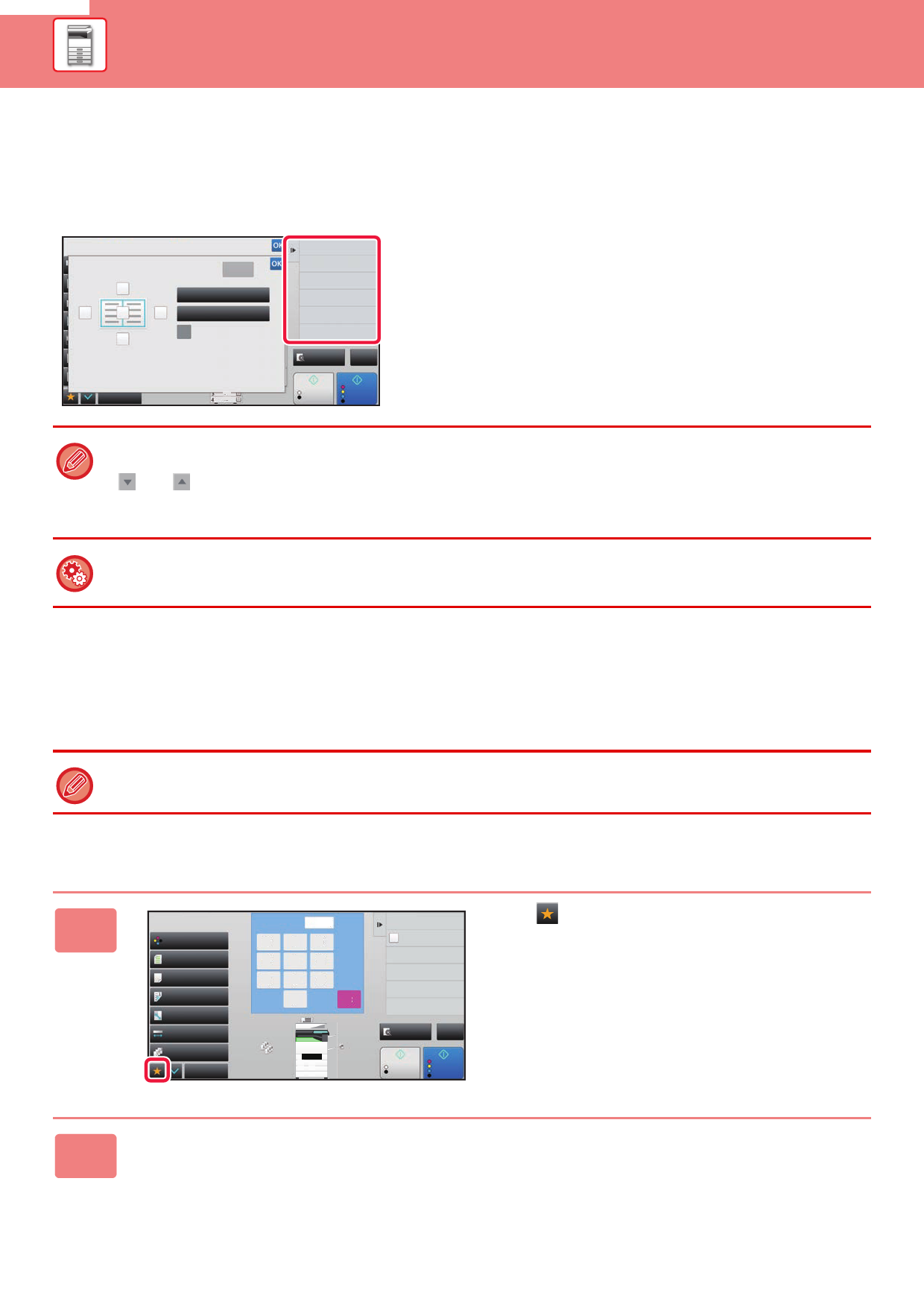
ACTION PANEL
Recommended functions are displayed on the action panel when you configure functions in each mode.
From the action panel, you can configure functions or combine the configured function with a function displayed on the
action panel.
If the action panel does not appear, tap the action panel tab.
Others
Erase
Left
Up
Right
Down
Clear
Outer Frame
Specify Frame+Centre
Reverse erase position of
back face
Booklet
Copy Like A Pamphlet
Original
Change Size/Direction.
2-Sided Copy
Colour Mode
Background Adjustment
Preview
CA
Others
B/W
Colour
A3
Start
Start
• The functions displayed on the action panel vary depending on the mode or the functions that have been configured.
• If too many functions have been configured to be displayed on the action panel, you can slide the panel vertically or tap
and to view all.
• In enlarge display mode, part of the text on the action panel may not be displayed. To display the whole text, long-touch
the partially hidden key or slide the tab of the action panel to the left.
To always display the action panel
In "Settings(administrator)", select [System Settings] → [Common Settings] → [Operation Settings] → [Condition Settings]
→ [Display Action Panel as default.].
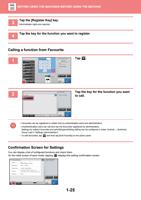
CONFIRMATION SCREEN FOR FAVOURITE MENUS
AND SETTINGS
When you register frequently used functions you have configured for copying or image sending in favourite, you can
quickly call them.
Favourite can be used in normal mode.
Registering a function in Favourite
1
Colour Mode
Full Colour
Original
Auto A4
Paper Select
Auto
2-Sided Copy
1-Sided→1-Sided
Copy Ratio
100%
Exposure
Auto
Sort/Group
Auto
Others
No. of copies
78
45
12
0
1
9
6
3
C
1 A4
2 B5
3 B4
4 A3
Plain
A4
Send as well as print
Quick File
Store Data Temporarily
File
Store Data in Folder
Call Eco Program
Preview
CA
B/W
Start
Colour
Start
Tap .
2 Tap [Edit Favorite] on the action panel.
1-24