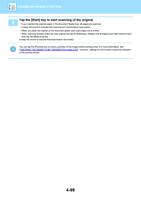
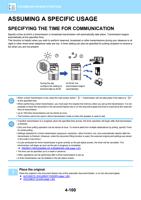
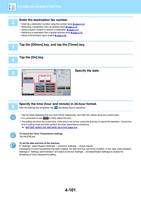
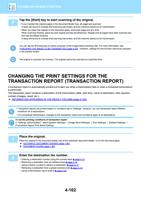
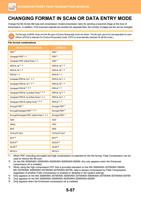
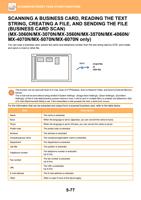
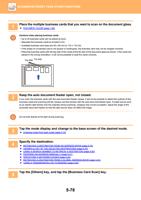
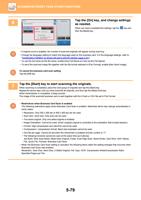
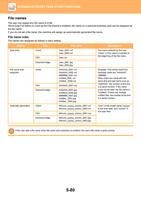
- You are here:
- AM.CO.ZABuythisCNC Utilities Homepage
- Office-Softwares
- Sharp MX Printer Manual.pdf
- Page 24 of 934
BEFORE USING THE MACHINE►BEFORE USING THE MACHINE
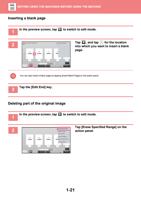
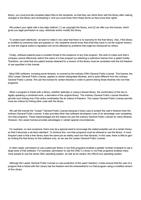
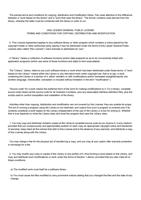
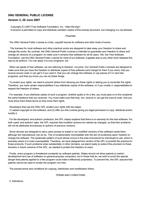
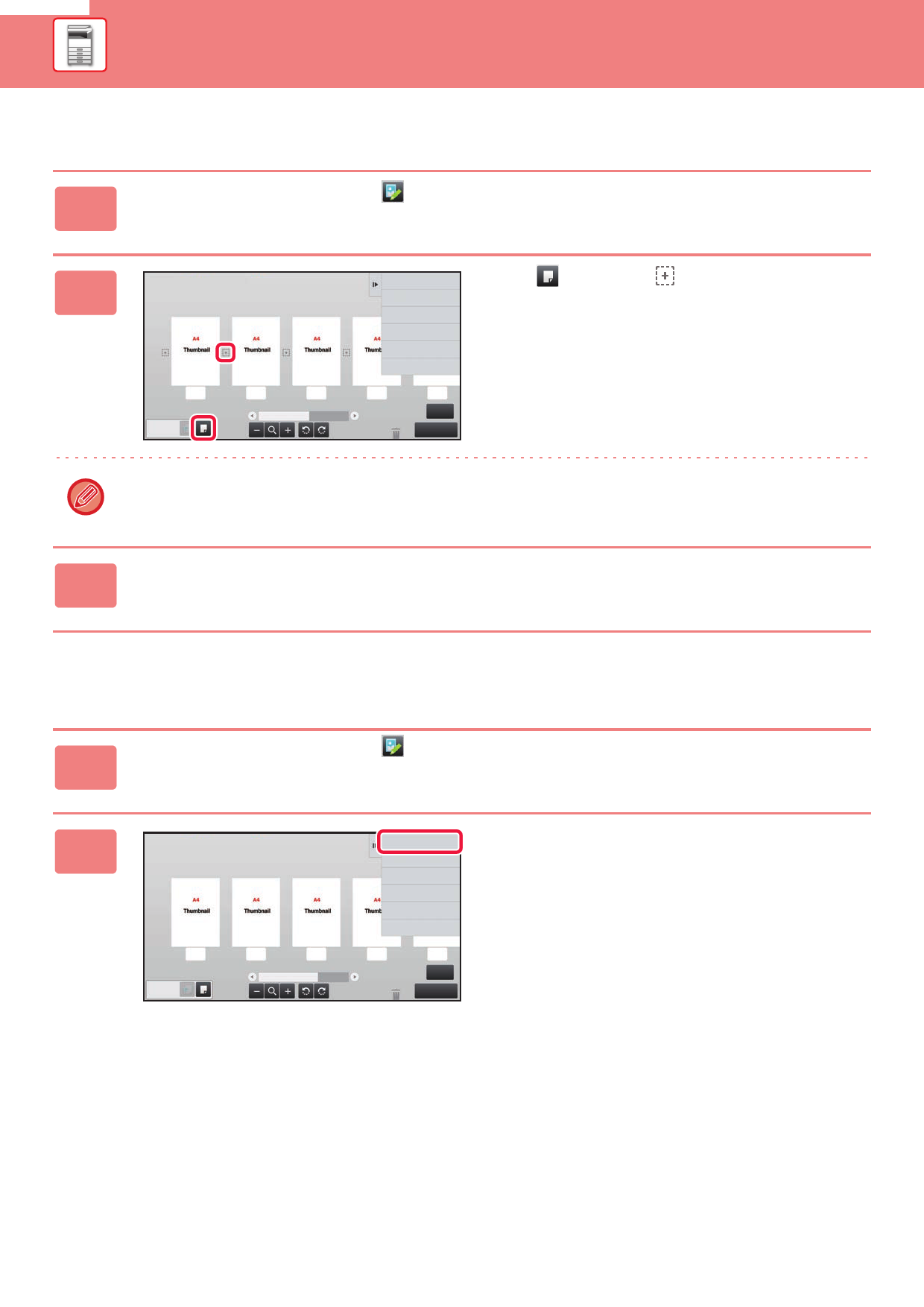
Inserting a blank page
1 In the preview screen, tap to switch to edit mode.
2
Select the location to insert blank
page.
Cancel and Return
Tap , and tap for the location
into which you want to insert a blank
page.
1
2
3
4
5
4
Edit End
You can also insert a blank page by tapping [Insert Blank Page] on the action panel.
3 Tap the [Edit End] key.
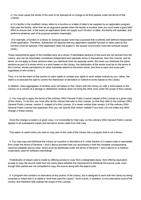
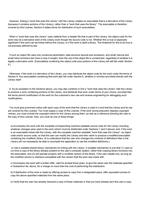
Deleting part of the original image
In the preview screen, tap
1
to switch to edit mode.
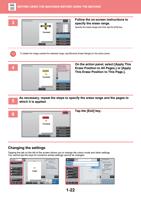
Tap [Erase Specified Range] on the
2
Erase Specified Range
Erase Specified Original Area
Delete the Page
action panel.
Move the Page
Rotate 180 Degrees
Specify Chapter Inserts
Insert Blank Page
1
2
3
4
5
6
Edit End
1-21