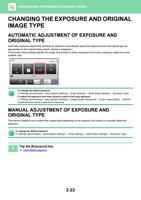
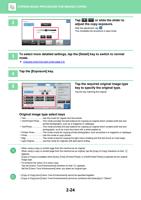
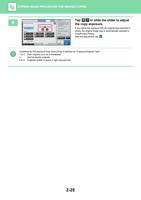
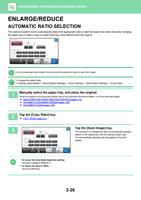
- You are here:
- AM.CO.ZABuythisCNC Utilities Homepage
- Office-Softwares
- Sharp MX Printer Manual.pdf
- Page 25 of 934
BEFORE USING THE MACHINE►BEFORE USING THE MACHINE
3
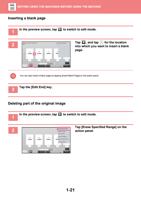
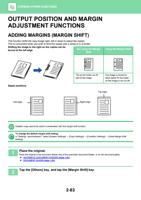
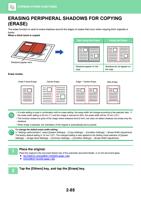
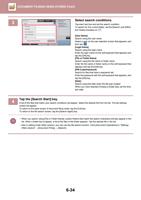
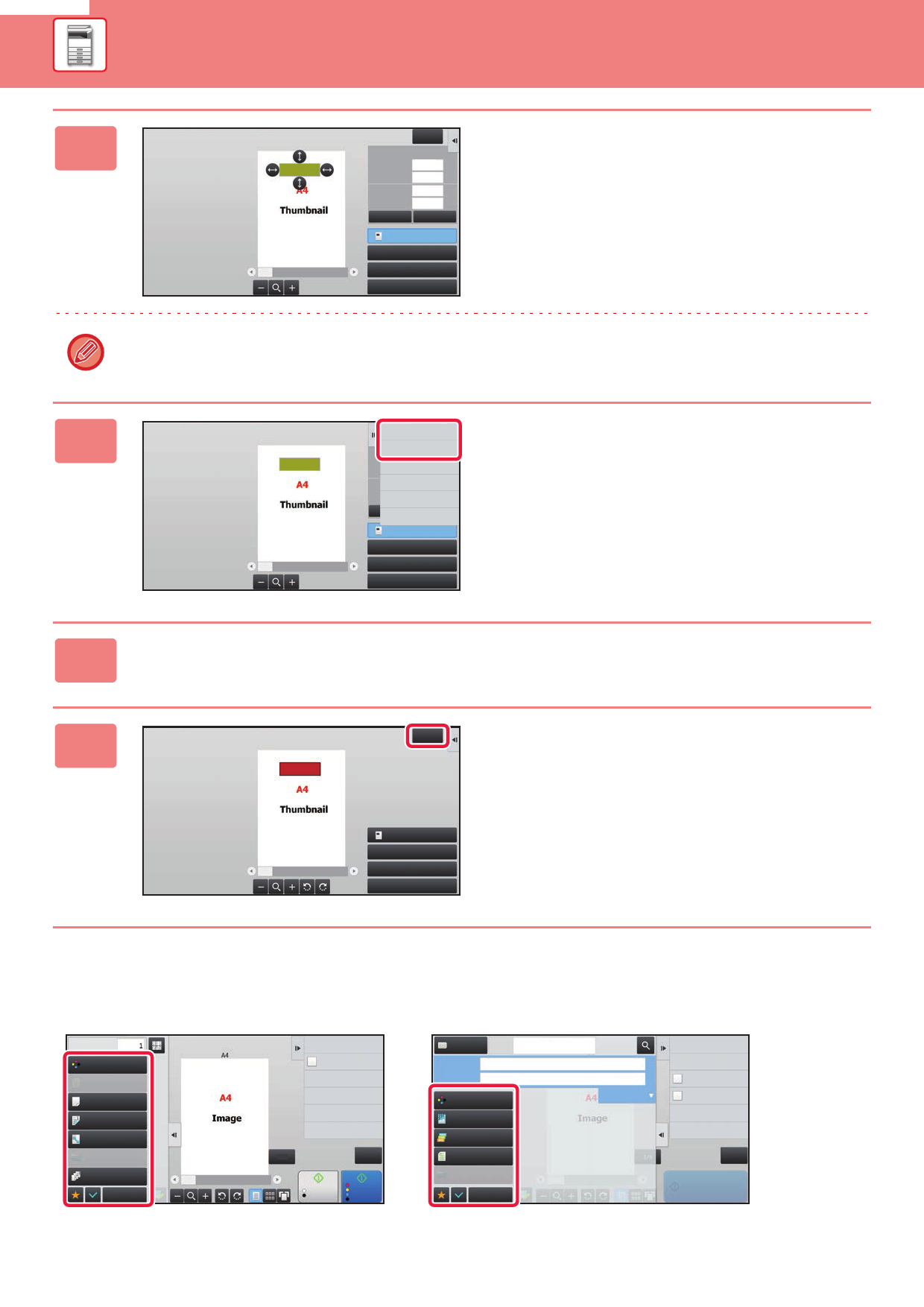
Erase Specified Range
Start Point
X
Y
Height
Width
Clear
Exit
53
31
31
97
OK
Specify Range2
Specify Range3
Specify Range4
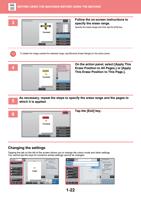
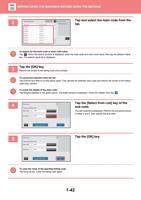
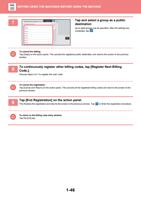
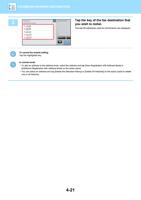
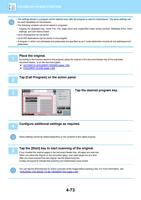
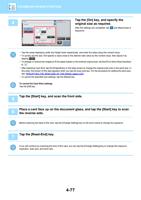
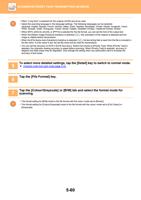
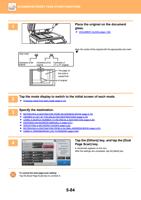
Follow the on-screen instructions to
specify the erase range.
Specify the erase range and then tap the [OK] key.
To delete the image outside the selected range, tap [Reverse Erase Range] on the action panel.
4
Erase Specified Range
Apply This Erase
Position to All Pages.
Apply This Erase
StartPPoosiintiton to This Page.
Reverse Erase Range
Height
Width
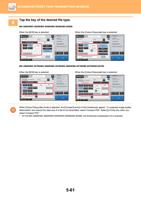
On the action panel, select [Apply This
Erase Position to All Pages.] or [Apply
This Erase Position to This Page.].
Specify Range2
Specify Range3
Specify Range4
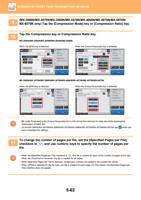
As necessary, repeat the steps to specify the erase range and the pages to
5 which it is applied.
6
Erase Specified Range
Tap the [Exit] key.
Exit
Erase Range1
Specify Range2
Specify Range3
Specify Range4
Changing the settings
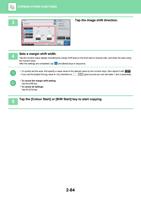
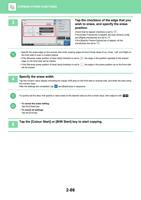
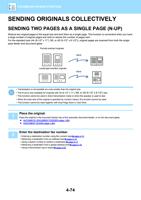
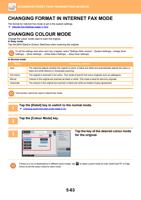
Tapping the tab on the left of the screen allows you to change the colour mode and other settings.
You cannot tap the keys for functions whose settings cannot be changed.
Copies
Colour Mode
Full Colour
Original
Auto A4
Paper Select
Auto
2-Sided Copy
1-Sided 1-Sided
Copy Ratio
100%
Exposure
Auto
Sort/Group
Auto
Others
Send as well as print
Quick File
Store Data Temporarily
File
Store Data in Folder
Scan Original Again
Without change Settings
1 / 6
CA
B/W
Start
Colour
Start
Address Book Address Touch to input Address
Subject
File Name Specified by System Settings
Colour Mode
Auto/Mono2
Resolution
200x200dpi
File Format
PDF
Original
Exposure
Auto
Others
Options
Sending History
Call Search Number
Send Same Image
as Fax Address
Quick File
Store Data Temporarily
Check Send/Receive
Status
File
Store Data in Folder
CA
Start
1-22