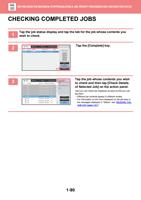
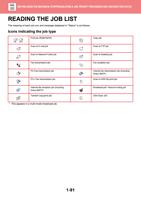
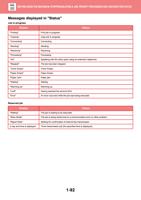
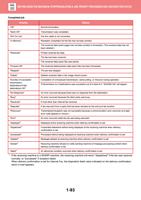
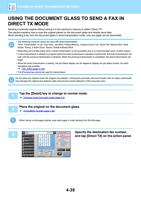
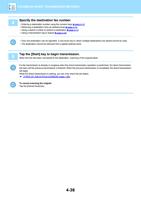
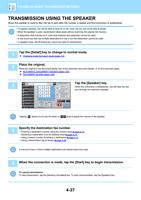
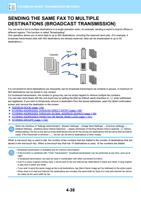
- You are here:
- AM.CO.ZABuythisCNC Utilities Homepage
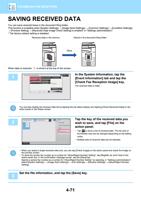
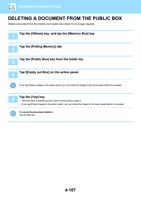
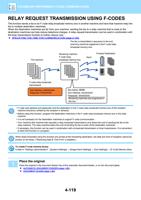
- Office-Softwares
- Sharp MX Printer Manual.pdf
- Page 17 of 934
BEFORE USING THE MACHINE►BEFORE USING THE MACHINE
HOME SCREEN
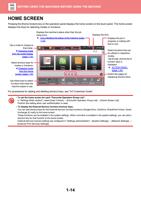
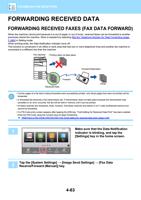
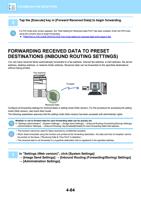
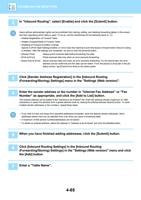
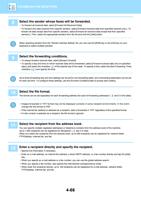
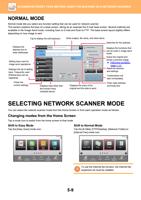
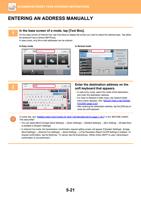
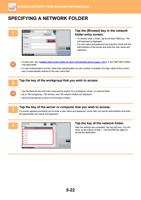
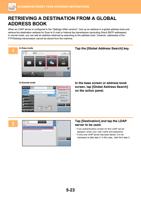
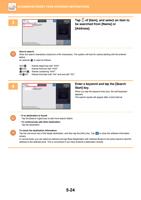
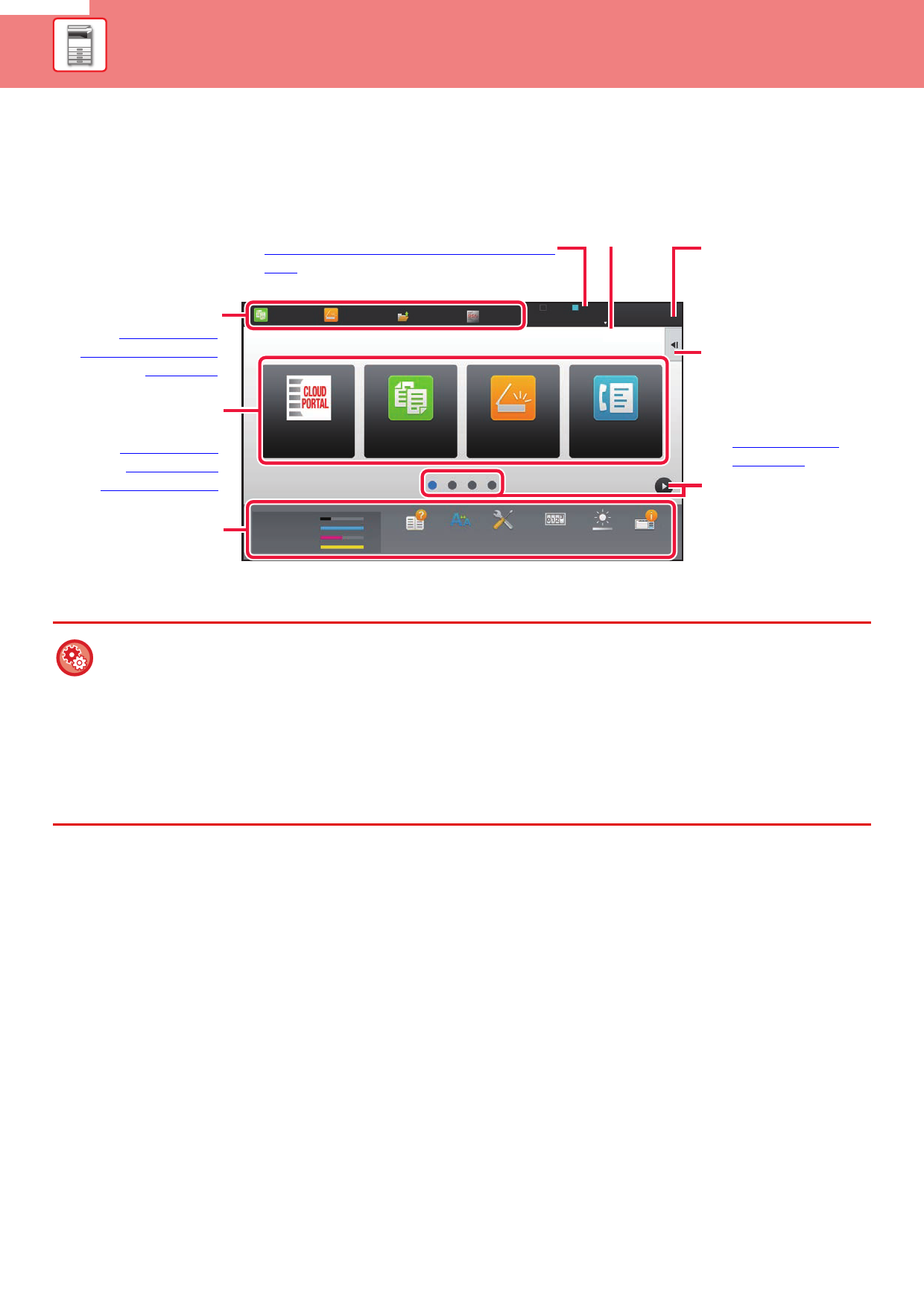
Pressing the [Home Screen] key on the operation panel displays the home screen on the touch panel. The home screen
displays the keys for selecting modes or functions.
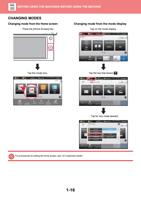
Tap a mode to change to
that mode.
►Changing mode
from the mode display
(page 1-16)
Select shortcut keys for
modes or functions.
►Changing mode
from the Home
screen (page 1-16)
Use these keys to select
functions that make the
machine easier to use.
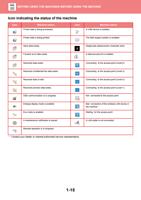
Displays the machine's status other than the job
using icons.
► Icon indicating the status of the machine (page
1-15)
Displays the time.
Displays the job in
progress or waiting with
text or icon.
Easy
Copy
Easy
Scan
HDD
File retrieve
Sharp OSA
LINE
PRINTER
Job Status
10:15
CLOUD PORTAL
Easy
Copy
Easy
Scan
Easy
Fax
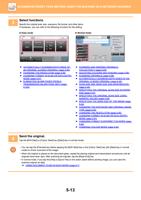
Select functions that can
be utilized in respective
modes.
Tap the tab, and the list of
function keys is
displayed.
► ACTION PANEL
(page 1-24)
Bk
Toner Quantity C
M
Y
Operation Enlarge Settings
Guide Display Mode
Total Count Brightness Job Status
Adjustment
Switch the pages for
displaying shortcut keys.
For procedures for adding and deleting shortcut keys, see "U/I Customize Guide".
• To set the home screen for each "Favourite Operation Group List":
In "Settings (Web version)", select [User Control] → [Favourite Operation Group List] → [Home Screen List].
Perform this setting when user authentication is used.
• To display the External Service Connect shortcut keys:
You can add shortcut keys for the External Service Connect functions (Google Drive, OneDrive, SharePoint Online, Gmail,
Exchange (E-mail)) to the home screen.
These functions can be enabled in the system settings. When a function is enabled in the system settings, you can add a
shortcut key for that function to the home screen.
External Service Connect settings are configured in "Settings (administrator)" - [System Settings] → [Network Settings] →
[External Print Services Settings].
1-14