Shanghai Fangling Computer Software Co., LTD.
Tel: 021-34290970 Website: www.flcnc.com
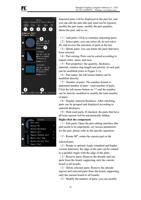
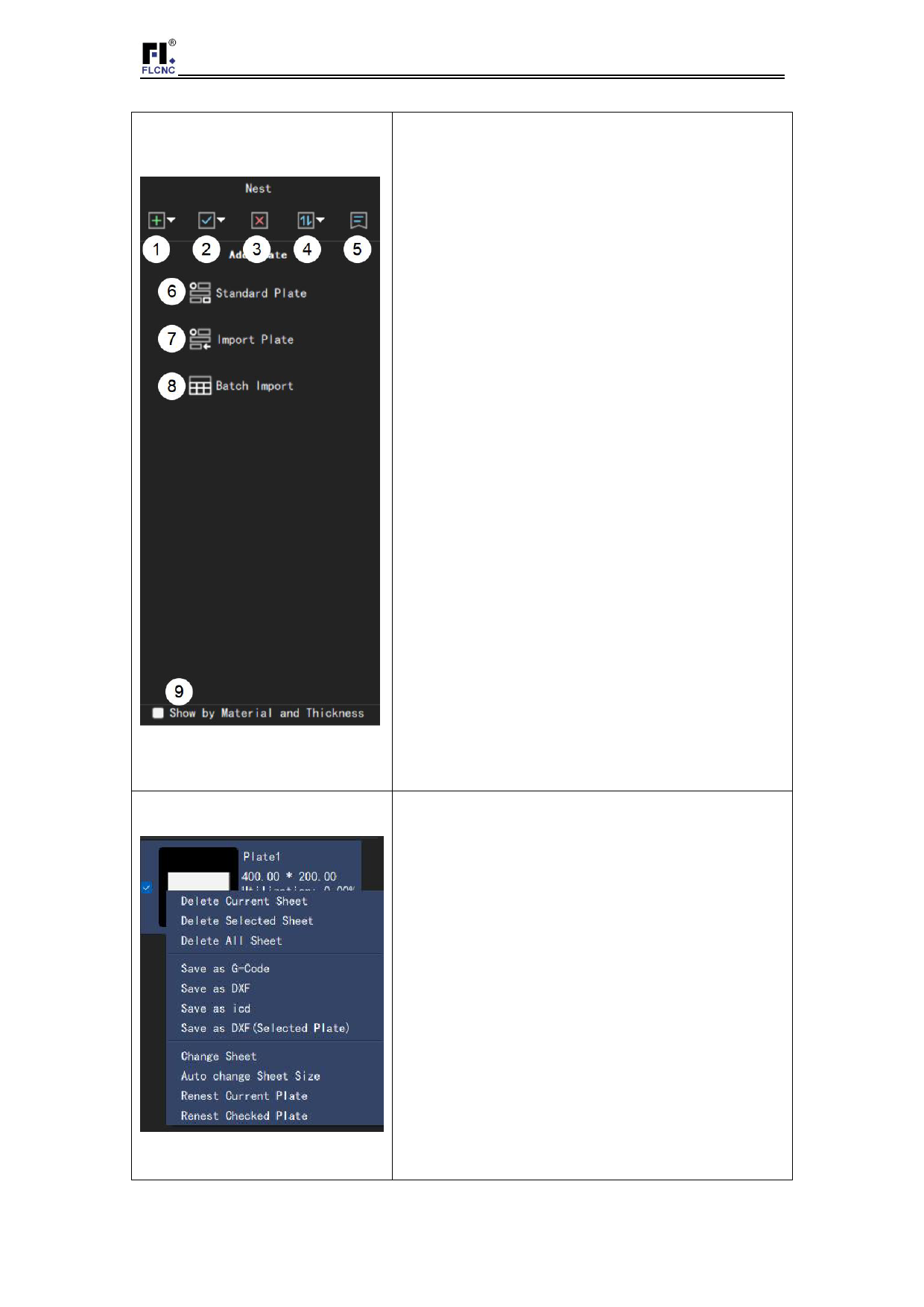
Add panels
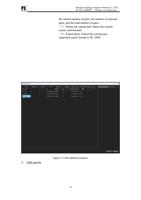
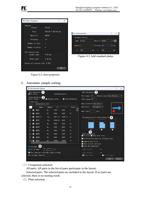
(1)Add panels: Continue to add panels, the first
three items correspond to (6) (7) (8). The fourth
item of panel management is shown in Figure 4-1;
(2)Select the board: you can select all, do not
select all, reverse selection;
(3)Remove parts: remove the selected plates;
(4)Plate sorting: can be sorted by utilization
rate, name and area;
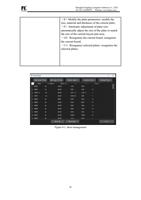
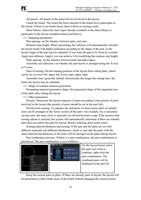
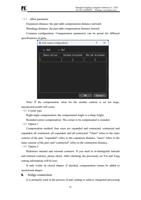
(5)Plate properties: Display the parameter
information of the current plate, refer to Figure 4-2
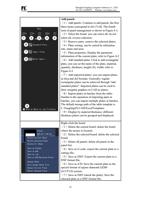
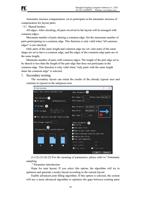
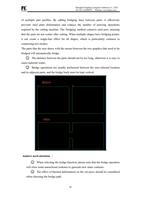
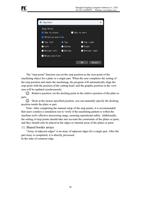
(6)Add standard plate: Click to add rectangular
plate, you can set the name of the plate, material,
quantity, thickness, length (X), width; refer to
Figure 4-3
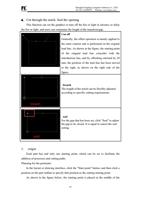
(7)Add imported plates: you can import plates
in dwg and dxf formats. Generally, regular
rectangular plates can be achieved through "add
standard plates". Imported plates can be used to
draw irregular graphics in CAD as plates;
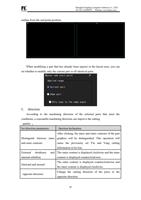
(8)Import plates in batches from the table:
Similar to the operation of importing parts in
batches, you can import multiple plates in batches.
The default storage path of the table template is
C:\Fangling\FLCAM\ExcelTemplates
(9)Display by material thickness: different
thickness plates can be grouped and displayed.
Right-click the board
(1)Delete the current board: delete the board
where the mouse is located;
(2)Delete the selected board: delete the selected
board;
(3)Delete all panels: delete all panels in the
panel list;
(4)Save as G code: export the current plate to a
cutting file;
(5)Save as DXF: Export the current plate to a
DXF format file;
(6)Save as iCD: Save the current plate as the
special format of square diamond L8200
(iCUT3.0) system;
(7)Save as DXF (check the plate): Save the
selected plate as a DXF format file;
15